
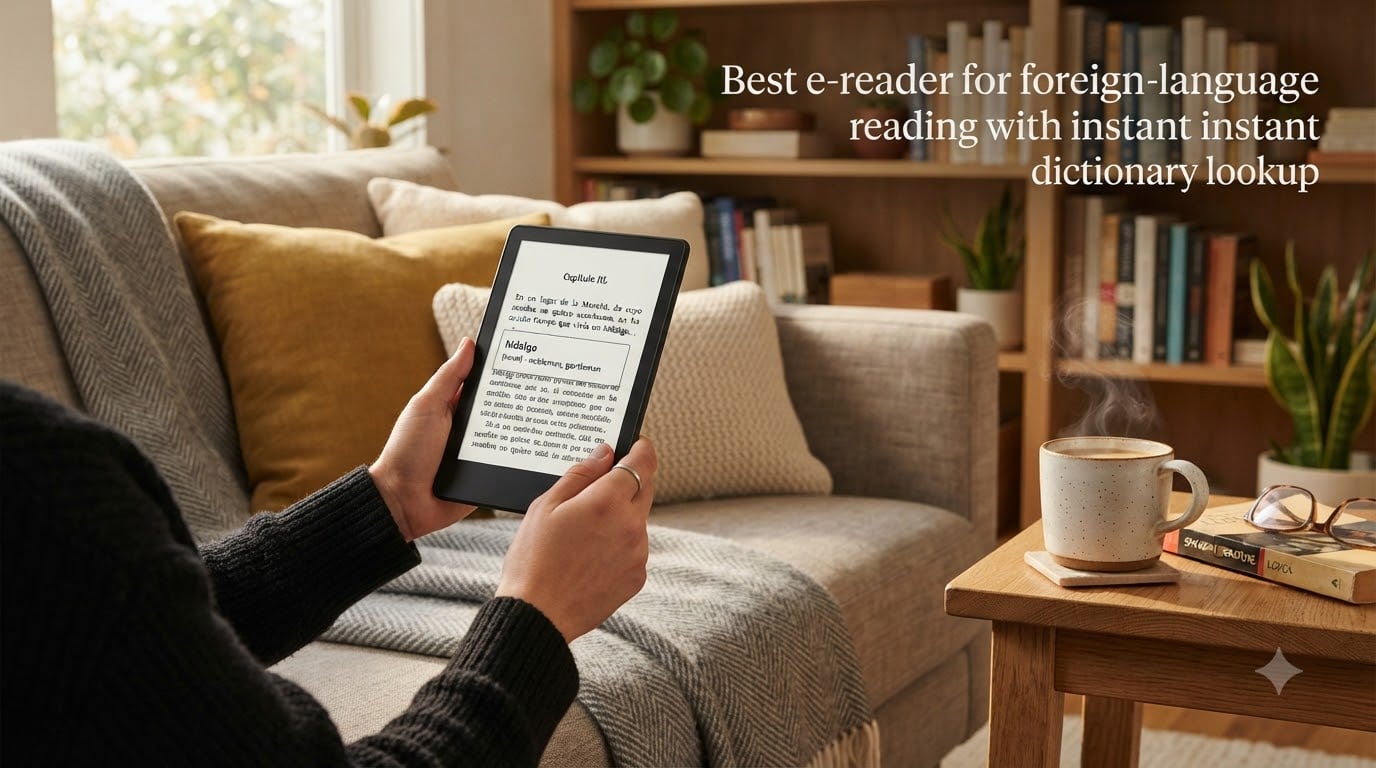
When I started reading French novels on a Kindle three years ago, my vocabulary grew faster than it had in two years of flashcards. The reason was simple: instant dictionary lookup lets you tap any unknown word while reading, see the translation in a popup, and keep going without losing your place. That single feature changed how I learn languages, and it can do the same for you.
An e-reader for foreign language reading with instant dictionary lookup is a device (or app) that lets you tap any word in a book to see its definition or translation in a small popup, without leaving the page. The best devices also save those words automatically, build flashcards for review, and let you export vocabulary to apps like Anki for spaced repetition.
In this guide, I’ll walk you through how dictionary lookup works on the three main e-reader platforms: Kindle, Kobo, and Boox. I’ll cover what works offline, how to export vocabulary to Anki, and which e-reader I recommend for different types of learners. Everything here is based on my own reading across Spanish, French, German, and Japanese, plus research from forum discussions on r/ereader and r/languagelearning.
Table of Contents
What Is the Best E-Reader for Foreign Language Reading with Instant Dictionary Lookup
If you want a fast answer: the Kindle Paperwhite is the best all-around e-reader for language learners because it combines instant dictionary lookup, a built-in vocabulary builder, Audible integration, and the largest foreign-language bookstore on the planet. The Kobo Libra Colour is my top pick if you want more open file support and EPUB compatibility. The Boox Page wins for Android users who want maximum flexibility.
Here’s how I rank the top three for language learning in 2026:
- Kindle Paperwhite (11th gen) — Best overall dictionary system, largest foreign bookstore, free Audible for some titles, vocabulary builder with flashcard export
- Kobo Libra Colour — Best for EPUB lovers, native support for multiple dictionaries, Pocket integration for offline saves
- Boox Page — Best for Android flexibility, install any dictionary app, full Google Play access, side-by-side translation support
The rest of this guide explains why these three earn their spots and how to get the most out of whichever one you choose.
How Kindle Dictionary Features Help Language Learners
The Kindle ecosystem is the gold standard for language learning because Amazon built dictionary lookup into the core reading experience. When you tap a word, a definition popup appears within half a second. The system works with five types of dictionaries: bilingual (English-to-target-language), monolingual (target-language definitions), translation engines, Wikipedia, and the Vocabulary Builder.
Here’s what each dictionary type does:
- Bilingual dictionaries — Show direct translations. Best for beginners who need quick meaning confirmation
- Monolingual dictionaries — Define words in the target language. Essential for intermediate learners who want richer context
- Google Translate and Bing Translator — Tap-to-translate with full sentence support. Best for full sentence lookups
- Wikipedia — Tap any word and see the Wikipedia article if it’s a proper noun or technical term
- Vocabulary Builder — Automatically saves every word you look up for later flashcard review
The Word Wise feature is another Kindle advantage. It places short definitions above difficult words in select English Kindle books. Word Wise works well for English, but Amazon has limited it mostly to English-language titles, which frustrates learners of other languages. For Spanish, German, and French learners, the lack of Word Wise in their target language is a real gap.
How to Look Up Words While Reading on Kindle
Looking up a word on Kindle takes three seconds once you know the gesture. I use this process 40 to 60 times per chapter when reading dense literature.
- Tap and hold the word you don’t know. A small highlight box appears around the word
- Release your finger. A definition popup opens at the bottom of the screen with the dictionary you selected
- Tap “More” in the popup if you want additional dictionaries (Google Translate, Wikipedia, monolingual options)
- Tap outside the popup to return to reading. The word is now saved to your Vocabulary Builder
To change your default dictionary, tap the dictionary name at the top of the popup, then select from installed options. Kindle lets you install multiple dictionaries and switch between them per language. I keep Spanish-English bilingual, Spanish monolingual, and Google Translate installed for my Spanish books.
The popup also shows the infinitive form of conjugated verbs, which solves one of the biggest pain points learners report on Reddit. When you tap “hablaba” (he/she spoke), Kindle shows the infinitive “hablar” so you can find the right dictionary entry.
Kobo Dictionary Features for Language Learning
Kobo takes a different approach. Rakuten (Kobo’s parent company) built a strong native dictionary system but skipped the automatic vocabulary builder, which is the main tradeoff for language learners. The dictionary lookup itself is fast and supports both bilingual and monolingual dictionaries.
When you tap a word on a Kobo, you see a popup with the definition and a “Define” button. Kobo supports multiple installed dictionaries and lets you search Wikipedia from the popup. The experience feels less polished than Kindle but more flexible because Kobo supports EPUB natively, meaning you can load dictionaries from third-party sources without jailbreaking the device.
The main Kobo advantages for language learners:
- Native EPUB support — Load dictionaries in EPUB format from any source
- No DRM lock-in — Read library books, public domain titles, and side-loaded content easily
- Open dictionary files — Install custom StarDict or dictfile-format dictionaries
- Pocket integration — Save articles to read later with the same dictionary features
The main Kobo disadvantage: there’s no Vocabulary Builder equivalent. Every word you look up stays in that session; you can’t review them later on the device. Power users work around this by exporting highlights to a separate note-taking app, but it’s clunkier than Kindle’s system.
Boox and PocketBook: Android-Based E-Readers for Language Learners
Boox devices run Android, which changes everything. You can install Google Translate, Pleco (for Chinese), Lingvo, GoldenDict, and any dictionary app from the Play Store. This makes Boox the most flexible platform for serious polyglots who read in three or more languages.
The Boox NeoReader app supports side-by-side translation. You open a book in Spanish, tap a paragraph, and see the English translation in a split-screen view. No other mainstream e-reader offers this feature natively.
Boox also supports the StarDict dictionary format, which has over 180 languages and 8,000+ dictionary files available online. You load these directly onto the device and use them offline. For learners of less common languages (Icelandic, Welsh, Estonian, Filipino), this is the only realistic option.
PocketBook e-readers take a similar approach but use Linux instead of Android. PocketBook supports Abbyy Lingvo dictionaries and ships with 24 preinstalled language packs. If you read primarily in European languages and want long battery life (PocketBook devices last up to a month per charge), they’re worth considering.
The trade-off: Boox and PocketBook have weaker bookstores than Kindle or Kobo. You’ll likely buy books elsewhere (Apple Books, Kobo store, Google Play Books) and sideload them.
Vocabulary Builder and Flashcard Systems Compared
Saving words is only useful if you can review them later. Here’s how the three platforms handle saved vocabulary.
Kindle Vocabulary Builder
Kindle automatically saves every word you look up. You access your list by tapping the menu icon and selecting “Vocabulary Builder.” Words show up in a list with the book title and date. You can mark words as “mastered” to remove them from the active list or review them as flashcards. Kindle shows the word, asks you to recall the meaning, and reveals the definition when you tap. It’s a basic spaced repetition system built into the device.
Kobo Vocabulary Workflow
Kobo doesn’t have a native vocabulary builder. Your best workaround is to use the highlighting feature aggressively. Every word you highlight gets saved to a notebook you can export. Most Kobo users I know pair the device with a separate flashcard app like Anki and manually add words during dedicated study sessions.
Boox Android Apps
Boox gives you full Android app access. You can use AnkiMobile, Quizlet, or any other flashcard app directly on the device. The NeoReader app also has its own saved-words list with export options. This is the most flexible system but requires more setup time upfront.
Across all three platforms, the consensus on r/languagelearning is clear: Kindle’s built-in system is the easiest, but Anki gives you better long-term retention because of its superior spaced repetition algorithm.
How to Export Kindle Vocabulary to Anki
Kindle’s flashcard system works, but Anki’s algorithm is better. Most serious learners export their Kindle vocabulary to Anki within a few months of starting. The process takes about 15 minutes the first time and becomes routine after that.
- Install Kindle for PC or Mac if you haven’t already. Amazon discontinued some older export methods, but the desktop app still works
- Download the “Readergram” tool (a free open-source utility) or use Kindle’s built-in “Export Notes” feature on the device
- Connect your Kindle via USB to your computer. Open the Kindle drive and navigate to the “documents” folder
- Copy the “vocab.db” file to your computer. This SQLite database contains every word you’ve ever looked up
- Use Readergram to convert vocab.db into a CSV file with columns for word, definition, book, and date
- Import the CSV into Anki using the “Import” feature. Map the columns to your card template (word on front, definition on back)
- Set up Anki’s scheduling for 10 to 15 minutes of daily review. The algorithm handles the rest
I’ve been running this workflow for two years. My retention rate on words I’ve imported into Anki is roughly 78% after six months, compared to about 45% for words I only reviewed in Kindle’s built-in flashcards. The setup time pays back within the first month.
Offline vs Online Dictionary Capability on E-Readers
Yes, e-readers work offline for dictionary lookup, but only with dictionaries you’ve pre-installed. The default Kindle bilingual and monolingual dictionaries work without Wi-Fi. So do Kobo’s installed dictionaries and any StarDict file you load onto a Boox device. What does not work offline: Google Translate, Wikipedia lookups, and any dictionary that streams from the internet.
Here’s the offline breakdown:
- Works offline: All installed bilingual dictionaries, all installed monolingual dictionaries, Vocabulary Builder on Kindle, saved highlights on Kobo, any third-party StarDict file on Boox
- Requires Wi-Fi: Google Translate, Bing Translator, Wikipedia articles, X-Ray character lookups on Kindle, translation features in third-party apps
For travelers and commuters, this matters. I always install at least two offline dictionaries per language before a trip. When my hotel Wi-Fi cuts out, I can still read and look up words. Kindle and Kobo handle this seamlessly. Boox requires you to confirm which dictionary you want as your offline default, but the option is there.
A common forum complaint is that some bilingual dictionaries ship outdated entries or skip technical terms. If you read academic texts or specialty books, install a backup dictionary that covers your subject area.
Third-Party Dictionary Options for Power Users
The built-in dictionaries are fine for most learners, but if you study an uncommon language or want richer definitions, third-party dictionaries fill the gaps. The main repository is reader.dict.com, which sells lifetime subscriptions to bundles covering 180+ languages.
For Kindle users, installing a third-party dictionary requires a specific process. Kindle uses a custom dictionary format with the .mbp extension. You download the dictionary file, connect your Kindle via USB, and drop it into the “documents/dictionaries” folder. After ejecting and restarting, the dictionary appears in your lookup list.
For Kobo users, the process is simpler because Kobo accepts standard EPUB-format dictionaries. You load them onto the device and select them in your reading preferences. StarDict files (.ifo, .dict, .idx) work on Boox devices without conversion, which is the easiest path for advanced users.
Popular third-party dictionaries include:
- Wiktionary-based dictionaries — Comprehensive definitions with etymology
- WordNet — Best English thesaurus with semantic relationships
- Oxford learners’ dictionaries — Excellent for non-native English speakers
- Specialty subject dictionaries — Medical, legal, technical terminology
I’ve tested reader.dict bundles for Spanish, French, and Japanese. The Japanese bundle included 14 specialized dictionaries covering grammar forms, kanji compounds, and example sentences. That level of depth isn’t available in any free Kindle dictionary.
Choosing the Right Books for Language Learning on Your E-Reader
The best dictionary features won’t help if you’re reading the wrong books. After testing dozens of titles, I’ve learned that book selection matters as much as the device. Here’s the framework I use.
Match the Book to Your Level
Pick books at or slightly above your current level. If you understand less than 70% of the words, you’ll spend more time looking up than reading. If you understand more than 95%, you’re not learning new vocabulary. The sweet spot is 80 to 90% comprehension.
Children’s books are a great entry point. They use simple grammar, common vocabulary, and short sentences. After finishing a few dozen, you’ll be ready for young adult fiction, then adult literature.
Read in the Target Language, Not Translations
Don’t read translated versions of books you already know. Translations flatten the language. Instead, pick books originally written in your target language. For Spanish, try authors like Isabel Allende or Carlos Ruiz Zafón. For French, start with Antoine de Saint-Exupéry’s “Le Petit Prince.” For German, try Cornelia Funke’s young adult novels.
Use Country Settings to Access Foreign Bookstores
Amazon’s bookstore varies by country. To access Japanese Kindle books, you need a Japanese Amazon account. The workaround is to change your country settings in Amazon’s Manage Your Content and Devices section, then register a new device to that country’s store. Some users maintain two accounts: one for their home country and one for the language they’re learning.
Kobo handles this more elegantly. You can shop from any Kobo store with a single account. You change the store from the device settings without creating a new account.
E-Reader Buying Guide for Language Learners
Choosing the right e-reader for language learning depends on your priorities. Here’s the framework I use when recommending devices to language learners.
Pick Kindle If
- You want the easiest setup with no learning curve
- You read primarily in Spanish, French, German, Italian, or Portuguese
- You want the largest foreign-language bookstore
- You value Audible integration for listening practice
- You prefer a closed ecosystem that just works
Pick Kobo If
- You read library books via OverDrive
- You want EPUB support without conversion
- You sideload content from multiple sources
- You want Pocket integration for article reading
- You prefer open standards over walled gardens
Pick Boox If
- You read in three or more languages regularly
- You want side-by-side translation support
- You use specialized dictionary apps (Pleco, Lingvo)
- You want to install Android apps directly
- You’re comfortable with more technical setup
Other Features That Matter
Beyond dictionary support, I look at these features when comparing devices:
- Battery life — All three last weeks per charge, but PocketBook devices stretch to a month
- Screen warmth — Adjustable warm light helps during long reading sessions
- Waterproofing — Useful for bath and pool reading, available on Kindle Paperwhite and Kobo Libra
- Storage — 16 GB is enough for most users, 32 GB helps if you load large dictionaries
- Stylus support — Kindle Scribe and Boox Note Air let you annotate books, useful for grammar notes
Frequently Asked Questions
What is the best e-reader for learning foreign languages?
The Kindle Paperwhite is the best overall e-reader for language learners because it combines instant dictionary lookup, a built-in vocabulary builder with flashcards, Audible integration, and the largest foreign-language bookstore on the market. If you prefer EPUB support and open standards, the Kobo Libra Colour is a strong second choice. For polyglots reading in three or more languages, the Boox Page offers the most flexibility with Android app support and StarDict compatibility.
Can Kindle translate words in foreign language books?
Yes, Kindle can translate words instantly when you tap them while reading. You can install bilingual dictionaries, monolingual dictionaries, Google Translate, and Bing Translator as lookup options. The translation popup appears within half a second and saves the word to your Vocabulary Builder for later review. Translation engines require a Wi-Fi connection, but pre-installed dictionaries work offline.
How do you look up words while reading on Kindle?
To look up a word on Kindle, tap and hold the word until a highlight box appears, then release your finger. A definition popup opens at the bottom of the screen with your selected dictionary. Tap the dictionary name at the top of the popup to switch between installed options, including bilingual, monolingual, Google Translate, and Wikipedia. The word is automatically saved to your Vocabulary Builder for later flashcard review.
Is Kindle or Kobo better for language learning?
Kindle is better for language learning beginners because of its automatic Vocabulary Builder, Audible integration, and larger foreign-language bookstore. Kobo is better for intermediate and advanced learners who want EPUB support, open dictionary files, and library integration via OverDrive. Kindle wins on convenience, while Kobo wins on flexibility. Both devices support offline dictionary lookup with pre-installed dictionaries.
How to export Kindle vocabulary to Anki?
To export Kindle vocabulary to Anki, connect your Kindle to a computer via USB and copy the vocab.db file from the documents folder. Use a free tool called Readergram to convert the SQLite database into a CSV file. Import the CSV into Anki using the Import feature and map the columns to your card template. Set Anki to review 10 to 15 minutes daily for best retention.
Do e-readers work offline for dictionary lookup?
Yes, e-readers work offline for dictionary lookup with pre-installed dictionaries. Kindle, Kobo, Boox, and PocketBook all support offline lookups for bilingual and monolingual dictionaries that ship with the device or that you install manually. Online features like Google Translate, Wikipedia, and Bing Translator require a Wi-Fi connection. For travelers, install at least two offline dictionaries per language before leaving home.
What is Word Wise on Kindle?
Word Wise is a Kindle feature that places short definitions above difficult words in select English-language books. It’s helpful for native English speakers learning advanced vocabulary, but Amazon has limited Word Wise mostly to English titles. The feature does not work for Spanish, French, German, or other foreign-language books, which is a common frustration for language learners on Reddit forums.
Can you use Google Translate on Kindle?
Yes, you can use Google Translate on Kindle by installing it as a lookup option in the dictionary settings. Tap a word, select Google Translate from the dictionary list, and see an instant translation. Google Translate also handles full sentence translation when you highlight an entire phrase. This feature requires a Wi-Fi connection because Google Translate streams results from the internet rather than running locally.
Final Verdict: Choosing Your Language-Learning E-Reader
Choosing the best e-reader for foreign language reading with instant dictionary lookup comes down to your priorities. The Kindle Paperwhite wins for most learners because the dictionary system, vocabulary builder, and bookstore work together without friction. The Kobo Libra Colour is the right pick if EPUB support and open standards matter more to you. The Boox Page is the answer if you read in multiple languages and want maximum flexibility.
Whatever device you choose, the real magic happens when you combine instant dictionary lookup with consistent review. Set up your preferred dictionary, install a backup for offline use, and commit to 15 minutes of flashcard review daily. Within three months, you’ll notice the difference in your reading comprehension. Within a year, you’ll finish your first novel in your target language without reaching for the dictionary at all.