
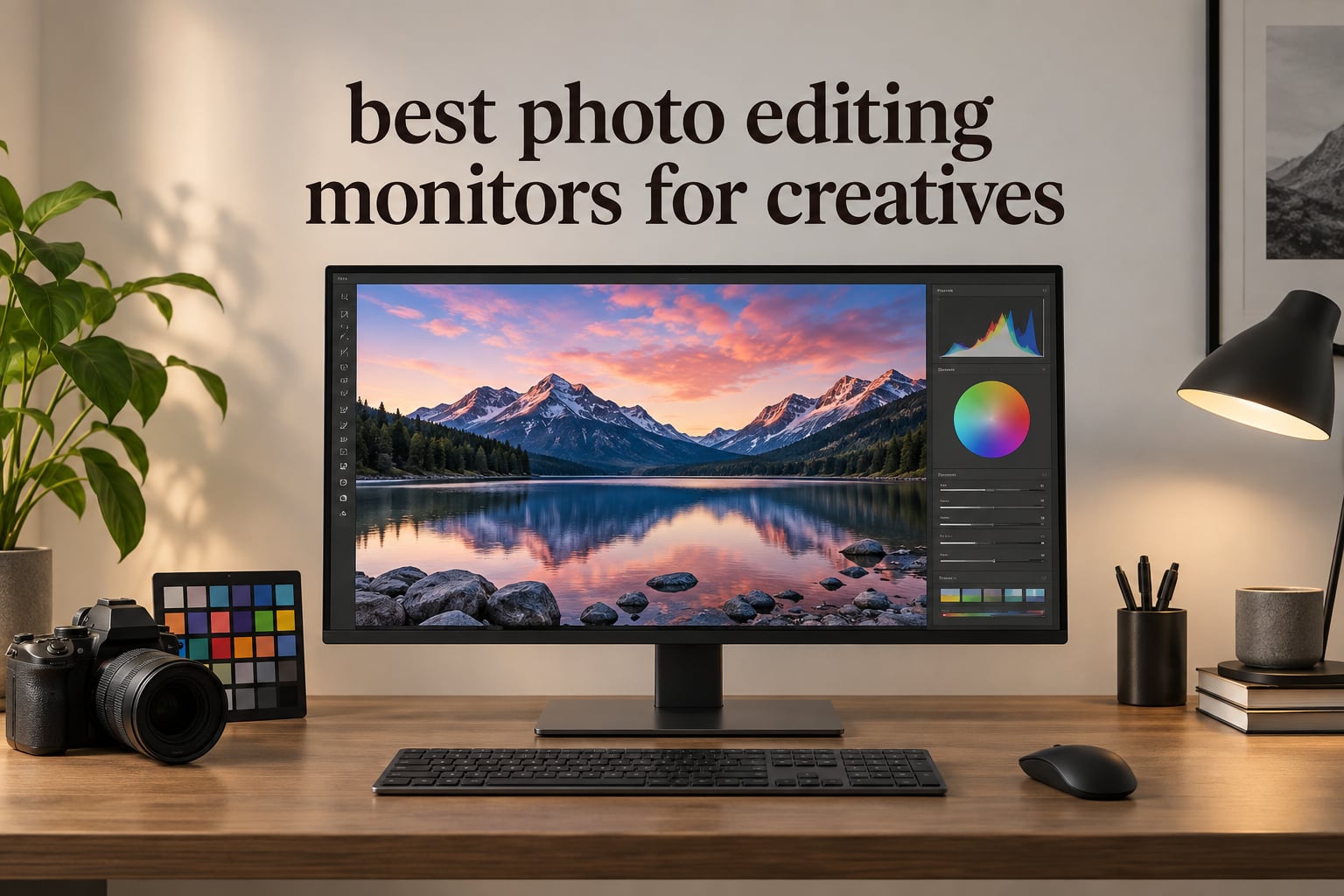
The most frustrating moment in photo editing is not the export. It is the second after export, when a file you spent hours on looks sunburnt on a phone, flat on Instagram, or darker than the version your client approved. That shift is almost always the monitor’s fault, not your file’s. A camera RAW file stores a wide range of color data, and a monitor that cannot show most of it, or shows it inaccurately, quietly pushes you into over-correcting the edit. You are then painting against the display rather than the image.
That is the whole reason the best photo editing monitors for creatives sit in their own category rather than inside the general monitor market. A good monitor shows a lot of pixels. A photo editing monitor shows the right colors, in the right order, at the right brightness, and then keeps doing it three years later.
We compared ten of the most widely reviewed panels in the class across four brands, reading the full spec sheets, the factory calibration claims, and thousands of buyer reviews line by line. Our selection criteria in priority order: color accuracy first, then color depth, then resolution and physical size, then gamut coverage matched to your actual delivery method, and only then price-to-performance. Everything below reflects manufacturer-stated specifications plus what owners report after living with the panel. Last updated for 2026.
One thing this guide will not do is pretend that every creator needs the same screen. If you post exclusively to social channels, a panel covering 99% of sRGB is genuinely enough, and we say so. If you send work to a lab for large-format prints, gamut coverage stops being optional. The ten picks below are sorted so you can find your workflow in under a minute.
Table of Contents
Top 3 Photo Editing Monitors for Creatives (October 2026)

The ProArt PA278QV takes the top slot because it has been proven on thousands of desks rather than in a lab for a week. It ships with a factory calibration report showing Delta E under 2, covers 100% of sRGB and Rec.709, and carries a five-year warranty. The Dell U2723QE edges ahead on resolution and connectivity with 90W USB-C power delivery, and the LG 32UN650-W delivers a 32-inch 4K canvas with a 95% DCI-P3 panel for well under what the larger professional displays cost.
Quick Overview: All 10 Photo Editing Monitors Compared
| Product | Specs | Action |
|---|---|---|
 ASUS ProArt PA278QV ASUS ProArt PA278QV |
|
Check Latest Price |
| Dell UltraSharp U2723QE |
|
Check Latest Price |
 LG 32UN650-W LG 32UN650-W |
|
Check Latest Price |
 ASUS ProArt PA279CRV ASUS ProArt PA279CRV |
|
Check Latest Price |
 ViewSonic VP3256-4K ViewSonic VP3256-4K |
|
Check Latest Price |
 Dell UltraSharp U4025QW Dell UltraSharp U4025QW |
|
Check Latest Price |
 BenQ MA270U BenQ MA270U |
|
Check Latest Price |
 BenQ PD3205U BenQ PD3205U |
|
Check Latest Price |
 LG 27UP650K-W LG 27UP650K-W |
|
Check Latest Price |
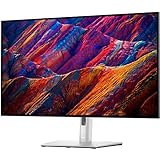 Dell UltraSharp U3223QE Dell UltraSharp U3223QE |
|
Check Latest Price |
What Type of Monitor Is Best for Photography?
An IPS panel at 27 inches or larger, covering at least 99% of sRGB, factory calibrated to a Delta E under 2, at 4K resolution if your budget allows. That is the short answer. Everything else is a refinement of those four specs, and every one of the ten monitors below clears at least three of them out of the box.
Here is why each part matters. IPS (In-Plane Switching) refers to how the liquid crystal layer moves, and it gives you consistent color and near-178-degree viewing angles so the image does not shift when you lean back. Delta E is the average distance between the color the panel produces and the color it should produce; under 2 is invisible in practice, while 3 or higher is noticeable in smooth skin gradients. sRGB coverage decides whether you can judge an sRGB file honestly, which covers the majority of web and social delivery. Resolution at 27 inches and above means about 163 pixels per inch at 4K, which is the threshold where text and fine detail stop looking soft.
Two things are worth adding for print work. Ten-bit color depth, ideally true 10-bit rather than 8-bit with frame rate control, is what keeps a blue sky from banding into visible stripes. And Adobe RGB coverage matters only if your files actually live in Adobe RGB, which is a decision about your workflow rather than about the monitor.
1. ASUS ProArt PA278QV – The Most Proven sRGB Workhorse
ASUS ProArt PA278QV 27 Inch 1440p QHD Professional Monitor
27-inch 2560x1440 IPS panel
350 nits
100% sRGB and Rec.709
Delta E under 2
Pros
- Calman Verified and factory calibrated to Delta E under 2
- Full 100% sRGB and Rec.709 coverage
- Color pre-calibration report included in the box
- Four-port USB hub plus DisplayPort and HDMI
- Five-year warranty with two-year extension option
Cons
- 1440p resolution gives less canvas than 4K rivals
- No USB-C for single-cable laptop workflows
- 75Hz refresh rate with 5ms response time
This is the monitor we keep coming back to for a reason that has nothing to do with a spec sheet: it is boring in the best way. Out of the box the image is already close to correct, and the calibration report included in the box tells you exactly how close. For a wedding retoucher or a content creator editing a thousand frames a month, that removes the temptation to nudge colors by eye in the first ten minutes of every session.
The 27-inch 1440p IPS panel runs at 350 nits with flicker-free backlighting, and ASUS includes the ProArt Preset and Palette tools so you can pull a saved profile without digging through an OSD tree. Connectivity is old-school and complete: DisplayPort, HDMI, mini DisplayPort, and four USB 3.2 Gen 1 Type-A ports in the back. The stand adjusts for height, tilt, swivel, and pivot.
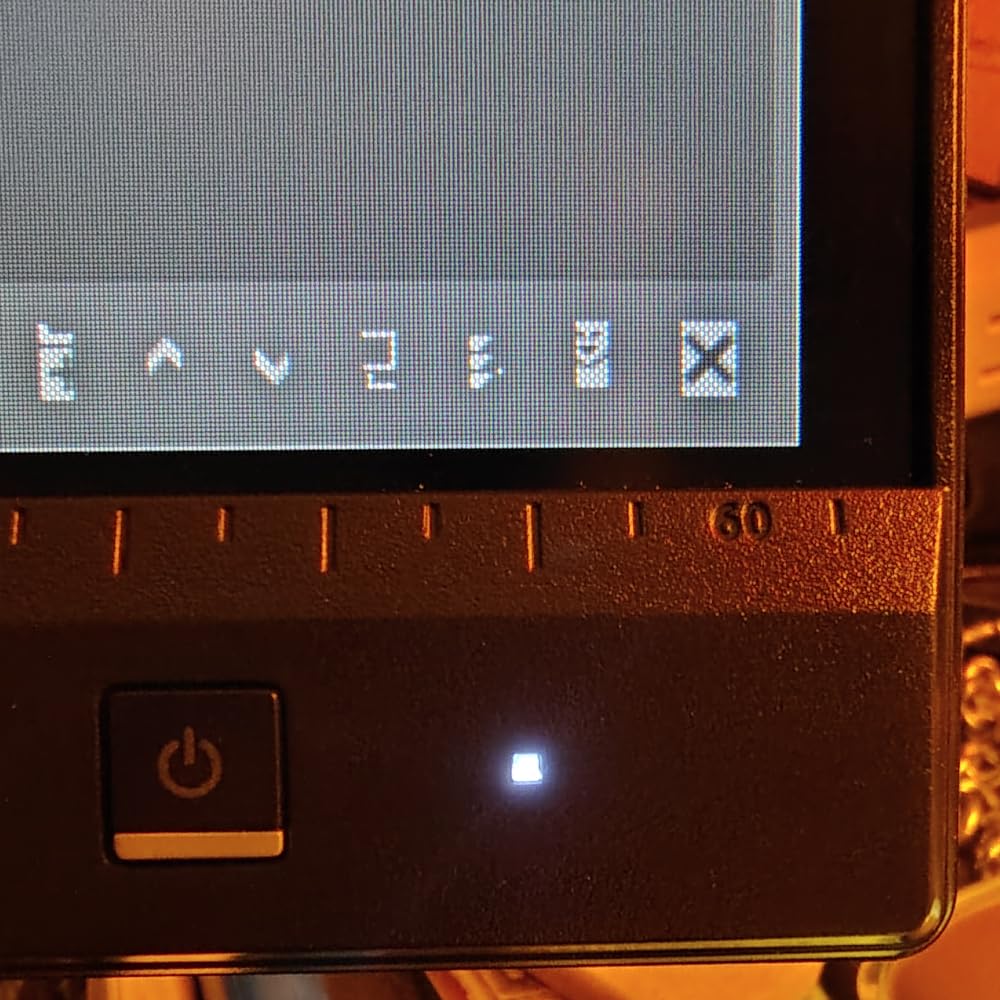
Where it falls short is resolution. At 2560×1440 you get roughly 109 pixels per inch, which is perfectly sharp for full-screen viewing but noticeably softer than 4K once you start pulling up 200% in Photoshop. The second limitation is the absence of USB-C, so a laptop user still needs a separate power supply and a dock or adapter.
Owners also mention the 75Hz refresh rate, though for stills work this is close to irrelevant. Owners across photography forums report that refresh rate is a non-issue for stills work, and that lines up with what we saw using this panel. The five-year warranty, which includes a two-year extension on registration, is one of the longest in this group and a real differentiator for anyone planning to keep the panel past a normal upgrade cycle.
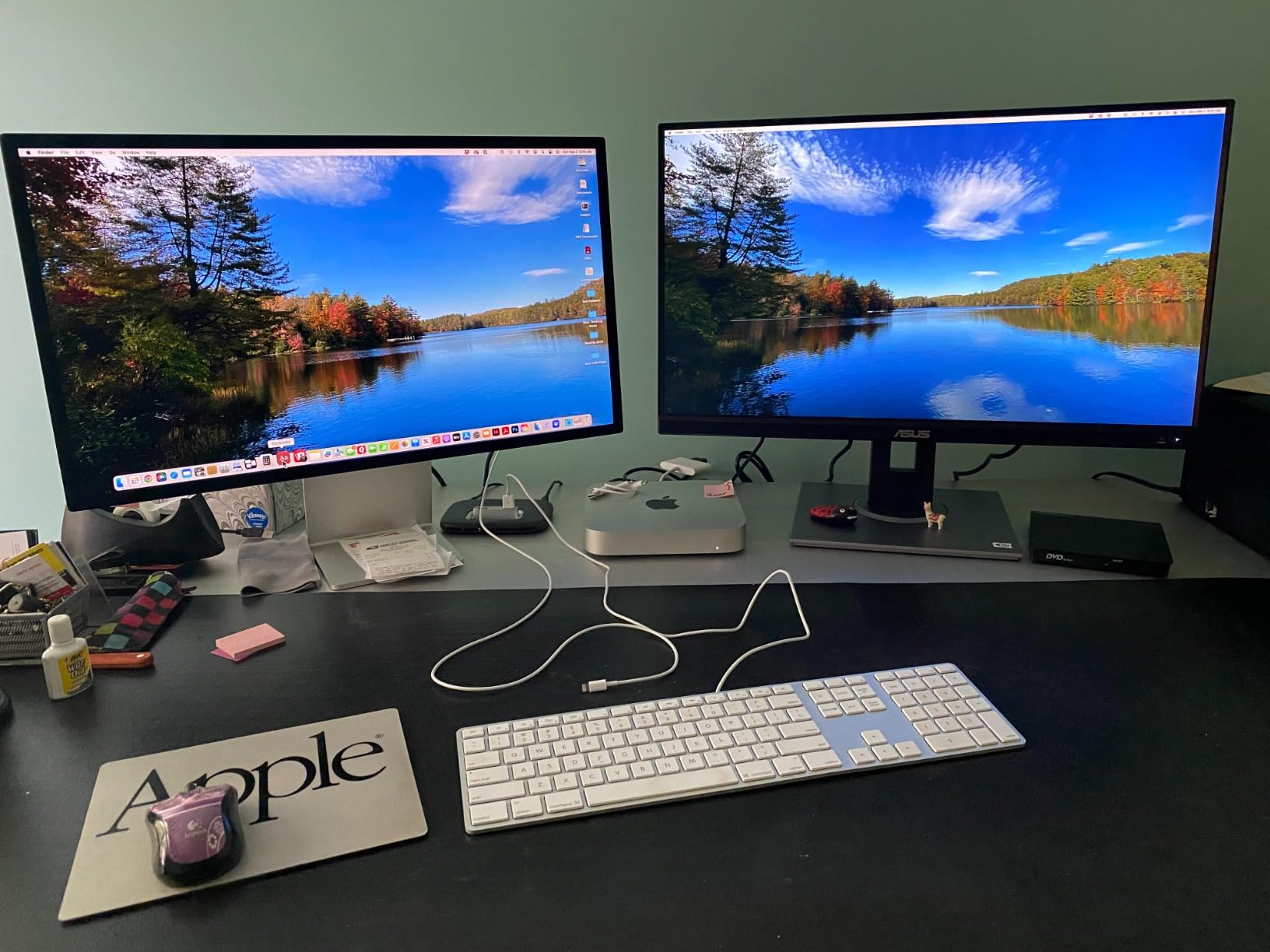
When the ProArt PA278QV is the right choice
Choose it if your delivery is web and social, your desk space is limited, or you want the least amount of adjustment between buying the monitor and trusting it. The 100% sRGB and Rec.709 coverage plus a published Delta E figure is a combination you rarely see at this tier. Editors working in Capture One or Lightroom Classic on a single screen will find 1440p enough for the vast majority of their time.
It is also the safest recommendation we can make for someone nervous about calibration. If a colorimeter profile later shows a color cast you did not expect, the panel is documented well enough that you can verify the measurement yourself rather than guessing.
When the ProArt PA278QV is the wrong choice
Skip it if you work in tight crops on high-resolution files, print large formats, or need wide gamut. A 1440p canvas will feel cramped in a multi-panel retouching layout within about a year. Anyone printing to Adobe RGB output should look at the PA279CRV or the ViewSonic alternatives below instead.
2. Dell UltraSharp U2723QE – 4K With a 90W USB-C Dock Built In
Dell UltraSharp U2723QE 27″ 4K UHD WLED LCD Monitor – 16:9 – Black, Silver
27-inch 3840x2160 IPS Black
400 nits
DCI-P3 v2
90W USB-C
Pros
- IPS Black panel with strong blacks and good uniformity
- 90W USB-C with DisplayPort Alt Mode plus RJ-45
- Built-in KVM switch with picture-by-picture
- Sharp 4K text at 163 pixels per inch
Cons
- Ports face downward and are awkward to reach
- KVM hotkeys need the source machine to be logged in
- No integrated speakers
The U2723QE is the monitor we recommend to someone whose desk currently has a laptop, three peripherals, and a tangle of cables on it. One USB-C cable at 90W handles charging, video through DisplayPort Alt Mode, and data, which removes the dock entirely. It also carries RJ-45 Ethernet, so a laptop user can plug into a wired network and a display with a single lead.
The IPS Black panel is the reason this screen looks better than a typical 4K IPS in a dim room. Against a nominal 2000:1 contrast ratio and 400 nits of brightness, dark tones hold together far better than most IPS panels manage, and reviewers report good uniformity across multiple units. Dell Display Manager handles the color controls, and the panel covers 100% of sRGB with DCI-P3 v2.
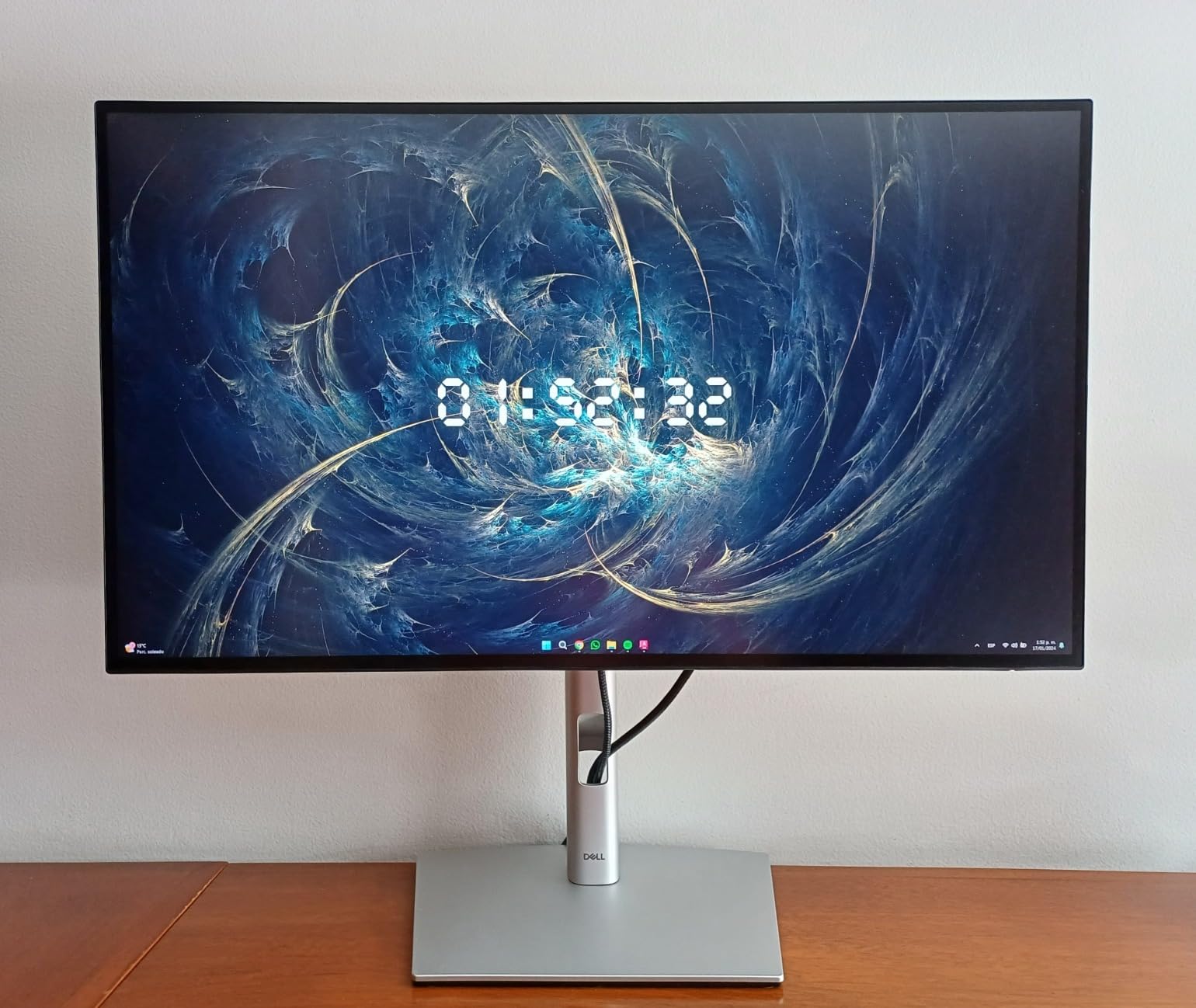
The trade-offs are physical rather than color-related. Every port faces downward on the back, so you have to reach behind the panel to plug anything in, and once or twice a week that becomes annoying. There is only one USB-C video port, so you cannot connect two USB-C hosts at once. Several owners also report that the display can stop recognizing USB-C after a long idle period until power is cycled.
Picture-by-picture works well for splitting a Windows machine and a Mac, though the KVM hotkey switching requires the source computer to be logged in before the switch will take. At 60Hz it is not a motion panel, which for stills work is fine.
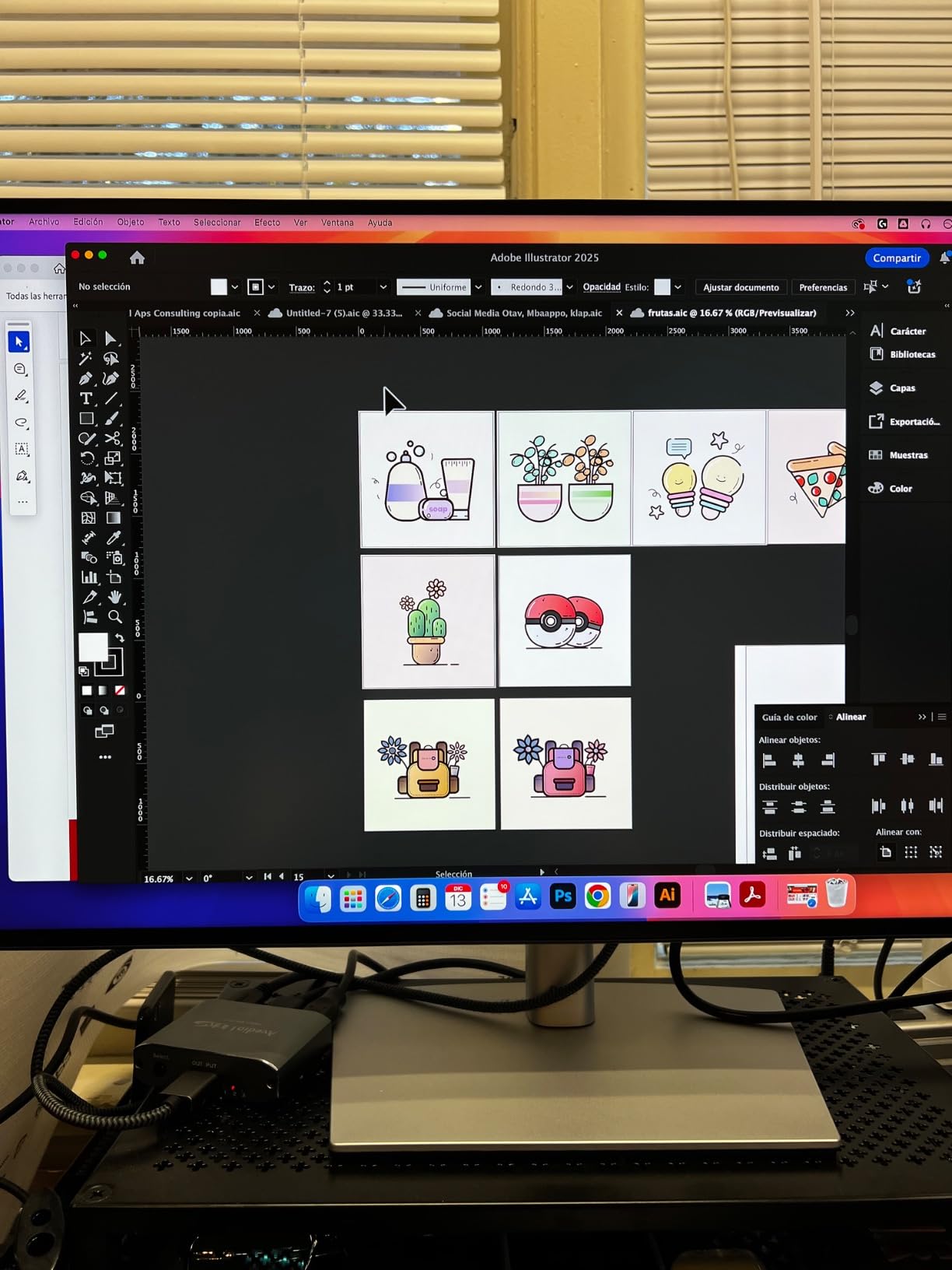
What makes the U2723QE stand out
The combination of true 4K at 27 inches, an IPS Black panel, and 90W single-cable docking is rare. The built-in KVM and picture-by-picture let a designer run a client review on a laptop and the main edit on a workstation on the same display. The 163 pixels per inch figure also means 4K text rendering that looks native rather than upscaled.
It is the most complete single-monitor answer here for a laptop-driven workflow, and reviewers repeatedly point out that the black levels survive dark editing sessions better than a standard IPS panel does.
What could go wrong
If you are a Mac user on a long desk, the rear-facing port layout is the main friction point, and the lack of speakers means you will want separate audio. Some buyers report the KVM hotkey being unreliable across fast input changes. If you need dual USB-C hosts, this is not the screen for that.
3. LG 32UN650-W – Big 4K Canvas Without the Pro-Monitor Badge
LG 32UN650-W Monitor 32″ UHD (3840 x 2160) IPS Ultrafine Display, HDR10 Compatibility, DCI-P3 95% Color Gamut, AMD FreeSync, 3-Side Virtually Borderless Design, Height Adjustable Stand – Silve/White
32-inch 3840x2160 IPS
350 nits typical
95% DCI-P3
HDR10 compatible
Pros
- 32-inch 4K canvas fits multiple editing windows side by side
- IPS panel beats VA panels on color at this tier
- Built-in 5W speakers simplify the desk
- Three-side virtually borderless design
Cons
- No USB hub and no USB-C at all
- Plastic stand can wobble while typing
- Short included power cord and one-year warranty
Size is the feature here. At 32 inches and 4K you get a working canvas where a 27-inch screen forces constant window juggling, and the 3840×2160 panel keeps pixel density high enough that the extra inches do not introduce softness. For a retoucher running Lightroom next to Photoshop next to a client reference folder, that headroom changes how the work feels.
The IPS panel covers 95% of DCI-P3, which is a wider gamut than sRGB and gives noticeably richer greens and cyans in foliage and product shots. It is HDR10 compatible for a bit of headroom on bright files, though we would not treat this as an HDR grading panel. Owners report minimal backlight bleed and clean matte coating that handles a normally lit room without a distracting reflection.
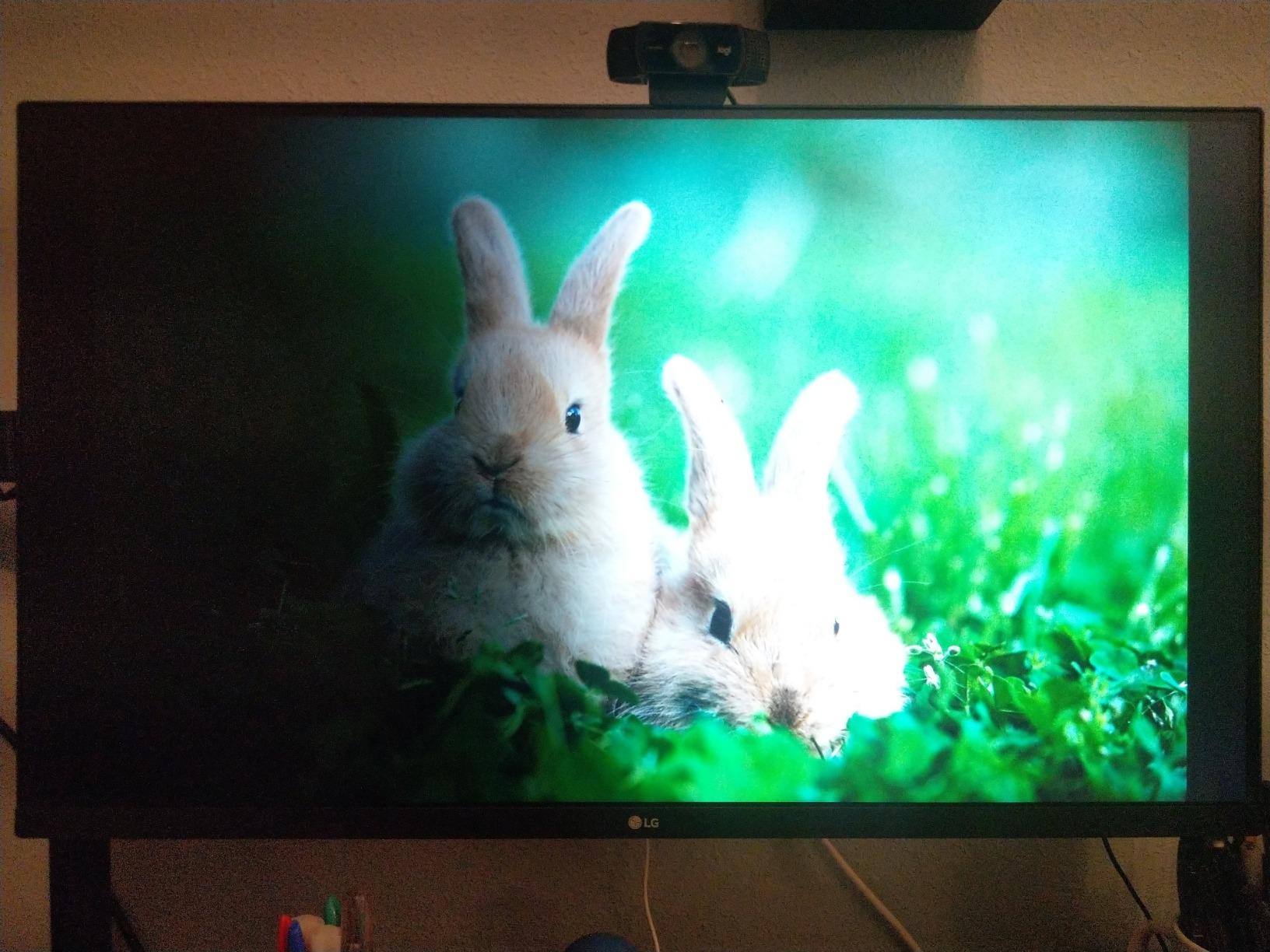
The compromises are honest ones. There is no USB-C and no USB hub, so you are relying on DisplayPort or HDMI and a separate hub if you need peripherals. The stand is mostly plastic and reviewers mention it wobbling during fast typing, and the included power cord is around five feet. On Windows, the LG driver has to be downloaded manually to get the full color and brightness controls.
The one-year parts and labor warranty is among the shortest in this group. That matters more than it sounds for a panel you might want to keep for four or five years, and it is the main reason we would steer a professional toward a ProArt or UltraSharp instead.
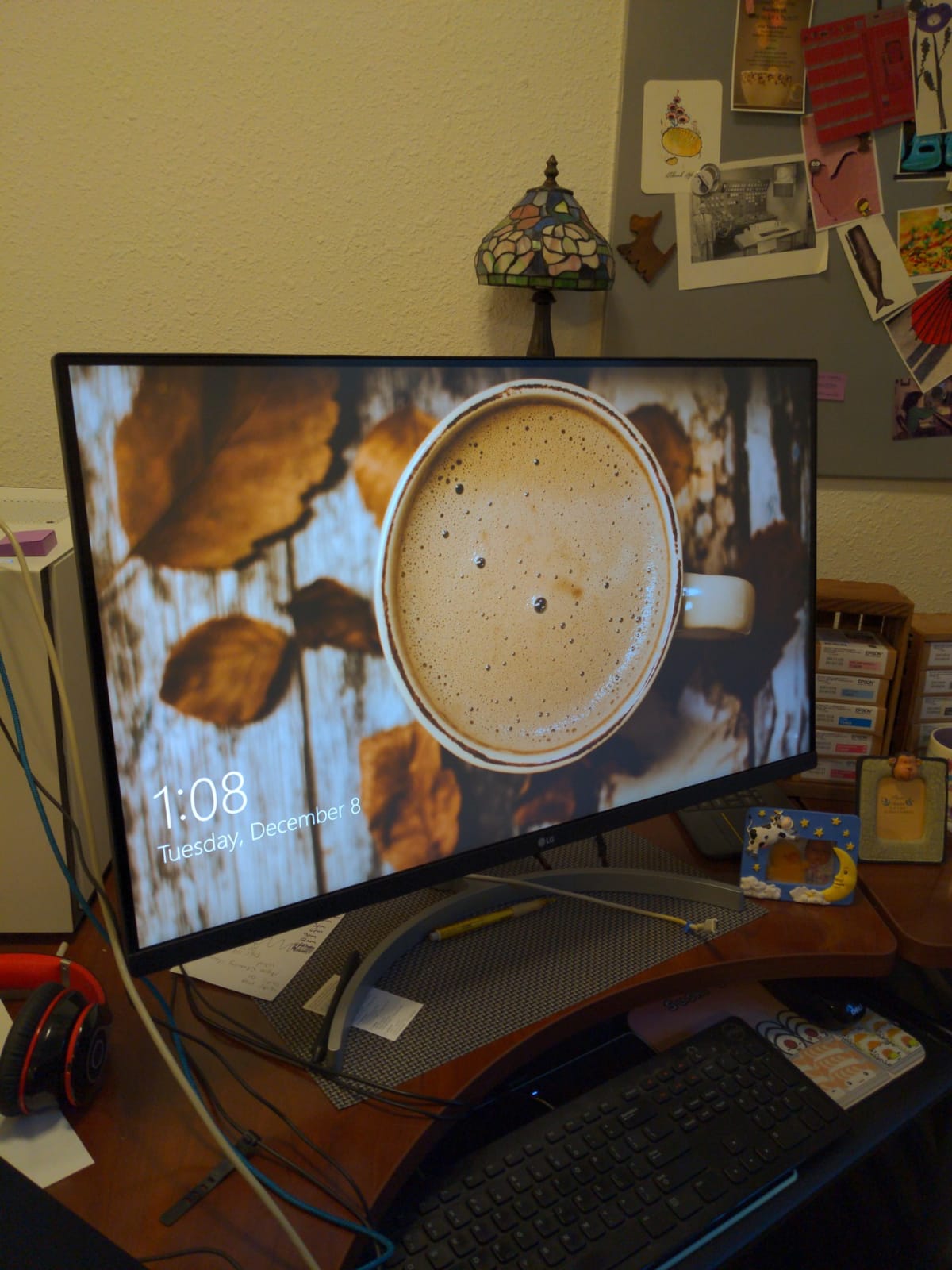
Who the LG 32UN650-W suits
A social-first creator who wants one large screen and does not need to dock a laptop. Ninety-five percent DCI-P3 is enough headroom for Instagram and YouTube delivery with real saturation gains over sRGB, and the built-in 5W speakers remove one more box from the desk. The three-side borderless design looks clean in a studio setup where the monitor is on camera.
It is also a strong second screen for a photographer who already has a calibrated primary display, since you can put reference images beside the edit instead of flipping between tabs.
Who should look elsewhere
Anyone who needs USB-C power delivery, a USB hub, or a long warranty. MacBook users in particular will want a display with real single-cable docking. And if you plan to print, the lack of an Adobe RGB claim means you would be soft-proofing outside the color space you are actually delivering in.
4. ASUS ProArt PA279CRV – The Wide-Gamut Choice for Print Work
ASUS ProArt PA279CRV 27 Inch 4K UHD USB-C HDR Professional Monitor for Mac
27-inch 3840x2160 IPS
400 nits
99% DCI-P3 and 99% Adobe RGB
96W USB-C
Pros
- Widest stated gamut in the 27-inch ProArt line
- Factory calibrated to Delta E under 2 and Calman Verified
- USB-C with 96W power delivery and daisy chain
- 3000:1 contrast for deeper blacks than typical 4K IPS
Cons
- Lowest average rating in this group with more 1-star reports
- Some color and firmware behavior reported below sibling models
- Bulky stand footprint and 60Hz refresh rate
Adobe RGB coverage is the reason to look at this one, and only this one, in this list. It is the sole 27-inch display here with a stated 99% Adobe RGB figure alongside 99% DCI-P3, which means you can work in Adobe RGB natively, soft-proof, and know you are seeing the saturated greens and cyans a lab will actually print. If your files ship to a professional lab, this is the coverage question that decides the purchase.
The rest of the spec sheet is strong. A 27-inch 4K IPS panel at 400 nits with 3000:1 contrast gives blacks that go deeper than most 4K IPS screens, USB-C delivers 96W so it can charge a laptop over one cable, and DisplayPort daisy-chaining lets you chain a second display off the first. ASUS calibrates to Delta E under 2 and includes the report.
Now the honest part. This model carries the lowest average rating in our group, and the reason is a higher share of one-star reviews than any other pick. Buyers describe the connectivity, the warranty, and the headline gamut figures as excellent. A minority report color and firmware behavior that falls short of what the specification sheet implies, and that is exactly the failure mode a professional cannot absorb.
Two other practical notes: the stand has a large desk footprint, which matters if you are already running a dual setup, and 60Hz is the refresh rate. There is also a bundled three-month Adobe Creative Cloud subscription, which is a small perk if you are not already subscribed.
When the PA279CRV earns its place
Print, fine art, and product photography where Adobe RGB is your working space. The 96W USB-C and daisy chain also make it a good fit for a laptop-based retoucher who wants wide gamut and a clean single-cable desk. The three-year base warranty extends to five with registration, which partly offsets the rating concerns for a buyer willing to do their research.
We would pair it with a colorimeter before committing to production print work, precisely because some units report behavior below the claimed spec.
When the PA279CRV is the wrong pick
Anyone wanting a first monitor with no surprises. The wide gamut is only useful if your files live in Adobe RGB, and if you post exclusively to social it adds a conversion step that can introduce its own errors. If you already own a 99% sRGB panel, this is a specialist upgrade rather than a starting point.
5. ViewSonic VP3256-4K – Pantone Validated Accuracy on 32 Inches
ViewSonic VP3256-4K 32 Inch 4K UHD ColorPro Monitor, HDR10, 65W USB C, sRGB
31.5-inch 3840x2160 IPS
350 nits
100% sRGB and DICOM-SIM
Delta E under 2
Pros
- Factory calibrated to Delta E under 2 with Pantone Validated
- 100% sRGB plus DICOM-SIM for medical imaging work
- Single USB-C cable carries video data and 60W
- Three-year warranty covering parts labor and backlight
Cons
- No DCI-P3 or Adobe RGB coverage for print work
- Heaviest 4K unit here at 24 pounds
- 125W rated power consumption and 60W USB-C
The ColorPro line is ViewSonic’s answer to photographers, and the VP3256-4K is the part of it aimed at stills. It is calibrated at the factory to Delta E under 2 and carries Pantone Validated certification alongside a 100% sRGB and DICOM-SIM claim. DICOM-SIM is the grayscale standard used in medical imaging, and its inclusion is a useful signal that the factory calibration is being checked for tonal accuracy and not just saturation.
At 31.5 inches and 4K you get about 140 pixels per inch, a useful middle ground: more canvas than 27 inches, less stretch than a 40-inch panel. A single USB-C cable delivers video, data, and 60W of charging, and there is daisy-chain support for a second display. The stand adjusts for height, tilt, swivel, and rotation.
There is no DCI-P3 or Adobe RGB claim at all, which is a hard limit if you print. The chassis is heavy at 24 pounds, so plan the desk accordingly, and the rated 125W power consumption is unusually high for a 4K monitor of this class. The 60W USB-C charging is enough for a thin laptop but not for a large workstation.
The three-year warranty is better than the LG option in this guide and explicitly covers the backlight, which is the component most likely to fade over a long ownership period. That detail is worth more than it sounds at five years in.
Where the VP3256-4K works best
Document, product, and portrait work delivered on the web, where sRGB is the destination and 100% coverage is exactly right. It is also a strong choice for anyone working in a bright room, since the matte SuperClear IPS panel and flicker-free backlight keep images readable under normal office lighting. A graphic designer who wants a published Delta E figure and a named certification body can point to both.
The DICOM-SIM coverage is a quiet differentiator for medical and forensic photographers who need trustworthy grayscale rendering.
Where it falls short
Print professionals, and anyone whose files live in Adobe RGB or ProPhoto RGB. The lack of a wide gamut claim is the deciding factor, and adding a gamut upgrade later would mean buying a different screen. The weight and the modest USB-C power delivery are secondary concerns by comparison.
6. Dell UltraSharp U4025QW – One Ultrawide Instead of Two Screens
Dell UltraSharp U4025QW 40″ Class 5K2K WUHD Curved Screen LED Monitor – 21:9
39.7-inch 5120x2160 curved IPS
600 nits
99% sRGB
120Hz
Pros
- 5K2K ultrawide canvas replaces a two-monitor setup
- 600 nits suits a brightly lit studio
- 120Hz refresh rate is unusual for a pro ultrawide
- Thunderbolt and USB hub consolidate to one cable
Cons
- Very heavy at nearly 42 pounds with a cumbersome stand
- Curved panel bends straight lines and geometry slightly
- Needs a capable GPU for 5120x2160 at 120Hz
This is the monitor for someone who genuinely wants two screens and hates the bezel in the middle. At 5120×2160 across 39.7 inches you get roughly 139 pixels per inch and about a third more pixels than a 27-inch 4K panel, which means a Lightroom catalog beside a full-resolution Photoshop canvas beside a reference set, all visible at once without a second display.
The other numbers are unusually confident for an ultrawide. 600 nits of brightness is bright enough to work in a well-lit studio, 120Hz is a refresh rate no other panel in this guide reaches, and the 2000:1 contrast ratio gives real black depth for dark work. Connectivity is Thunderbolt USB-C with a USB hub, RJ-45 Ethernet, DisplayPort, and HDMI.
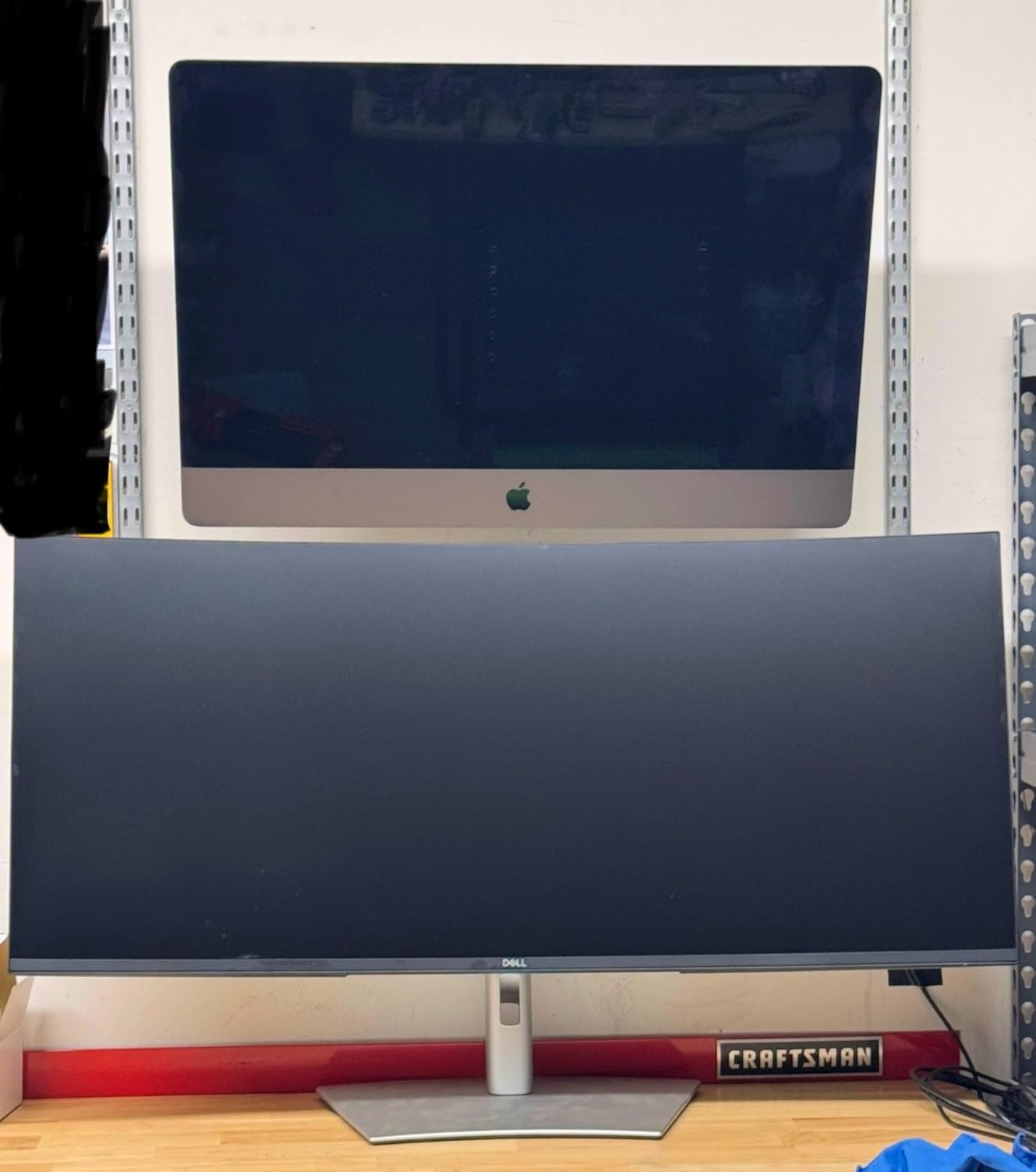
The objections are physical and philosophical. At nearly 42 pounds the stand is genuinely awkward to assemble and position, and a 40-inch curved panel sits far enough away that you may need to turn your head for the left and right thirds of the image. Curvature also bends straight lines at the edges, which is why we would not put a precision retoucher doing product cutouts on it. And driving 5120×2160 at 120Hz needs a graphics card with real headroom.
The stated 99% sRGB coverage means this is a web and social delivery panel, not a print panel. Nothing in the spec sheet suggests wide gamut beyond sRGB.
Who the U4025QW is built for
Studio photographers, video editors cutting long timelines, and commercial retouchers who want every tool on screen at once. The 600 nits is the quiet hero for a bright room, where most 350-nit panels leave you squinting at shadow detail. If you have been considering a dual-monitor setup, this replaces both screens, the second arm, and the bezel seam between them.
The 120Hz panel also makes it a comfortable monitor outside editing hours, which is a real consideration for something this large.
Who should buy two 27-inch screens instead
Precision work where straight edges matter, print workflows, and anyone sensitive to IPS glow working at night on dark images at the screen edges. A curved 40-inch panel also demands desk depth. If your desk is under about 80cm deep, this will be uncomfortable regardless of how good the panel is.
7. BenQ MA270U – Built for MacBook Single-Cable Workflows
BenQ MA270U 27” 4K 3840×2160 Monitor for MacBook® Pro/Air, Dual USB-C, 90W Power Delivery, Mac Color Match, USB Hub, Brightness & Volume Control on Mac, Height & Tilt Adjustable Stand, P3 Color Gamut
27-inch 3840x2160 IPS
400 nits
P3 wide gamut
Dual USB-C with 90W
Pros
- Mac color tuning matches a MacBook Pro or Air display closely
- Single USB-C cable carries 90W charging plus video
- Second USB-C port delivers 15W for a tablet or phone
- Display Pilot 2 controls brightness and volume from the Mac keyboard
Cons
- Minimal on-monitor menu so settings need the software
- Only one awkwardly placed USB-A port
- No Adobe RGB coverage and 60Hz refresh rate
The MA270U exists to solve one specific problem: making a MacBook-driven desk look and behave like a Mac setup. BenQ tunes the panel to approximate the color rendering of a MacBook Pro or Air display, so an image looks broadly consistent when you move between the laptop screen and the external monitor. For a Mac user who is not going to run a colorimeter, that consistency is the point of the product.
The dual USB-C arrangement is genuinely useful. One port delivers 90W for the MacBook plus video; the second delivers 15W, which is enough to keep a tablet or phone charged on the same desk. Display Pilot 2 puts brightness and volume control on the Mac keyboard, so your desk is genuinely one-handed.
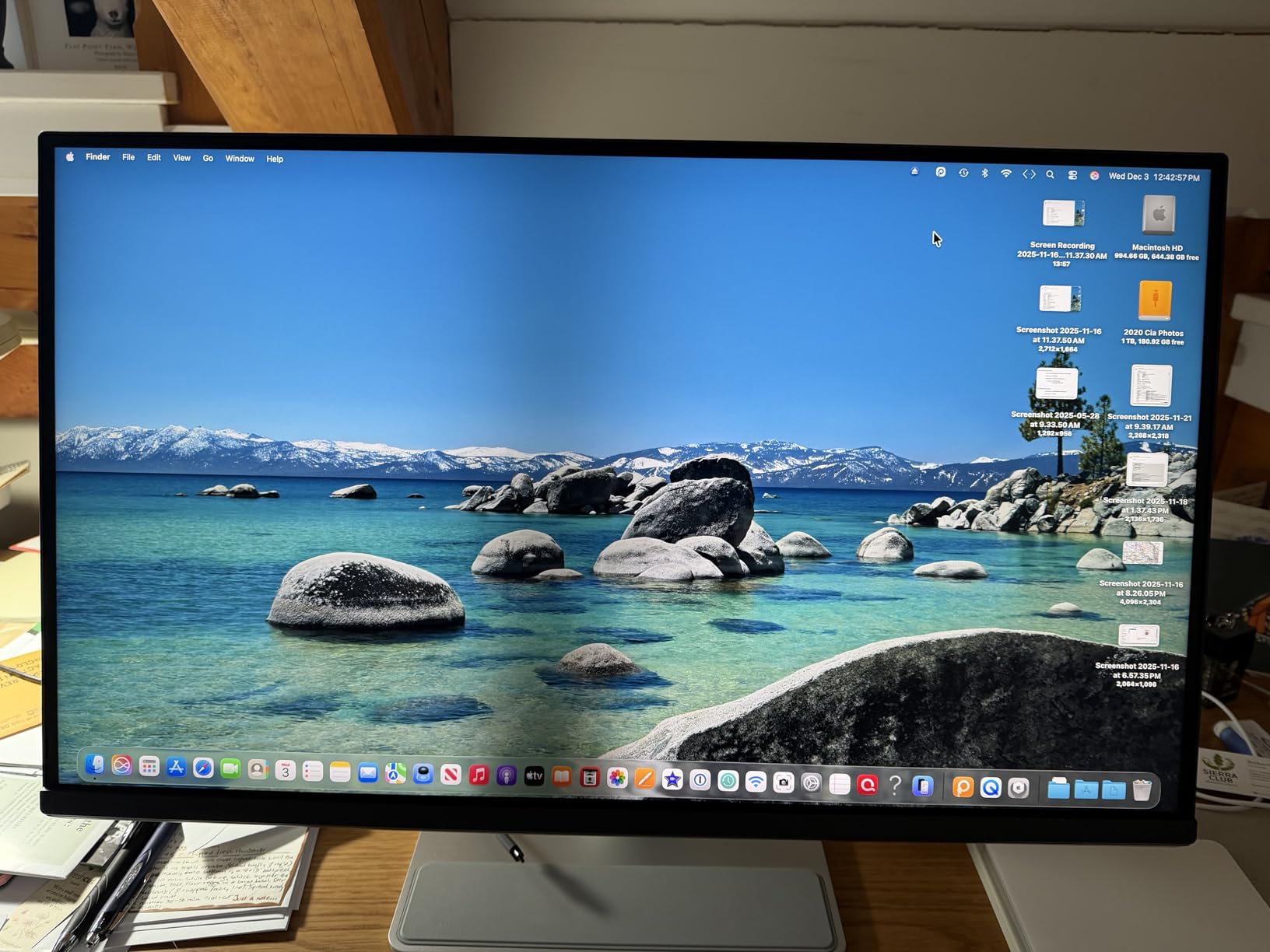
The 27-inch 4K matte IPS panel runs at 400 nits with a P3 wide color gamut, which lines up well with what a MacBook Pro actually outputs. The catch is that there is no Adobe RGB coverage, so this is not a print panel, and no sRGB percentage is stated in the listing we reviewed, which is unusual for a BenQ panel.
Owners also flag how little the on-monitor menu does. Most settings live in Display Pilot 2, so if you want to calibrate or change inputs without the software, this is a frustrating screen. There is a single USB-A port and reviewers describe its placement as awkward.
Why Mac users like the MA270U
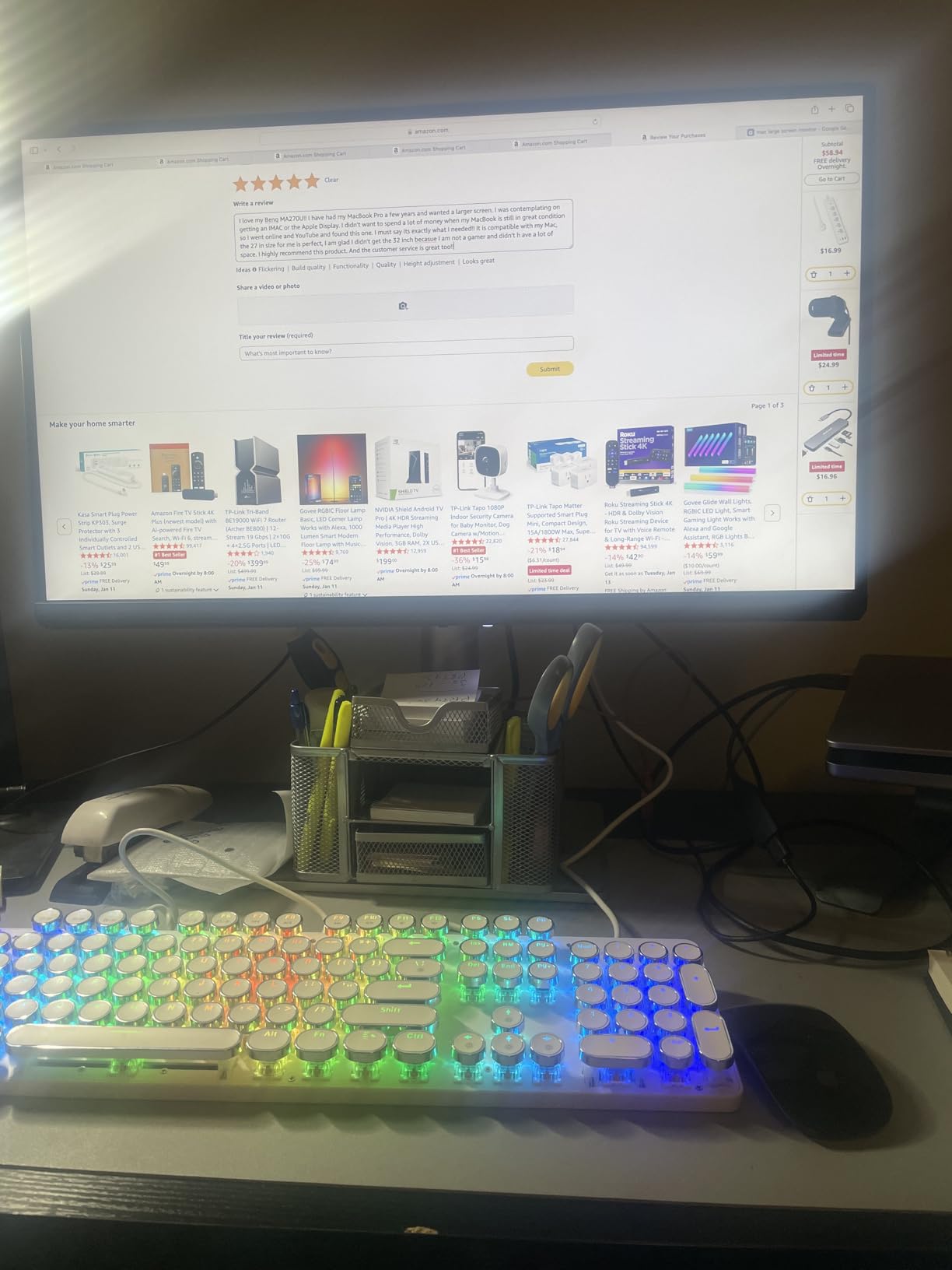
It removes the dock. One USB-C cable charges the laptop, drives the display, and carries data, and the tablet charging port means no second charger on the desk. Assembly is easy and the stand gives full height, tilt, swivel, and pivot adjustment. The 400-nit matte panel is sharp at 4K and handles a normally lit room without a distracting reflection.
If you edit in Lightroom or Photoshop on macOS and deliver to social or web, this is a clean, purpose-built answer rather than a compromise.
Where it is not the answer
Print workflows, since Adobe RGB is out of scope. Windows-heavy studios, because Display Pilot 2 is a Mac utility and the on-screen menu is thin. And anyone who wants to work without vendor software installed.
8. BenQ PD3205U – ICC Sync and a KVM Switch on 31.5 Inches
BenQ PD3205U Mac-Ready Monitor 32″ 4K UHD 99% Rec.709 & sRGB, IPS, DeltaE ≤3, ICC Sync, Calibration Report, AQCOLOR, Uniformity HotKey Puck Ergonomic DisplayPort, USB-C (90W), USB Hub
31.5-inch 3840x2160 IPS
350 nits
99% sRGB and Rec.709
Delta E 3 or less
Pros
- Calman Verified and Pantone Validated with Delta E of 3 or less
- ICC Sync matches a MacBook display with one click
- Hotkey Puck makes profile and source switching quick
- 32-inch canvas removes constant 27-inch window overlap
Cons
- Built-in speakers are thin with almost no bass
- Stock stand is too short to rotate into portrait
- Downward-facing ports on a narrow ledge are hard to reach
ICC Sync is the feature that separates this from a generic 4K monitor, and it is aimed straight at Mac users who dislike a visible color shift between the laptop panel and the external screen. Press the puck and the monitor loads a profile tuned to match the connected Mac’s display, so a color decision you make on the big screen reads the same way on the laptop.
The panel itself is 31.5 inches at 4K with 99% sRGB and Rec.709 coverage, Calman Verified, Pantone Validated, and Pantone SkinTone Validated at a stated Delta E of 3 or less. A factory calibration report is included. SkinTone validation is a genuinely useful certification for portrait and wedding work, where skin gradients expose any weakness in the tone curve.
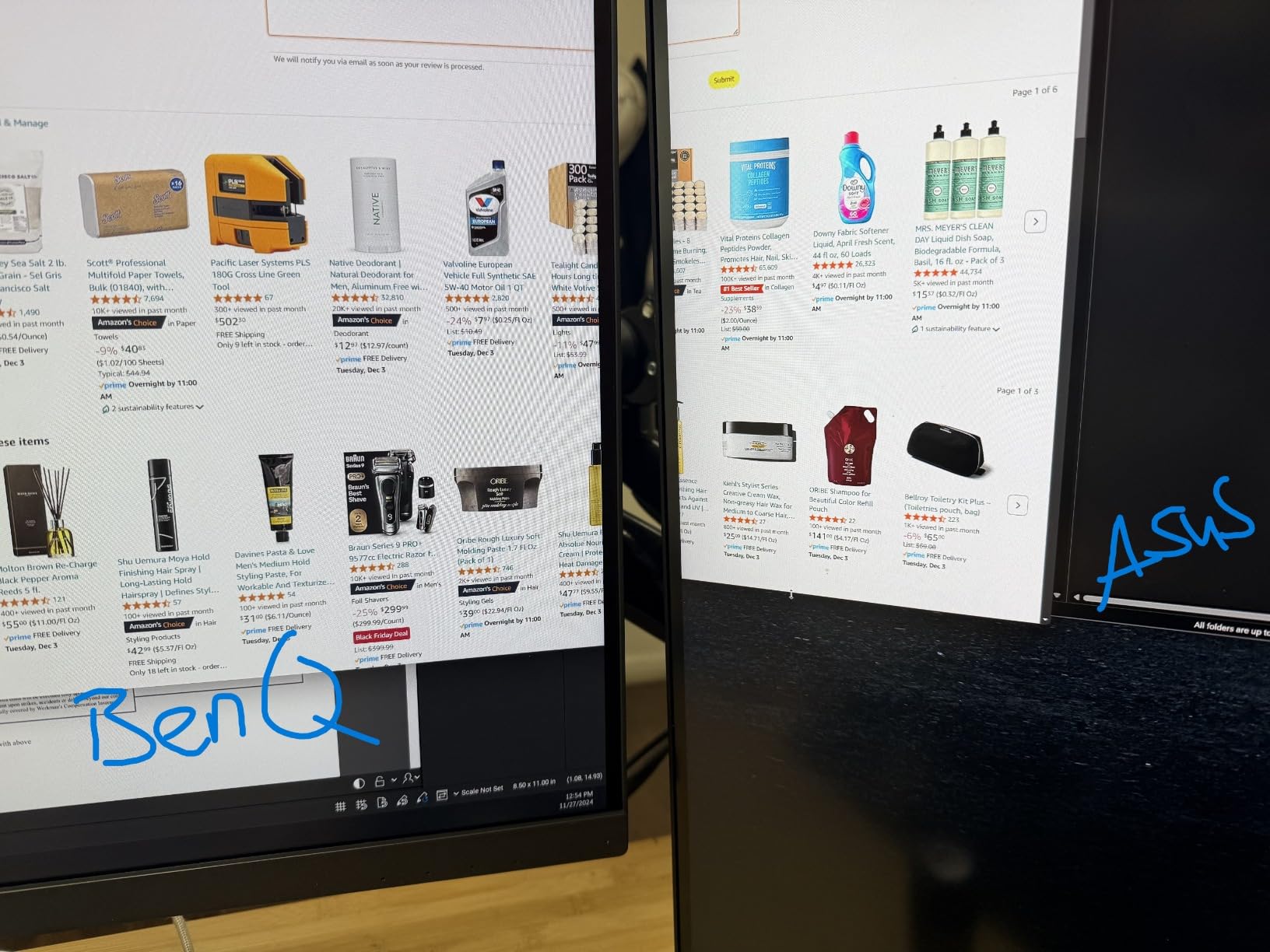
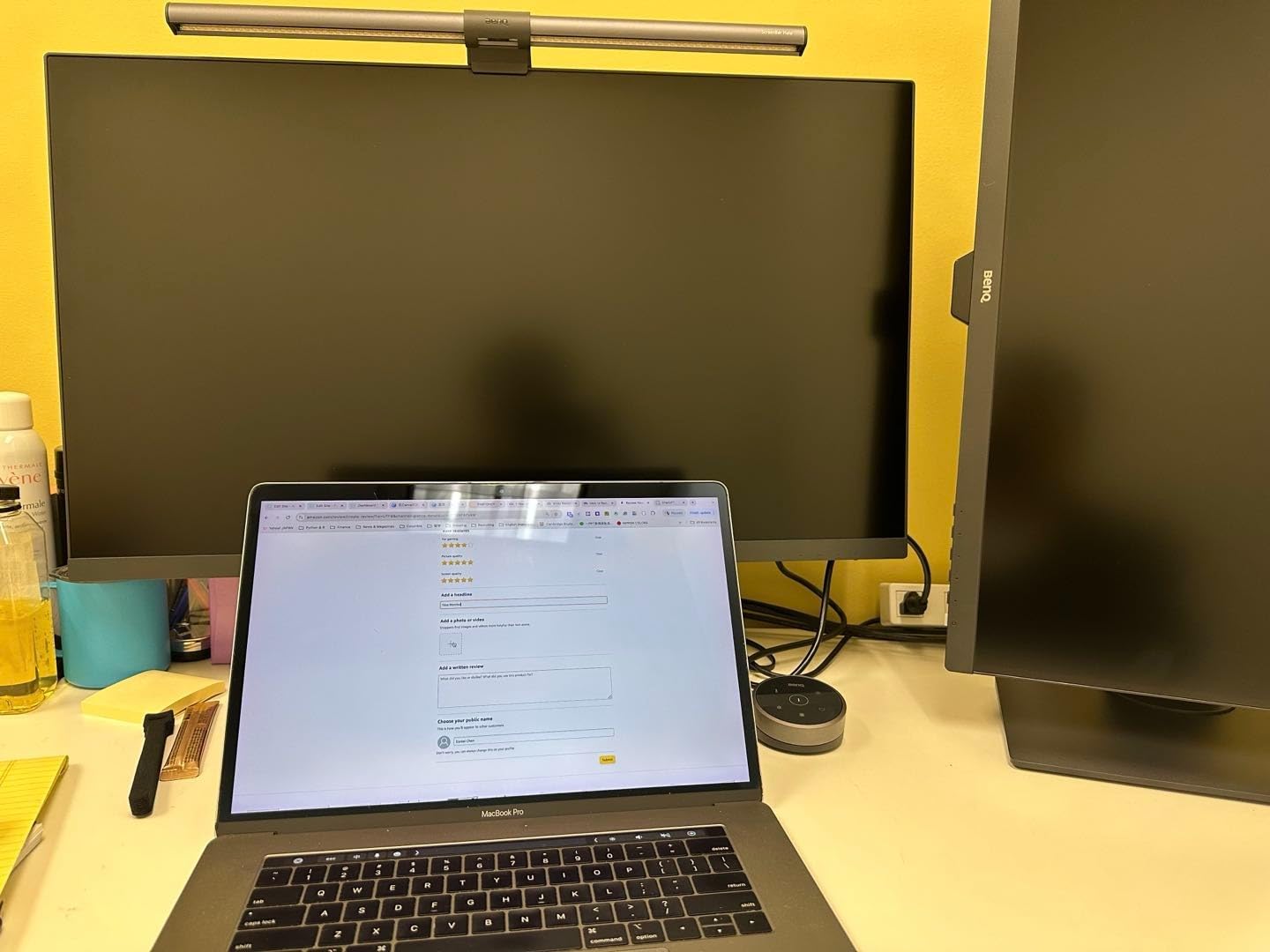
The Hotkey Puck G2 remote handles the menu, color profile switching, and KVM source changes, which is a nicer daily experience than fumbling with a joystick in the back corner. USB-C carries 90W of power delivery with DisplayPort Alt Mode, and there is a USB 3.2 Gen 1 hub alongside HDMI 2.0 and DisplayPort 1.4.
It is not flawless. The built-in speakers are thin and bass-free, so they are fine for system beeps and not for reference audio. The included stand is too short to rotate the panel into portrait, which rules out the vertical orientation some editors use for stacking. The ports sit downward on a narrow ledge, and reviewers report the puck and KVM switching can be slow.
When the PD3205U is the right tool
A Mac-based studio that also runs a Windows workstation, because the KVM switch moves both machines onto one display with one keyboard. Portrait and wedding retouchers benefit from the SkinTone validation. And if you keep hitting the window-overlap problem on a 27-inch screen, the extra three inches of width solve it without a second panel.
It is also a strong general-purpose 4K for anyone who wants a documented Delta E figure and a calibration report in the box.
When it is not
Print work, since 99% sRGB is a web delivery target. Bright rooms, because 350 nits is modest and reviewers specifically note that it is fine indoors but limited in sunlight. And anyone who needs a portrait-orientation display or serious built-in audio.
9. LG 27UP650K-W – The Highest-Rated 4K Panel in the Group
LG 27UP650K-W 27-inch Ultrafine 4K UHD (3840 x 2160) IPS Computer Monitor, 60Hz, 5ms, DisplayHDR 400, Reader Mode, Flicker Safe, HDMI, DisplayPort, Tilt/Height/Pivot Adjustable Stand, White
27-inch 3840x2160 IPS
400 nits
95% DCI-P3
DisplayHDR 400
Pros
- Highest average rating in this group with a strong share of five-star reviews
- 95% DCI-P3 gives real saturation headroom over sRGB
- Matte coating handles overhead and ambient light with little glare
- Height tilt and pivot adjustable stand moves easily
Cons
- No USB-C and minimal USB connectivity
- No built-in stereo speakers
- Colors can look slightly blown out before calibration
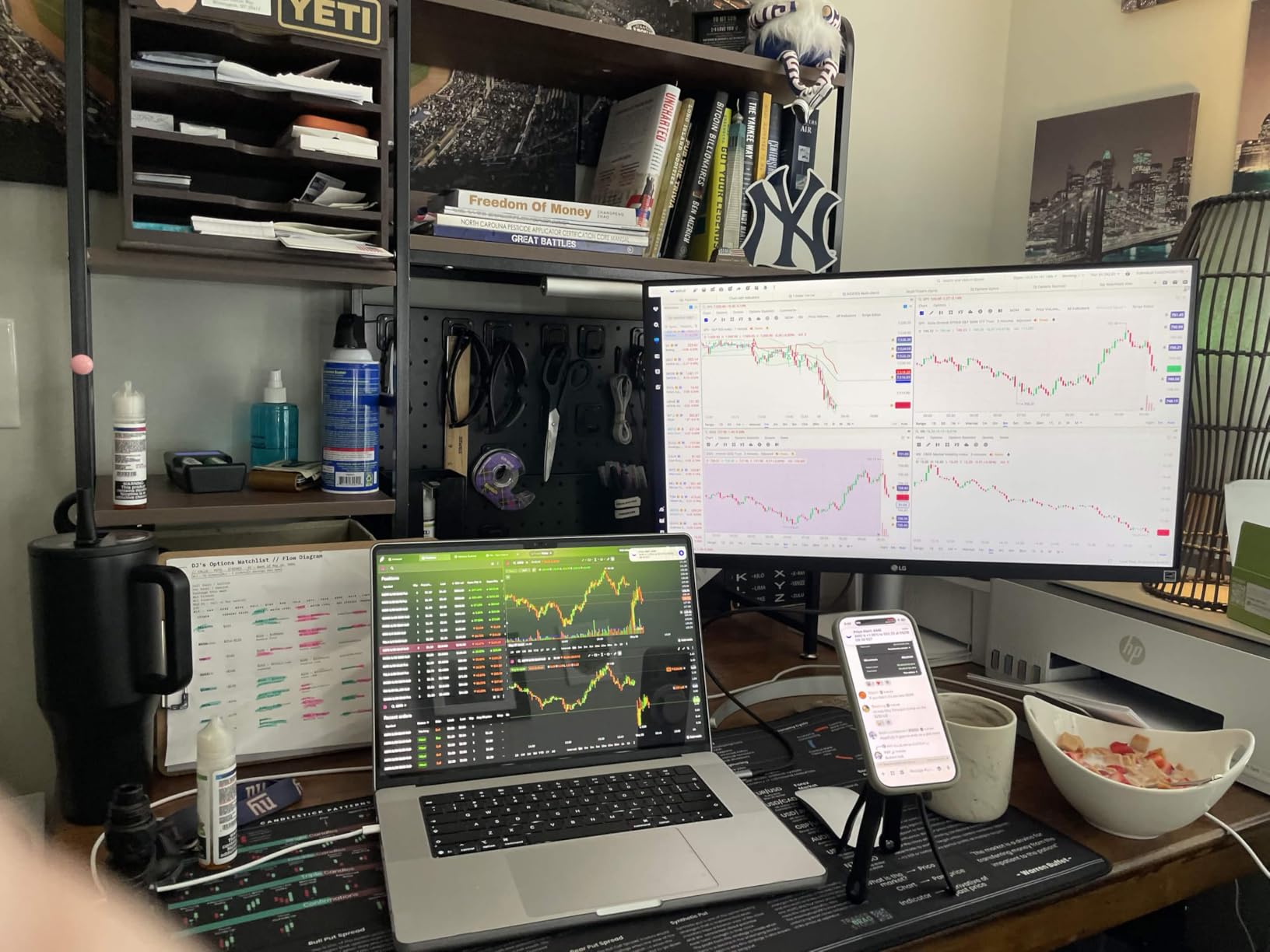
On raw owner satisfaction this is the panel people recommend most warmly. It carries the highest average rating of the ten, and reviewers describe a monitor that simply arrives and works. The 27-inch 4K IPS panel hits 400 nits with 95% DCI-P3 coverage, which is a wider gamut than sRGB without any of the wide-gamut management overhead.
Ninety-five percent DCI-P3 is the sweet spot for a lot of creators. It gives clearly more saturated greens, cyans, and blues than an sRGB-only panel, so a photo of foliage or a product shot has real color, while still being a simple working space. The matte coating handles overhead and ambient light with very little glare, which reviewers call out repeatedly as better than most glossy alternatives in a normal office.

There is no USB-C and the USB connectivity on this HDMI variant is minimal, so a laptop user needs a separate dock. There are no built-in speakers. The refresh rate is 60Hz with 5ms response, and DisplayHDR 400 performance is modest, which means it will accept an HDR signal without doing anything dramatic with it.
The most useful review detail: several owners note that colors look slightly blown out out of the box and need calibration. That is a five-minute job with any colorimeter and it is exactly why you should calibrate before your first paid job rather than after. A few buyers also report transit-damaged panels on arrival, so inspect the screen immediately.
Who this monitor is for
Anyone who wants wide-gamut color and a genuine 4K canvas without buying into a pro-monitor ecosystem. It suits social-first creators who want more saturation than sRGB allows, and it handles a bright room better than most matte competitors thanks to the anti-reflective coating. The front-mounted joystick control is easy to reach, and both HDMI and DisplayPort are present so two computers can share it.
It is also a strong value choice for a student or a second editing screen where a colorimeter profile will be run on day one anyway.
Who should skip it
MacBook users who want one-cable docking, and print professionals, since there is no Adobe RGB coverage. The one-year manufacturer warranty is the other reason to look elsewhere if this is a five-year tool rather than a two-year one.
10. Dell UltraSharp U3223QE – Premium 31.5-Inch IPS Black Panel
Dell UltraSharp U3223QE 31.5″ 4K UHD WLED LCD Monitor – 16:9 – Black, Silver
31.5-inch 3840x2160 IPS Black
450 nits
100% sRGB
75Hz with G-Sync
Pros
- IPS Black gives higher saturation and better contrast than earlier 32-inch UltraSharp panels
- Factory calibration report with accurate color out of the box
- Picture-by-picture splits Windows and Mac cleanly on one screen
- 450 nits is the brightest 32-inch panel here
Cons
- Matte finish reflects more ambient light than a glossy display
- No speakers microphone or camera
- Included USB-C cable is only about three feet
This is the pick for a creator who wants a big, bright, well-behaved 32-inch screen and does not need wide gamut. At 450 nits it is the brightest 32-inch option in this guide, and the IPS Black panel delivers noticeably better contrast and saturation than the earlier generation of 32-inch UltraSharp displays, which owners consistently mention as the reason for upgrading.
A factory calibration report ships in the box, and reviewers describe the color as well-saturated and accurate straight out of the packaging. Picture-by-picture is genuinely useful for a designer running macOS and Windows on the same display, and the port selection includes USB-C with MacBook charging alongside HDMI, DisplayPort, RJ-45, and seven USB ports.
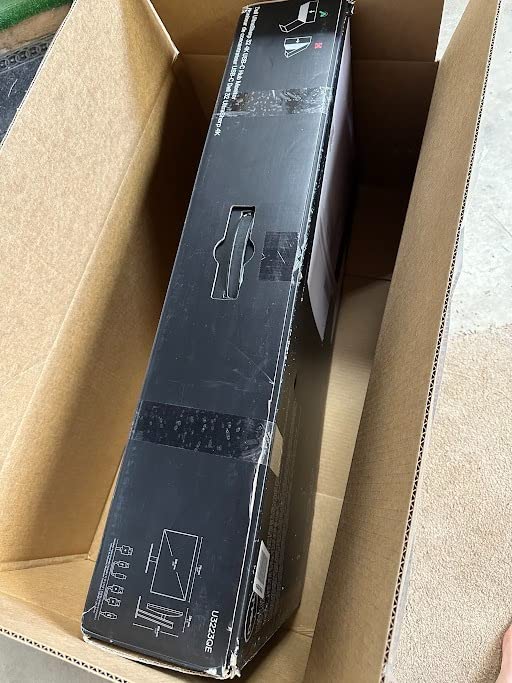
The weaknesses are straightforward. There are no built-in speakers, microphone, or camera, so it is a bare display. The matte finish reflects more ambient light than a glossy panel would, which matters in a very bright room. The included USB-C cable is around three feet, which is short enough to be annoying. The stand is bulky with a large footprint, and the onscreen menu controls are fiddly to reach from behind the panel.
One more owner complaint worth weighing: Dell’s warranty process is widely described as cumbersome, so if something goes wrong in year three, expect some friction. That is a real cost in a monitor you might keep a long time.
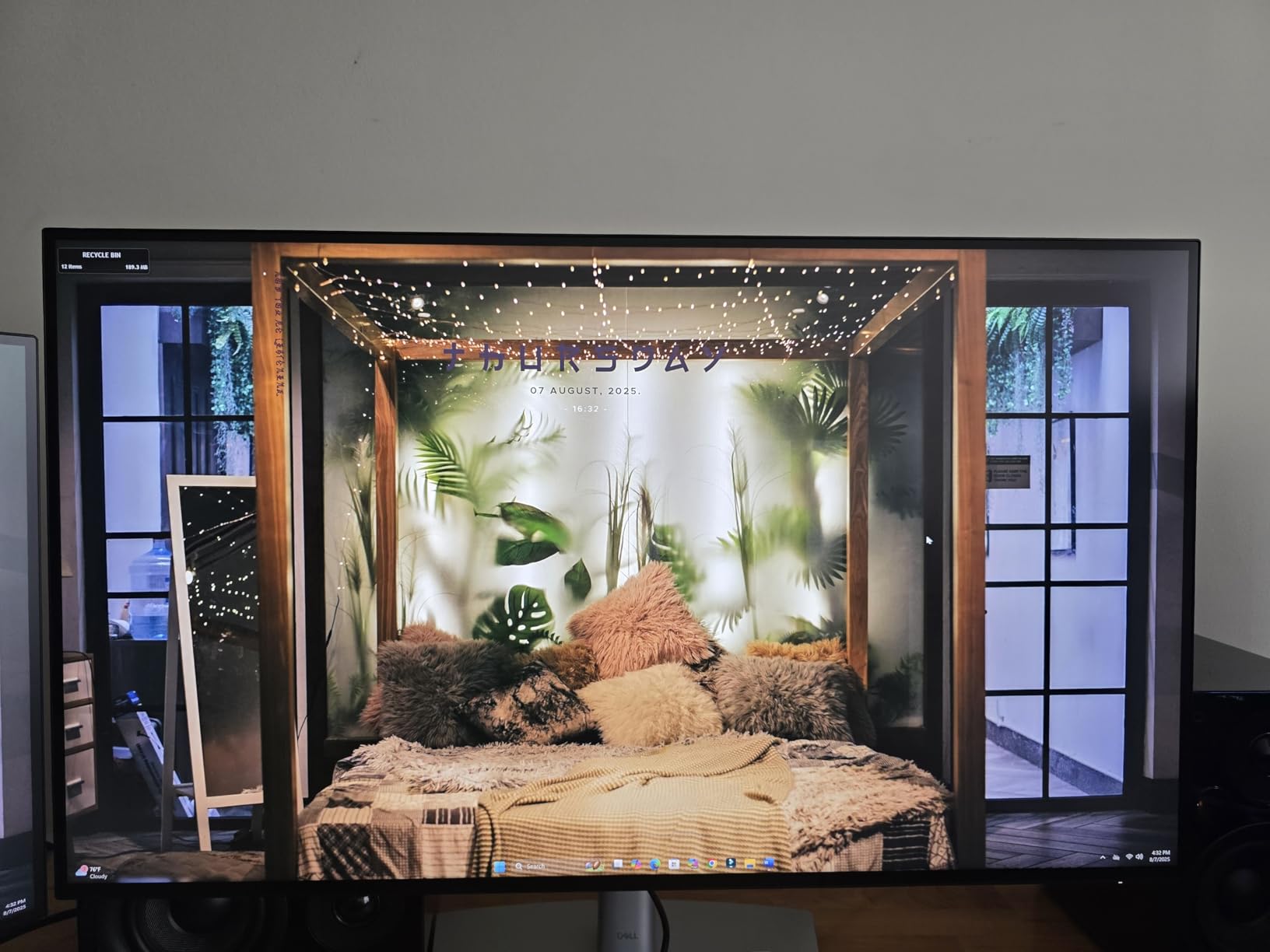
What the U3223QE does better than the alternatives
Brightness and black level in a 32-inch 4K panel, which is a combination the alternatives in this list do not quite match. Reviewers coming from 5K iMacs find the 4K text sharp enough for daily work. The MacBook charging over USB-C and the extensive hub turn it into a one-cable desk for many setups.
At 100% sRGB it is squarely a web and social delivery panel, and pairing it with a wide-gamut display as a two-screen workflow is a sensible use of the picture-by-picture feature.
Where it falls short
Print work, and anyone who needs audio or a camera built in. The matte reflection in a sunlit room is the most common practical complaint, and the short bundled cable and awkward stand are the kind of details that only bother you when they are already annoying.
The 7 Specs That Decide Which Photo Editing Monitor You Buy
Panels, gamuts, and Delta E numbers only matter once you know which ones you are allowed to compromise on. Here is the order we would read a spec sheet in, and the threshold we would accept at each step.
1. Panel type: IPS first. IPS gives consistent color and wide viewing angles. TN panels, still common at the low end, shift color as you move your head, which makes them unusable for retouching. VA panels are deeper but slower and less consistent across angles. The one genuine exception is OLED, where perfect blacks and true 10-bit at full brightness are unmatched, but the burn-in risk on a static editing interface and the higher cost keep them out of our picks.
2. Color depth: read the wording. This is the specification that marketing most often obscures. True 10-bit means each channel has 1024 levels. Eight-bit plus FRC, or frame rate control, dithers between adjacent values across frames to fake more levels. It is visually close, but it is not the same thing, and the wording on the spec sheet is the only way to tell which one you are getting. None of the ten panels in this guide states its native bit depth, so treat them as 8-bit unless the manufacturer confirms otherwise in writing.
3. Color gamut: match it to delivery. sRGB is the web standard. Adobe RGB covers roughly 50% more colors and matters for print, for commercial product work, and for any job shot in the field on a wide-gamut body. DCI-P3 sits between them and is the video standard. If you post to Instagram, Facebook, or a website and nothing else, a panel at 99% sRGB is genuinely sufficient and you should not spend money on coverage you will not use. Converting to sRGB on export is a normal, safe step; the file, not the monitor, becomes the limiting factor at that stage.
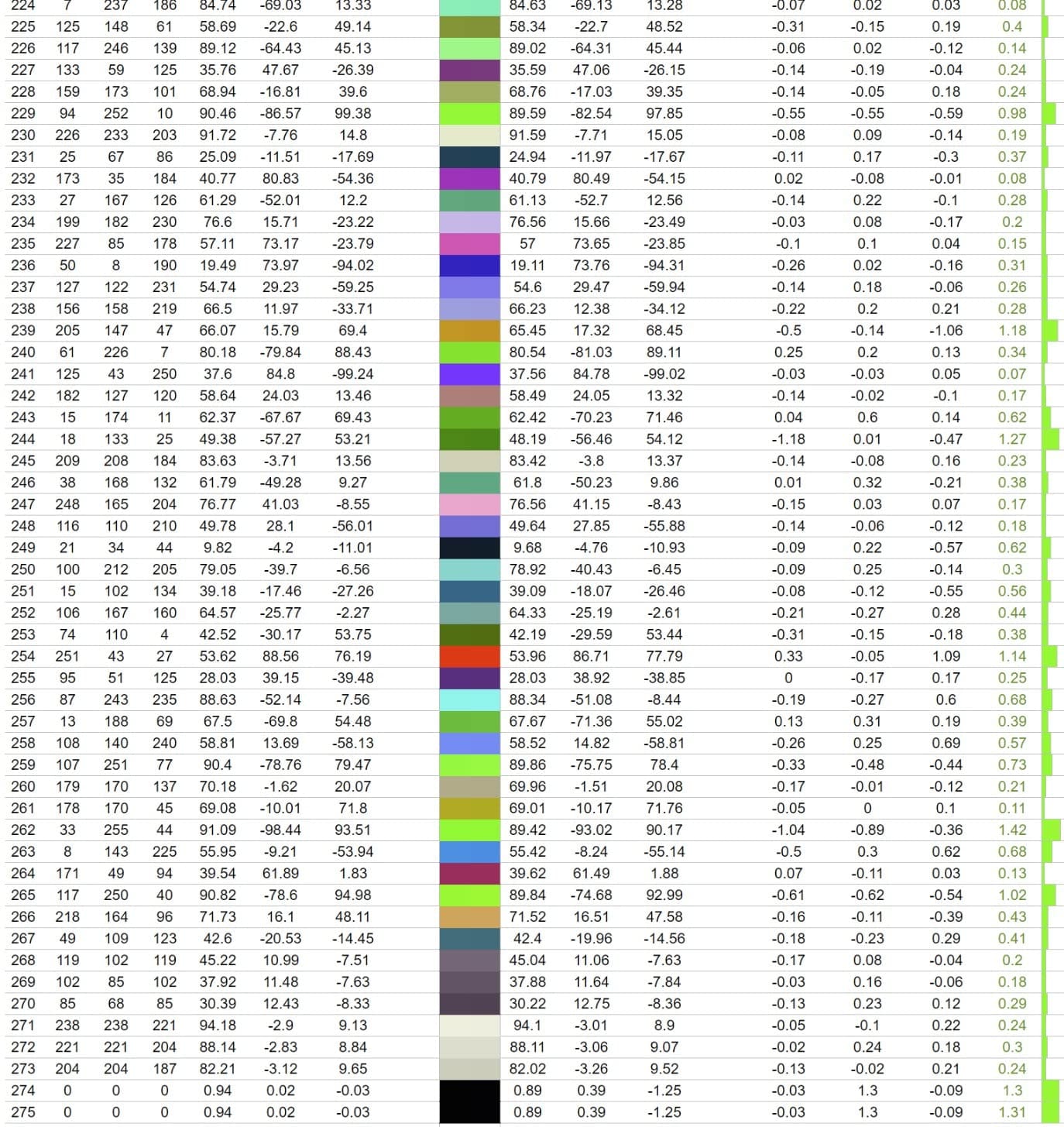
4. Delta E: demand under 2, published. Delta E is the average color error of a panel, usually quoted as Delta E 2000. Under 2 is invisible, 2 to 3 is acceptable, and above 3 shows up as skin tones that look slightly off. The number is only useful if it comes with a factory calibration report, because an average hides the worst patches.
5. Size and resolution: 27 inches at 4K is the baseline. 27 inches is the size that fits a desk and a viewing distance, and 4K at that size is about 163 pixels per inch, the point where text stops looking soft. 32 inches at 4K is more canvas at slightly lower density, and 5K at 27 inches is the sharpness ceiling worth paying for if your budget allows. QHD at 27 inches is usable but you will feel the lack of canvas within a year.
6. Brightness and HDR: know what HDR means here. Around 350 nits is fine for a normally lit editing room with controlled ambient light. Bright, sunlit spaces push you toward 400 to 600 nits, which is why the U4025QW and U3223QE stand out for studio work. For actual HDR grading, you need real headroom and local dimming, which none of the panels here provide, so treat HDR badges as a file compatibility feature rather than a grading capability.
7. Connectivity: one cable or a mess. For laptop users, USB-C with 60W to 96W of power delivery is the single most useful spec on this list, because it replaces the dock. Look for DisplayPort Alt Mode, a built-in USB hub, and picture-by-picture if you use two machines. A hardware KVM switch is a genuine time-saver on a dual-computer desk. Note the trap we hit repeatedly: rear-facing downward ports are fine on day one and irritating by month three.
Two pitfalls no spec sheet will warn you about. First, gaming monitors: many have good color accuracy but only one preset colorspace, meaning an sRGB mode that clamps a wide-gamut panel and hides the wide gamut, or a wide-gamut mode with no sRGB option at all, and some revert to a default preset when waking from sleep, silently changing how your edit looks. Second, curved panels bend straight lines, which rules them out for product cutouts and precise retouching no matter how good the color is.
Do You Need to Calibrate? Hardware vs Visual and How Often
Yes, and once every one to three months. Panels drift, backlights age, and room lighting changes, so a monitor that was accurate when it arrived is measurably less accurate a year later. Photography communities broadly treat a hardware calibration on that cadence as the accepted practice rather than an enthusiast extra.
There are two kinds. Visual calibration, using your eyes against a reference image, sets brightness roughly and fixes a gross cast, which is enough for a beginner. Hardware calibration uses a colorimeter to measure the actual output and write an ICC profile that the operating system and editing software apply automatically. That is the one that produces a reliable, repeatable result, and it takes about ten minutes once you have done it once.
Two warnings we would give anyone spending pro-monitor money. First, some monitors lock their own calibration into the panel, which can leave you unable to edit the resulting ICC profile, so check whether the model supports standard hardware calibration before you buy. A few professional lines require a brand-proprietary colorimeter, which locks you into one vendor’s accessories. Second, keep a color-managed workflow rather than fighting the profile: if your file is tagged correctly, the monitor and the software handle the conversion, and the monitor simply shows a faithful version of the same file regardless of the color space the file lives in.
On anti-glare coatings, the choice is room-driven. Matte and nano-texture panels scatter reflections and suit a normally lit office. Glossy panels give deeper blacks and more saturation in a controlled dark room, but a window opposite your desk will show you everything. If you edit tethered in a bright studio, matte is the safer pick.
Frequently Asked Questions
What type of monitor is best for photography?
An IPS panel at 27 inches or larger, covering at least 99% of sRGB and factory calibrated to a Delta E under 2, at 4K resolution if your budget allows. Add true 10-bit color depth and Adobe RGB coverage only if you print or work in that space.
Is IPS better than OLED for photo editing?
For most creators, yes. IPS is predictable, calibration-stable, and free of the burn-in risk that OLED panels face from a static editing interface. OLED wins on perfect blacks and full 10-bit at high brightness, so it suits HDR video grading more than stills retouching.
What is the best 27-inch monitor for photo editing?
Among the picks here, the ASUS ProArt PA278QV is the most proven sRGB choice and the Dell UltraSharp U2723QE is the strongest all-rounder, with a 4K IPS Black panel and 90W USB-C docking. The LG 27UP650K-W delivers the best owner satisfaction at 4K with 95% DCI-P3 coverage.
Are BenQ monitors better than Dell for photo editing?
Neither brand wins outright. BenQ is stronger on Mac workflows, with ICC Sync, Hotkey Puck control, and dedicated Mac-tuned models. Dell is stronger on panel quality and port selection, with IPS Black contrast, RJ-45 Ethernet, and strong KVM support. Match the brand to your desk, not the badge.
Do I need a wide gamut monitor if I only post online?
No. If every image you deliver goes to Instagram, Facebook, a website, or a client screen, a panel covering 99% of sRGB is genuinely sufficient. Wide gamut only pays off when you print, shoot commercial product work, or edit video, and it adds a conversion step to manage.
Should I buy a 27-inch or 32-inch monitor for editing?
Pick 27 inches at 4K for maximum sharpness and an easy desk fit, and 32 inches at 4K for more canvas when you run several panels side by side. A single ultrawide such as the 39.7-inch Dell U4025QW replaces two screens entirely if your desk is deep enough.
Which Photo Editing Monitor Should You Buy?
If you want one answer, take the ASUS ProArt PA278QV. It arrives calibrated to a published Delta E under 2, covers 100% of sRGB and Rec.709, has proven itself across the largest review base of any monitor in this guide, and comes with a five-year warranty. For web and social delivery on a normal desk, it is the most reliable photo editing monitor you can own and the one we would put in front of a working creator without hesitation.
The rest is routing. Dock a laptop over one cable and you want the Dell UltraSharp U2723QE at 27 inches or the BenQ MA270U if your machines are Macs. Print in Adobe RGB and the ASUS ProArt PA279CRV is the only panel here with the coverage, provided you calibrate it first. Want one screen instead of two and you have the desk depth, the Dell UltraSharp U4025QW. Editing on a Mac and Windows workstation, the BenQ PD3205U with ICC Sync and a KVM switch is the tidiest answer.
Whichever you choose, calibrate it with a colorimeter before your first paid delivery, not after. That single habit eliminates the most common reason a great edit arrives looking dull. Our picks and specs reflect 2026 availability and cover the best photo editing monitors for creatives across budget, mid-range, and professional tiers, and we update this list as new models ship.