
The best ultrawide monitor for multitasking is the SANSUI 34-Inch Curved 200Hz Ultrawide, a 3440×1440 VA panel that pairs a genuinely usable 21:9 workspace with the highest refresh rate in this roundup and a review base large enough to trust. For laptop-heavy desks, the Dell S3425DW does the same job over one USB-C cable. Read on for eleven more picks, from a 165Hz IPS budget panel to two 49-inch 32:9 monsters.
An ultrawide is simply a display wider than 16:9. A 34-inch 21:9 screen gives you roughly 30% more width than a 27-inch panel, and a 49-inch 32:9 screen is the width of two 16:9 monitors with no bezel down the middle. That extra width is the whole point: it is the difference between three readable windows and one readable window plus two slivers you keep alt-tabbing to.
We pulled specifications, ratings and long-term owner reports on 12 ultrawide monitors spanning the 34-inch and 49-inch classes, then ranked them on the four things that actually decide whether a panel survives a workday: horizontal pixel count, panel behaviour with static content, port and docking provision, and the ergonomics of the stand. We also read what buyers report back after months of use, not just launch-week impressions, because the difference between a good monitor and a great one is usually the third complaint in the review index.
Nothing here quotes a price. Display prices move daily, and the Check Latest Price buttons on each card show the current figure, so use those instead of trusting a number written down weeks ago.
Table of Contents
Top 3 Ultrawide Monitors for Multitasking (October 2026)

SANSUI 34-Inch 200Hz Ultrawide
- 3440x1440 VA 1500R curve
- 200Hz refresh rate
- 1ms OD response
- FreeSync with HDMI 2.1

ASUS TUF VG34VQL1B
- 3440x1440 1500R
- 165Hz with ELMB
- Height adjustable stand
- USB hub and 3-year warranty

Alienware AW3425DWM
- 3440x1440 1500R
- 180Hz 1ms GtG
- DisplayHDR 400 DCI-P3 95%
- Height and tilt stand
All 12 Ultrawide Monitors Compared Side by Side in 2026
The table below covers every ultrawide monitor in this guide, from the flat 34-inch CRUA IPS panel to the 32:9 Samsung Odyssey G9 OLED. Key features are pulled straight from each manufacturer’s specification sheet.
| Product | Specs | Action |
|---|---|---|
| SANSUI 34-Inch Curved 200Hz Ultrawide |
|
Check Latest Price |
 Sceptre C345B-QUT168 34-Inch Curved Sceptre C345B-QUT168 34-Inch Curved |
|
Check Latest Price |
| ASUS TUF VG34VQL1B |
|
Check Latest Price |
 Samsung ViewFinity S50GC 34-Inch Samsung ViewFinity S50GC 34-Inch |
|
Check Latest Price |
| Alienware AW3425DWM 34-Inch |
|
Check Latest Price |
 Dell 34 Plus S3425DW Dell 34 Plus S3425DW |
|
Check Latest Price |
 LG 34WR55QK-B 34-Inch LG 34WR55QK-B 34-Inch |
|
Check Latest Price |
 Samsung Odyssey OLED G9 49-Inch Samsung Odyssey OLED G9 49-Inch |
|
Check Latest Price |
 Samsung Odyssey G9 49-Inch DQHD Samsung Odyssey G9 49-Inch DQHD |
|
Check Latest Price |
 Sceptre E345W 34-Inch 2026 Series Sceptre E345W 34-Inch 2026 Series |
|
Check Latest Price |
 ZZA 34-Inch Curved 3800R ZZA 34-Inch Curved 3800R |
|
Check Latest Price |
 CRUA 34-Inch 165Hz IPS CRUA 34-Inch 165Hz IPS |
|
Check Latest Price |
1. SANSUI 34-Inch Curved 200Hz Ultrawide – the Best Overall Pick for Multitasking
SANSUI 34-Inch Curved Gaming Monitor UWQHD 3440 x 1440P 200Hz Ultrawide
34 inch 3440x1440 VA 1500R
200Hz with 1ms OD response
FreeSync, HDMI 2.1, DP 1.4
Pros
- 200Hz is the fastest panel in this roundup
- 1ms OD response keeps motion clean
- HDMI 2.1 and DP 1.4 both drive the top refresh
- PIP and PBP for two sources
- VESA 100x100 mount compatible
Cons
- Tilt-only stand with no height adjustment
- No built-in speakers
- Color and sharpness need tuning out of the box
This is the panel we kept coming back to. Thirty-four inches of 3440×1440 VA at 200Hz is a combination almost nobody else on this list offers, and for a workday spent with three windows tiled across a single screen, that resolution is the reason to buy. Reviewers consistently call the picture vibrant and the motion nearly blur-free, and with 4649 ratings behind the 4.4 average, this is the pick where owner opinion has had the most time to settle.
For multitasking specifically, the dual-input story is solid. Picture-in-picture and picture-by-picture let you keep a video call or a chat client in a corner while a full-width window holds the main task, and the 1500R curve means the far edges stay readable when you glance sideways rather than forcing you to turn your head.
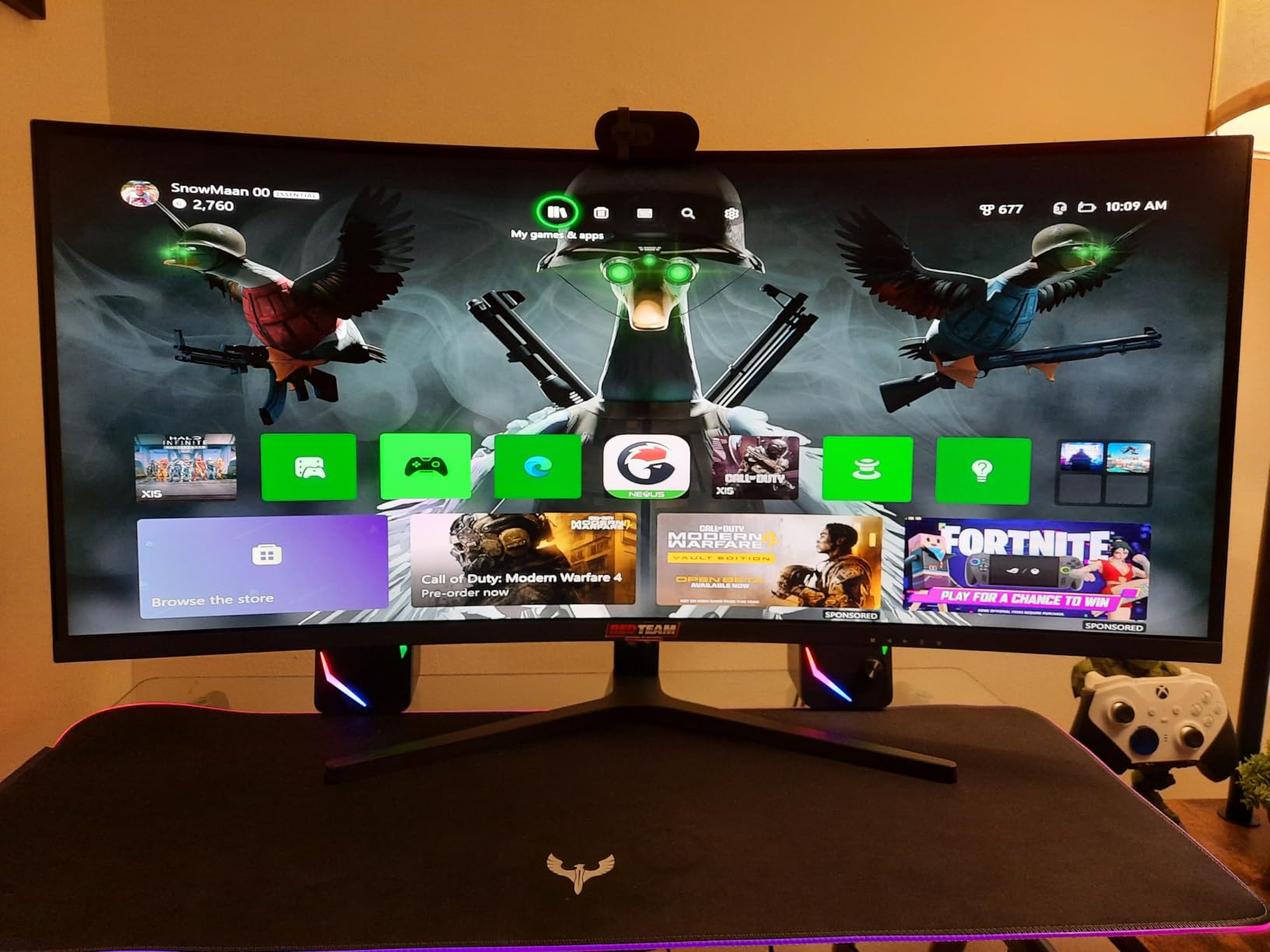
Ports are where this monitor punches above its class. Both HDMI 2.1 inputs and the DisplayPort 1.4 run the full 200Hz, so your choice of cable never becomes the bottleneck, and the AI blue light reduction is a genuine hardware feature rather than a filter you toggle in software. The VESA 100×100 pattern is standard, which matters if you later move to an arm.
The compromise is the stand, and it is a real one. Tilt only, no height adjustment, no swivel, and it is the one part of this package we would replace first. If your desk puts the panel at the wrong height, budget for a monitor arm rather than stacking books under the base.
Who this ultrawide monitor suits
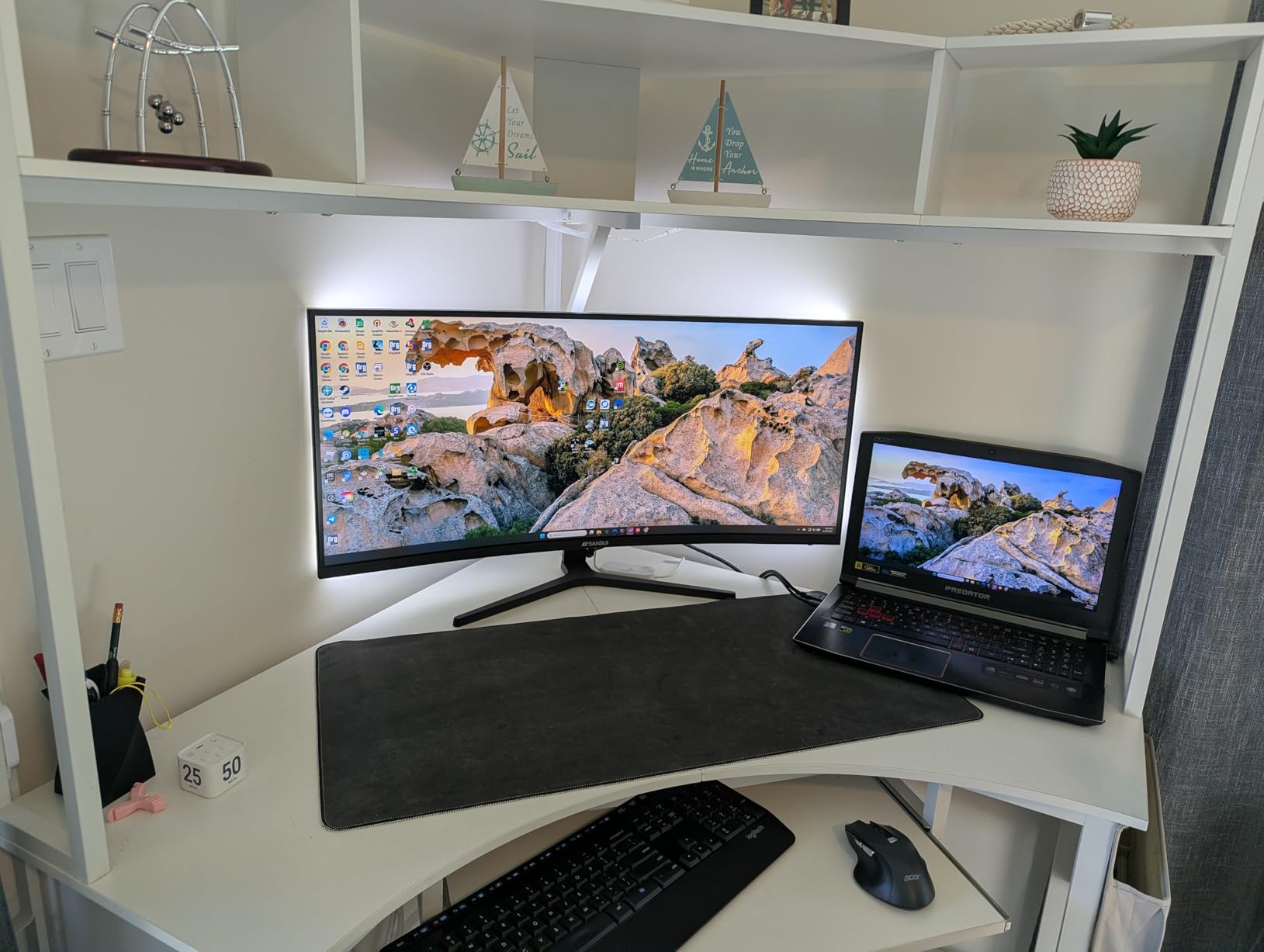
It suits anyone who wants real multitasking width without a premium price tag, and anyone who games on the same desk. The 200Hz ceiling and FreeSync support mean a mid-range card is not the limiting factor, and the 3440×1440 canvas gives a developer an IDE, a terminal and a browser at genuinely readable sizes.
It also suits people who rotate between two machines, since PIP and PBP are supported and there are two HDMI 2.1 ports plus a DisplayPort to spread across a desktop and a laptop.
Who should skip this ultrawide monitor
Skip it if your desk is small or if you need speakers and a height-adjustable stand out of the box. There are no built-in speakers at all, and out-of-the-box colour and sharpness will likely need ten minutes in the OSD before text looks right.
A small but vocal group also reports dark or washed-out edges at wide viewing angles, so if you sit well off-centre or share a screen with someone, verify the panel in person first. Quality control has been inconsistent between batches on other models in this brand’s line, so keep the packaging and check the panel fast.
2. Sceptre C345B-QUT168 34-Inch Curved Ultrawide – Budget Pick 3440×1440
Sceptre 34-inch Curved ultrawide WQHD Monitor (3440 × 1440), R1500, up to 180Hz/165Hz, DisplayPort x2, 99% sRGB, 1ms, Built-in Speakers, Machine Black, 2025 (C345B-QUT168)
34 inch 3440x1440 VA R1500 curve
Up to 180Hz with 1ms MPRT
2x DisplayPort and 2x HDMI
Pros
- Curved 3440x1440 screen genuinely replaces a dual-monitor setup
- Up to 180Hz with 1ms MPRT response
- Four video inputs for desktop and laptop
- 99 percent sRGB colour
- Three-screw stand assembly is quick
Cons
- Faint horizontal lines and backlight bleed in dark scenes
- Some motion smearing and early dead pixels reported
- Weak built-in speakers
The Sceptre C345B-QUT168 is the model owners most often describe as replacing their dual-monitor setup, and with 3026 ratings at a 4.3 average it has one of the longest ownership records in this roundup. Two years in, the pattern of complaints has not changed, which is its own kind of reassurance: what you read is what you get.
Where it wins on multitasking is input count and simplicity. Two DisplayPort and two HDMI means a gaming desktop and a work laptop can both stay plugged in permanently, and the joystick-style control button is far easier to navigate than the single under-mounted button some competitors ship.
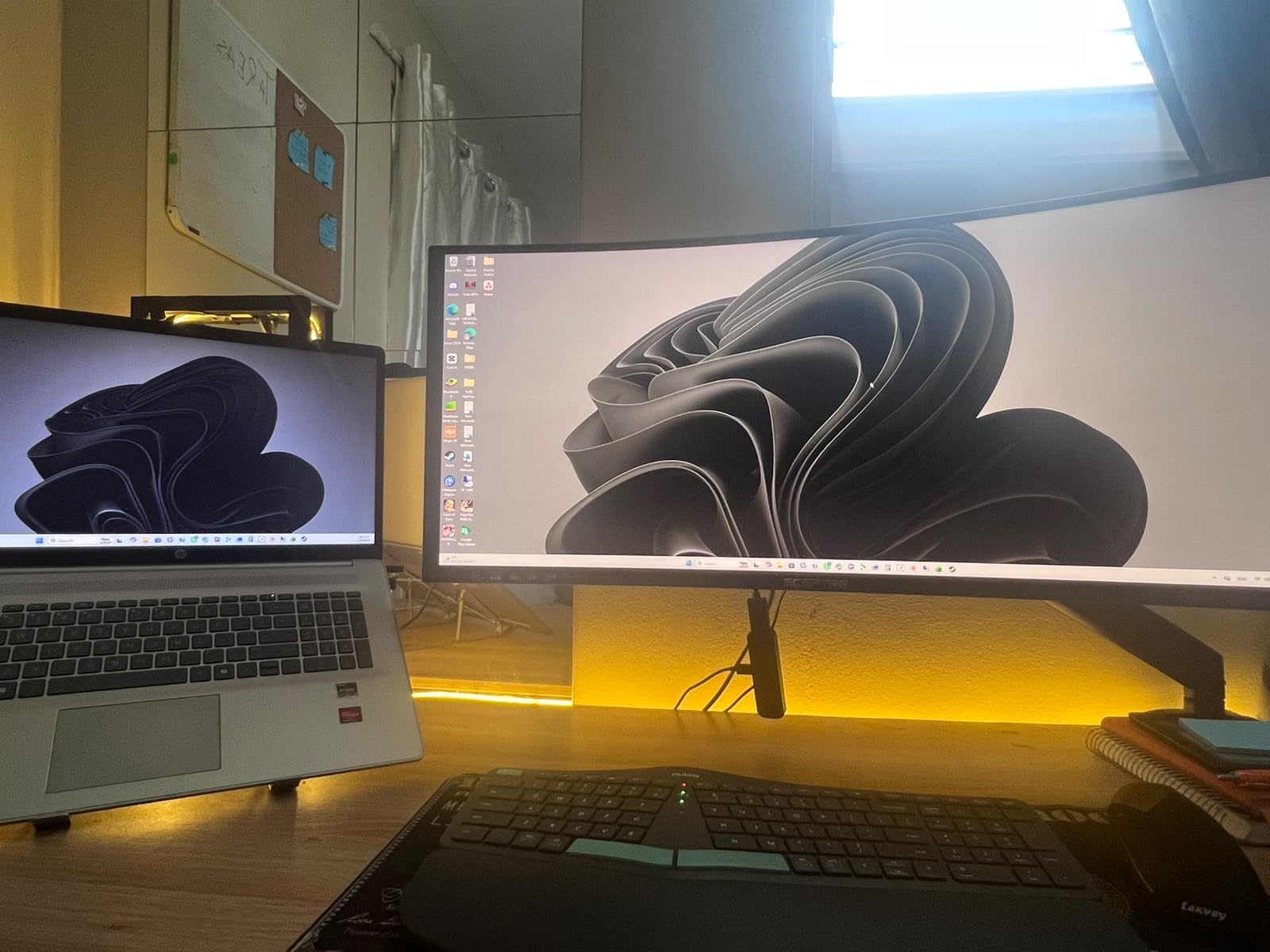
The 21:9 panel delivers about 30% more screen area than a conventional monitor at the same diagonal, and at 99% sRGB the picture is crisp enough for spreadsheets, document comparison and general office work. Wall-mountable too, which matters if a 34-inch panel crowds your desk edge.
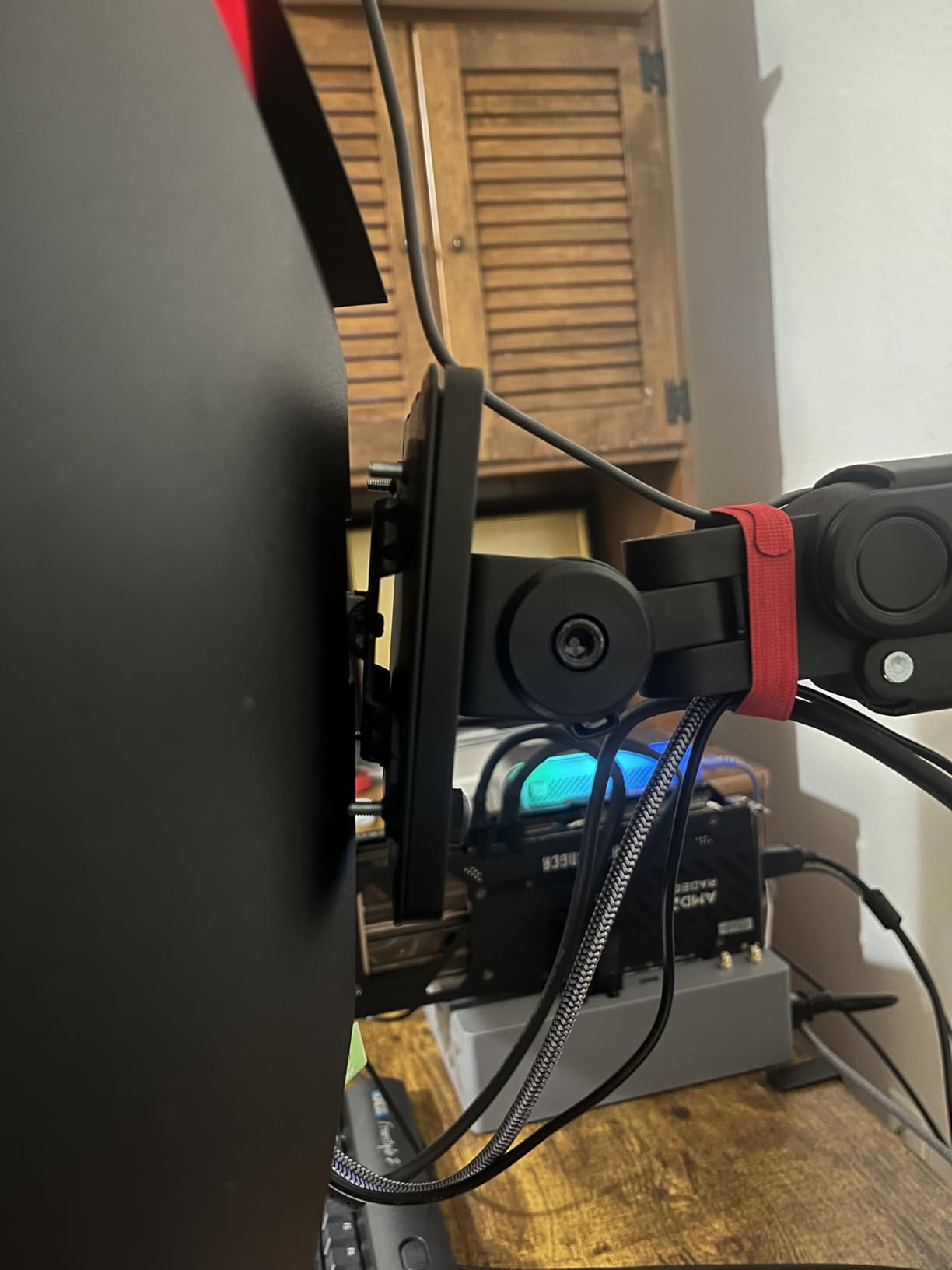
The picture quality is where the money was saved. Owners report faint horizontal lines and backlight bleed that shows up in dark scenes at close viewing distance, plus some motion smearing and an occasional dead pixel inside the first month. None of this ruins office work, but it is visible in a dim room at night.
Who this ultrawide monitor suits
It suits budget-first buyers who want a 3440×1440 canvas now, and anyone who reads and writes documents all day in a normally lit room. Tech support responsiveness is repeatedly called out as a genuine strength, which matters when a cheaper panel arrives with a defect.
Multi-input desks benefit most. Four video inputs is unusual on a 34-inch panel, and the frame is thin enough to pair cleanly if you keep a second display alongside it.
Who should skip this ultrawide monitor
Skip it if you work at night with dark interfaces, or if you do colour-graded video. The backlight bleed and smearing complaints are consistent enough that a video editor should look at the Alienware or the OLED G9 instead.
Also skip the built-in speakers entirely. They are present but weak, so plan on external audio or a headset if you take calls on this machine.
3. ASUS TUF VG34VQL1B 34-Inch 165Hz Ultrawide – Most Versatile with a Three-Year Warranty
ASUS TUF Gaming VG34VQL1B 34 Inch 1440p 165Hz Ultrawide HDR Gaming Monitor
34 inch 3440x1440 165Hz 1500R
1ms MPRT via ELMB
FreeSync Premium, DisplayHDR 400
Pros
- Sharp 3440x1440 is good for text and spreadsheets
- Height adjustable stand plus USB hub at this tier
- HDMI and DisplayPort cables included
- 3-year warranty with advanced replacement
Cons
- VA dark-scene smearing needs overdrive tuning
- 8-bit only at the top refresh rate
- Tinny built-in speakers
Buyers describe this as the best ultrawide value from a brand with real support behind it, and that distinction matters more than it sounds. The 3440×1440 panel is sharp for text and work, the factory colour profile needs almost no correction, and the packaging and VESA pattern are well positioned for an arm.
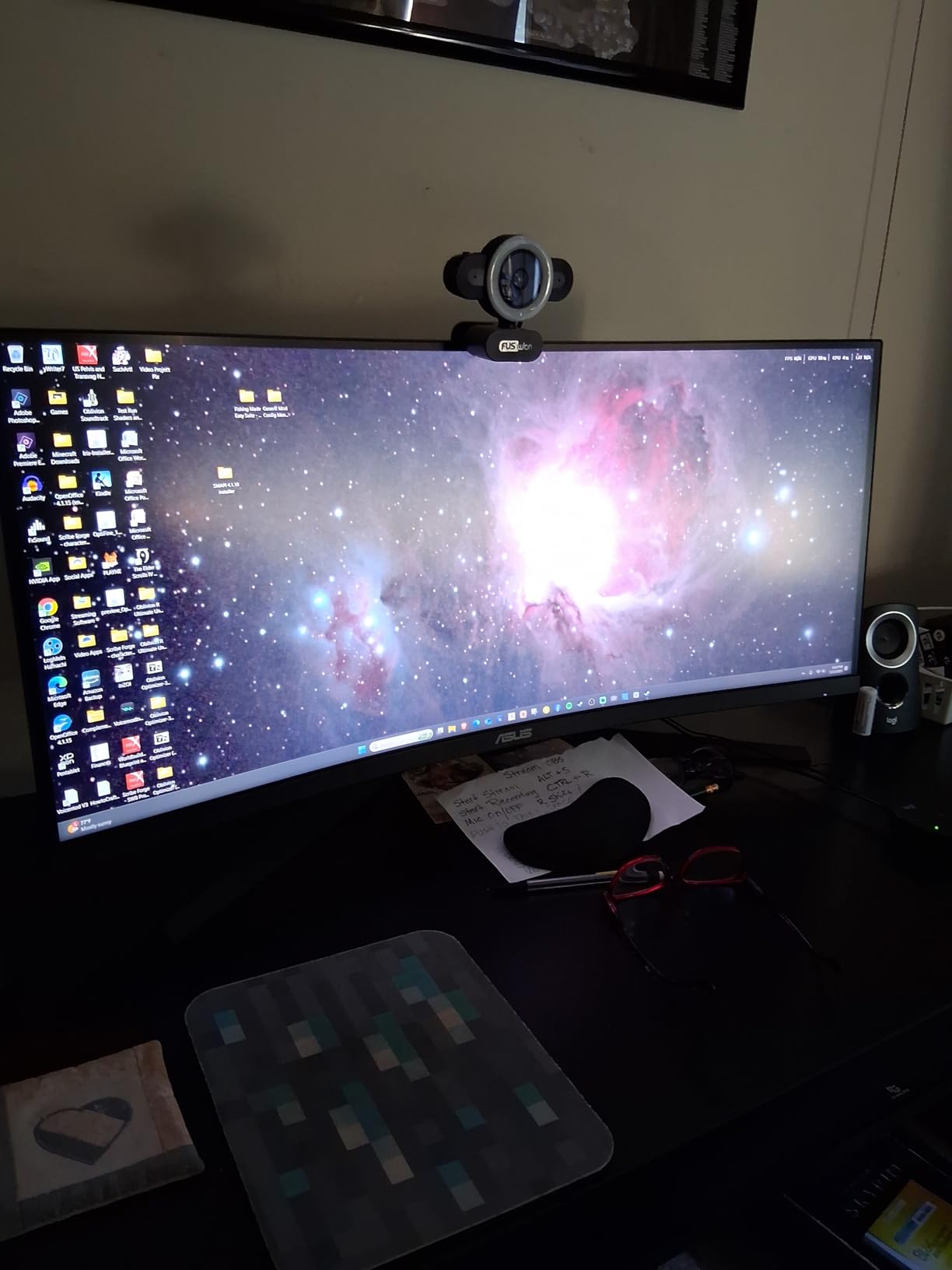
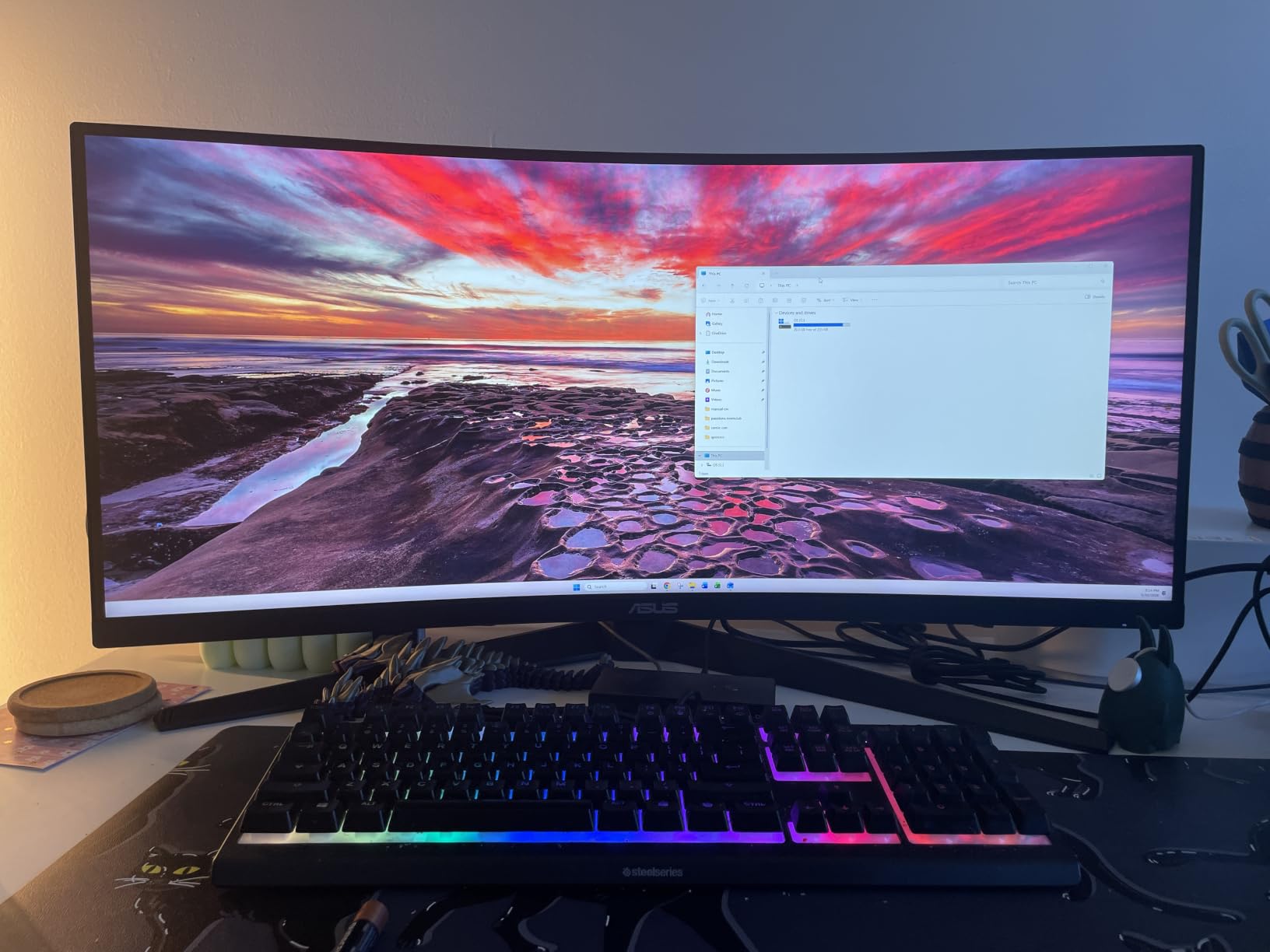
For a desk you use eight hours a day, the height-adjustable stand is the feature that quietly wins. Almost nothing else in the 34-inch class at this level combines height adjustment, swivel and tilt with a two-port USB hub, and that hub is what lets you plug a keyboard, mouse and webcam into the monitor instead of hunting a free socket on the tower.
Motion performance is handled by ASUS Extreme Low Motion Blur, which delivers a 1ms MPRT figure, and FreeSync Premium plus VESA DisplayHDR 400 certification covers the gaming and HDR side. The three-year warranty with Advanced Replacement and Repair covers the longest support window of the 34-inch models listed here.
Two caveats come up repeatedly. The VA panel shows slight smearing on dark transitions unless you tune the overdrive level yourself, and 10-bit colour drops to 8-bit when you run the full 165Hz, so colour work and maximum refresh cannot both be had at once.
Who this ultrawide monitor suits
It suits people who want a 34-inch ultrawide with proper ergonomics out of the box and do not want to buy an arm separately. Office workers, analysts and developers who keep an IDE, a terminal and a browser open at once will get the full benefit of that 3440×1440 width immediately.
Gamers who want high refresh without OLED burn-in risk also land here, since VA is indifferent to static desktop elements in a way OLED panels are not.
Who should skip this ultrawide monitor
Skip it if your work is colour-critical. 8-bit output at full refresh, plus a VA panel’s tendency to lift blacks off-axis, rules it out for grading and print-proofing work.
Skip it if you dislike tuning. That dark-scene smearing is a panel characteristic, not a defect, and getting the best result means spending time in the OSD the first week.
4. Samsung ViewFinity S50GC 34-Inch – Best for Eye Care and Long Document Work
SAMSUNG 34″ ViewFinity S50GC Series Ultra-WQHD Monitor, 100Hz, 5ms, HDR10, AMD FreeSync, Eye Care, Borderless Design, PIP, PBP, LS34C502GANXZA, 2023, Black
34 inch 3440x1440 borderless 21:9
100Hz VA with 5ms response
HDR10 and ambient light sensor
Pros
- 3440x1440 sharpness praised for programming and office work
- Ambient light sensor plus Eye Saver and Flicker Free
- Three-sided bezel-less design for dual setups
- Lightweight chassis and simple cable setup
Cons
- VA dark-transition smearing between bright and dark content
- Clunky PiP that will not sit two sources side by side
- 100Hz with no height adjustment
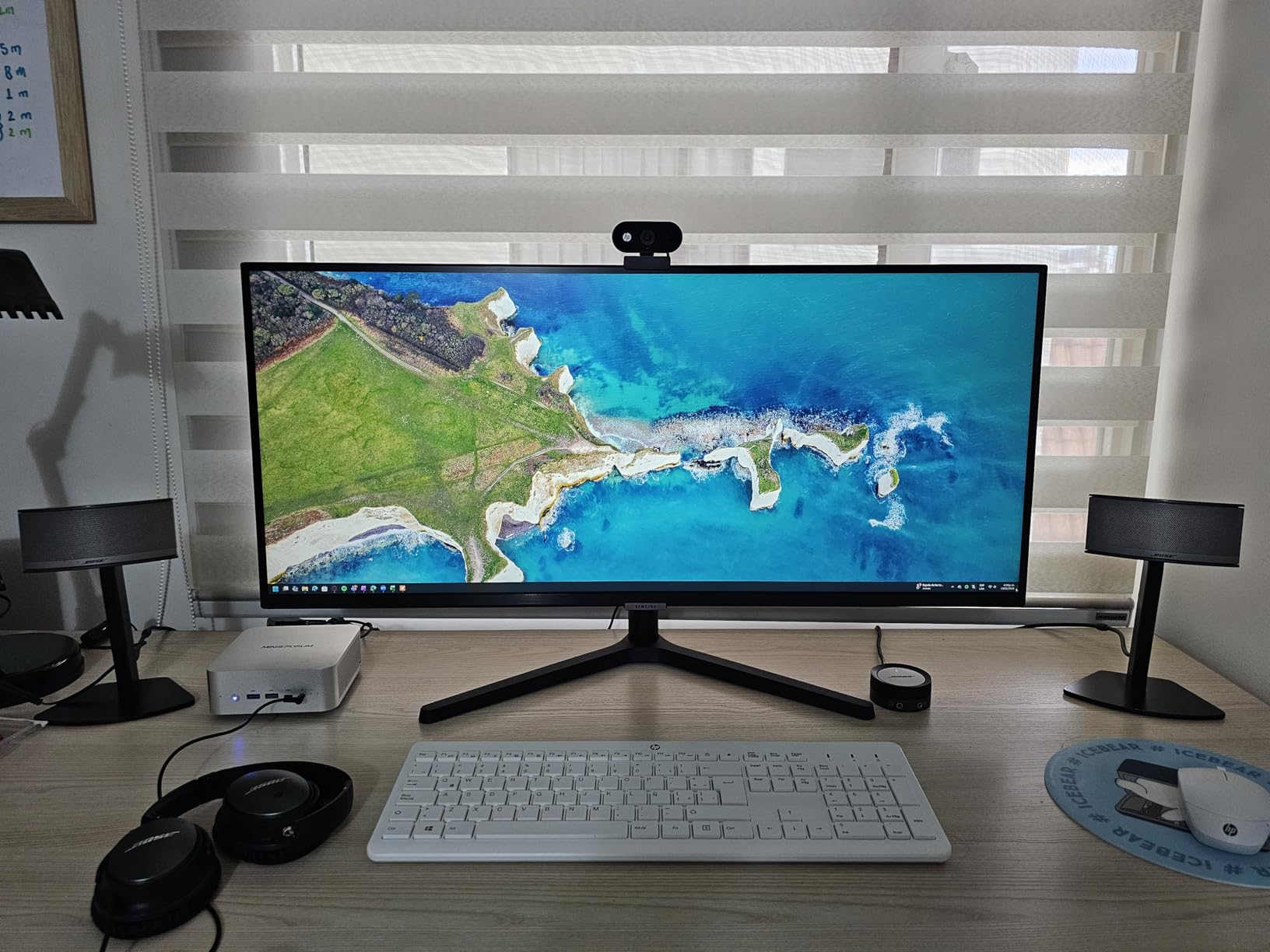
Owners treat this as a productivity-first ultrawide, and the pattern of praise is remarkably consistent: programming, office documents, audio mixing and video editing all get singled out for the 3440×1440 sharpness. At 4.4 across 1080 ratings, it is one of the better-reviewed 34-inch panels available.
What separates it from cheaper 3440×1440 screens is the eye-care stack. An ambient light sensor adjusts brightness automatically through the day, Eye Saver Mode cuts blue light and Flicker Free removes PWM shimmer, and all of it is TUV-certified rather than a checkbox in a spec sheet.
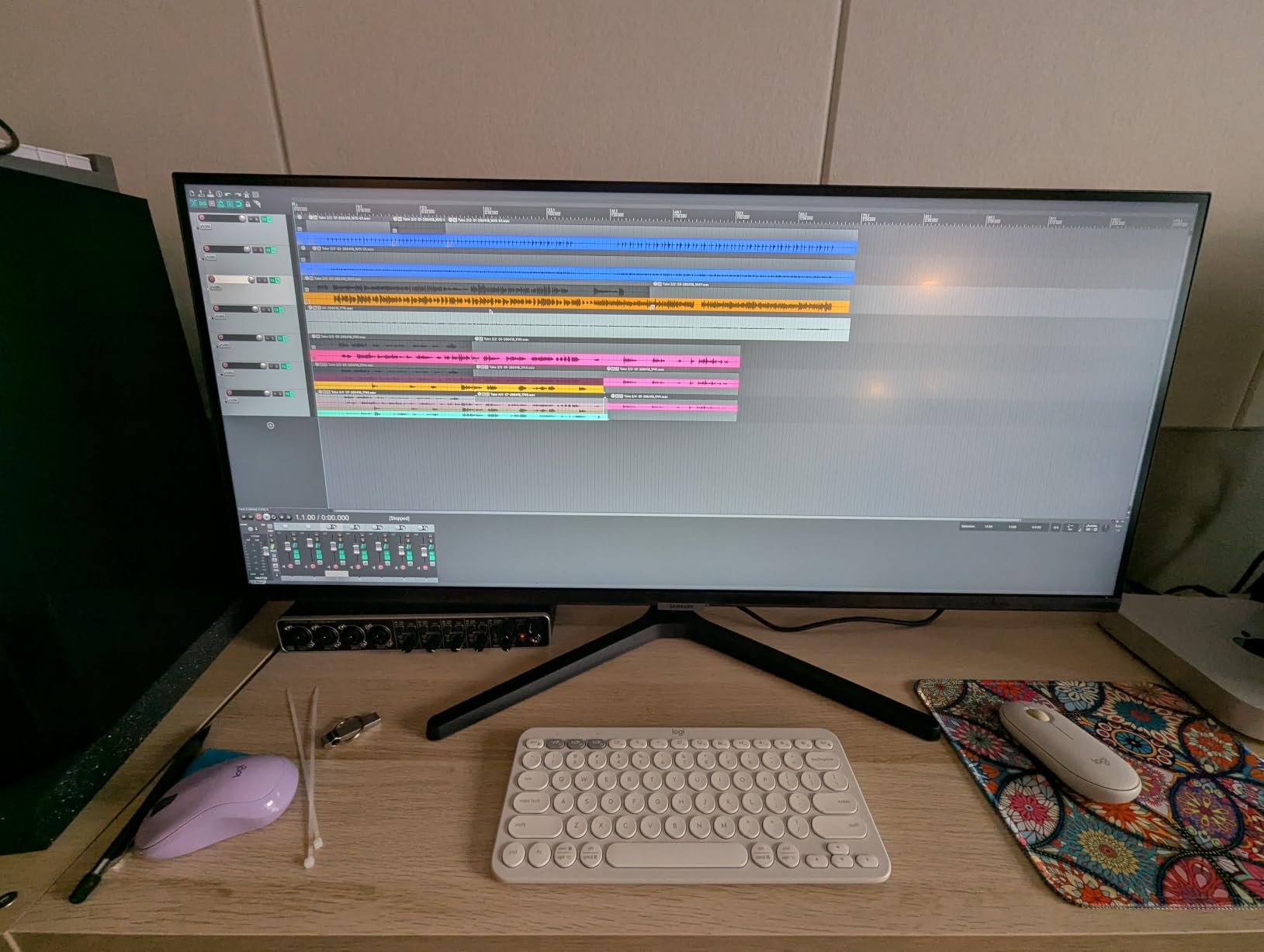
Three-sided bezel-less design is a quiet multitasker feature. The panel measures 32.1 inches wide, which means you can place it next to another display with almost no visual seam, and the auto-scaling across resolutions and aspect ratios handles mixed-source setups smoothly.
The honest weaknesses are the refresh rate and the picture-in-picture. 100Hz is fine for work but unexciting for games, and PiP is described as janky, with two sources unable to sit side by side at native aspect. If dual-source is central to your workflow, look at the LG instead.
Who this ultrawide monitor suits
It suits people who read and write all day, particularly anyone sensitive to flicker or blue light. Writers, analysts, students and anyone working long hours in a bright room will find the ambient sensor genuinely useful rather than decorative.
It also suits mixed-desk setups, because the three-sided bezel-less design pairs cleanly with a second screen and the DisplayPort plus dual HDMI inputs keep three devices connected.
Who should skip this ultrawide monitor
Skip it if you want a fast gaming panel or a real picture-in-picture workflow. 100Hz and a 5ms response time put it well behind the 165Hz and 200Hz options in this roundup.
Also skip it if you need height adjustment, because the stand does not offer it, and expect the usual VA smearing on high-contrast transitions such as dark code editors next to white browser windows.
5. Alienware AW3425DWM 34-Inch 180Hz Ultrawide – Top Rated for Mixed Work and Play
Alienware 34 Curved Gaming Monitor – AW3425DWM – 34-inch WQHD 180Hz 1ms Display, 1500R, AMD FreeSync Premium, VESA AdaptiveSync.
34 inch 3440x1440 1500R curved
180Hz with 1ms gray-to-gray
DisplayHDR 400, DCI-P3 95 percent
Pros
- 180Hz with 1ms GtG for very smooth motion
- DCI-P3 95 percent coverage with DisplayHDR 400
- Height and tilt adjustable stand
- Console mode and hardware low blue light
Cons
- Costs more than most 34-inch 3440x1440 rivals
- No built-in speakers
- Draws 85W
- well above the 31W of the Dell S3425DW
The Alienware AW3425DWM carries one of the two highest average ratings in this roundup at 4.6, with an 81% five-star distribution. That level of satisfaction usually comes from a panel that simply does nothing wrong, and this one pairs a 3440×1440 VA panel with 180Hz refresh and a 1ms gray-to-gray response time.
For multitasking, DCI-P3 95% coverage and VESA DisplayHDR 400 certification mean colours hold up when you jump between a document, a browser and a photo or video preview. The 1500R curve keeps the edges usable during peripheral glances, and Bluetooth plus three USB ports cover peripherals without a hub.
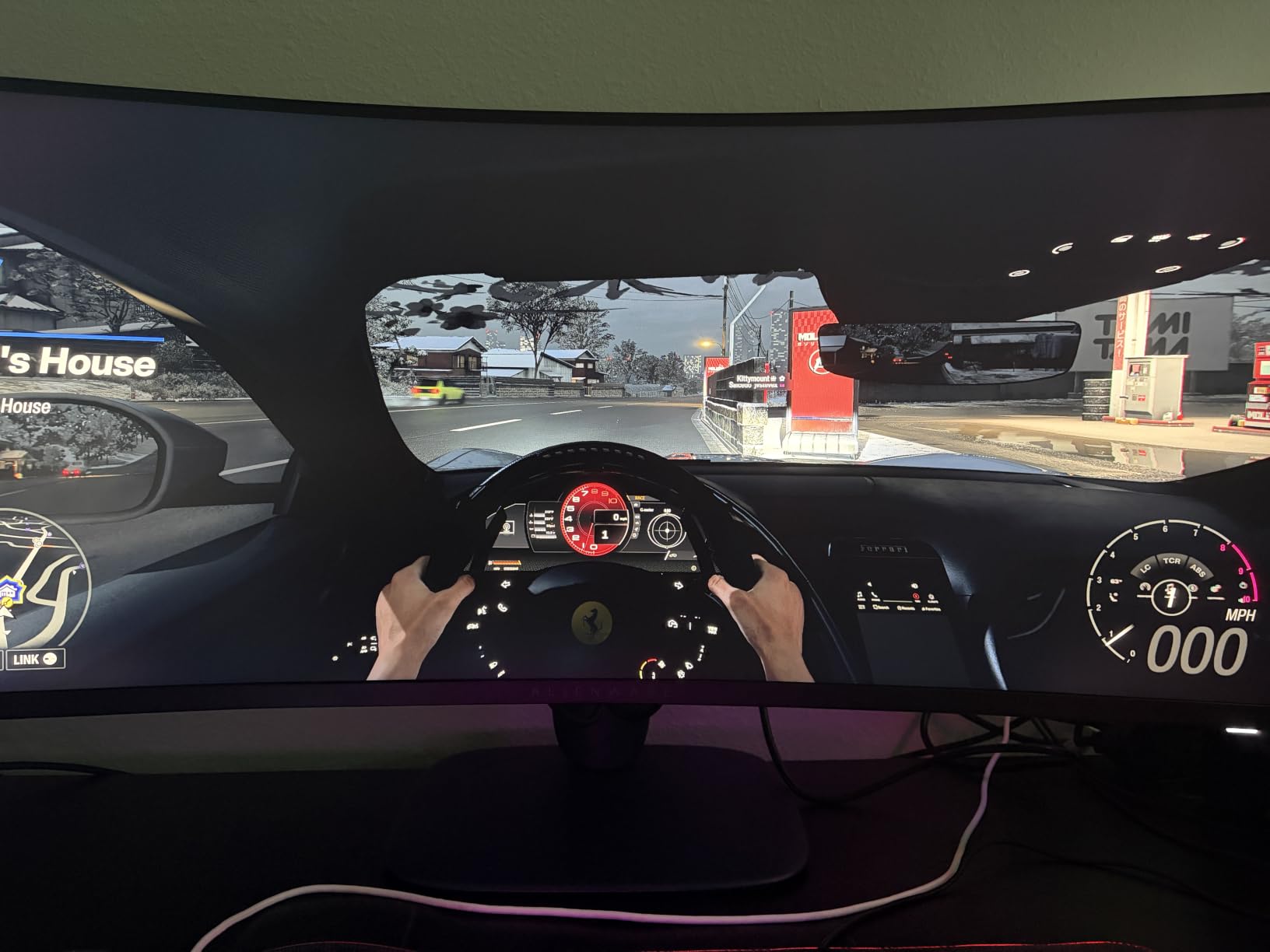
It is also one of the few 34-inch panels here with a height and tilt adjustable stand, plus a dedicated console mode for PS5 and Xbox sessions. The hardware low blue light solution is built in rather than emulated, which is a genuine plus for long working days.
Owners rate the combination of speed, HDR and colour highly, with the main trade-offs sitting in the specification sheet rather than the reviews. It draws 85W, and it comes with no built-in speakers, so budget for audio.
Who this ultrawide monitor suits
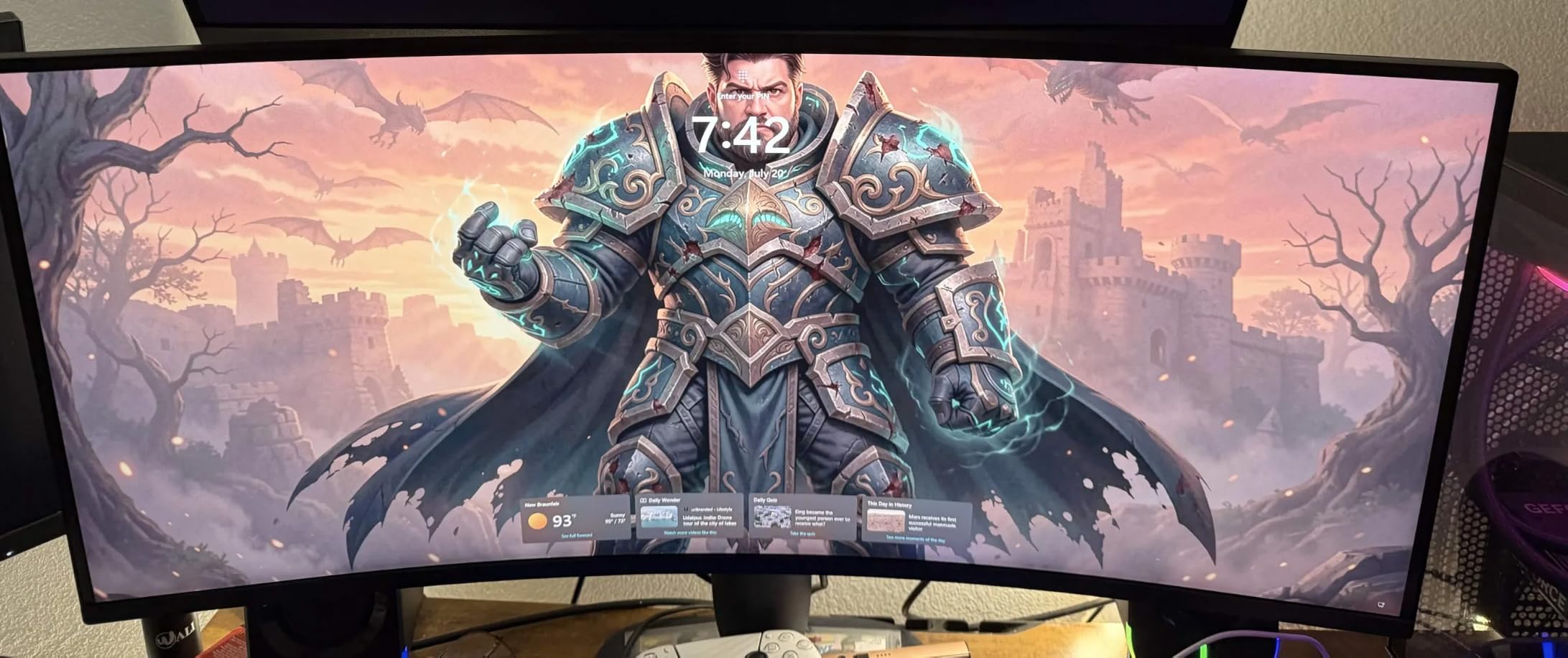
It suits people who work and game on the same screen and refuse to compromise either half. The 180Hz ceiling means motion feels clean even on mid-range graphics hardware, and the wide colour coverage holds up for light creative work.
Console owners benefit from the dedicated console mode, and anyone moving between a desktop and a laptop will like having Bluetooth and three USB ports on the panel itself.
Who should skip this ultrawide monitor
Skip it on a strict budget, or if power draw matters in your setup. It costs more than the other 34-inch 3440×1440 options in this list and runs at 85W, well above the 31W drawn by the Dell S3425DW.
Skip it if you want audio from the monitor, because there are no built-in speakers, and expect a more price-sensitive market elsewhere if you are buying purely for office work.
6. Dell 34 Plus S3425DW – Best USB-C Dock for Laptop Users
Dell 34 Monitor S3425DW, WQHD VA, 120Hz, FreeSync Premium, Eye Comfort
34 inch 3440x1440 VA curved at 120Hz
USB-C with 65W power delivery
FreeSync Premium, 0.03ms response
Pros
- One USB-C cable handles video data and 65W charging
- Text rendering praised for spreadsheets and office work
- Tool-free base assembly
- Height and tilt adjustable stand
Cons
- No DisplayPort input
- Recessed VESA bracket is awkward for arms
- Built-in speakers distort at higher levels
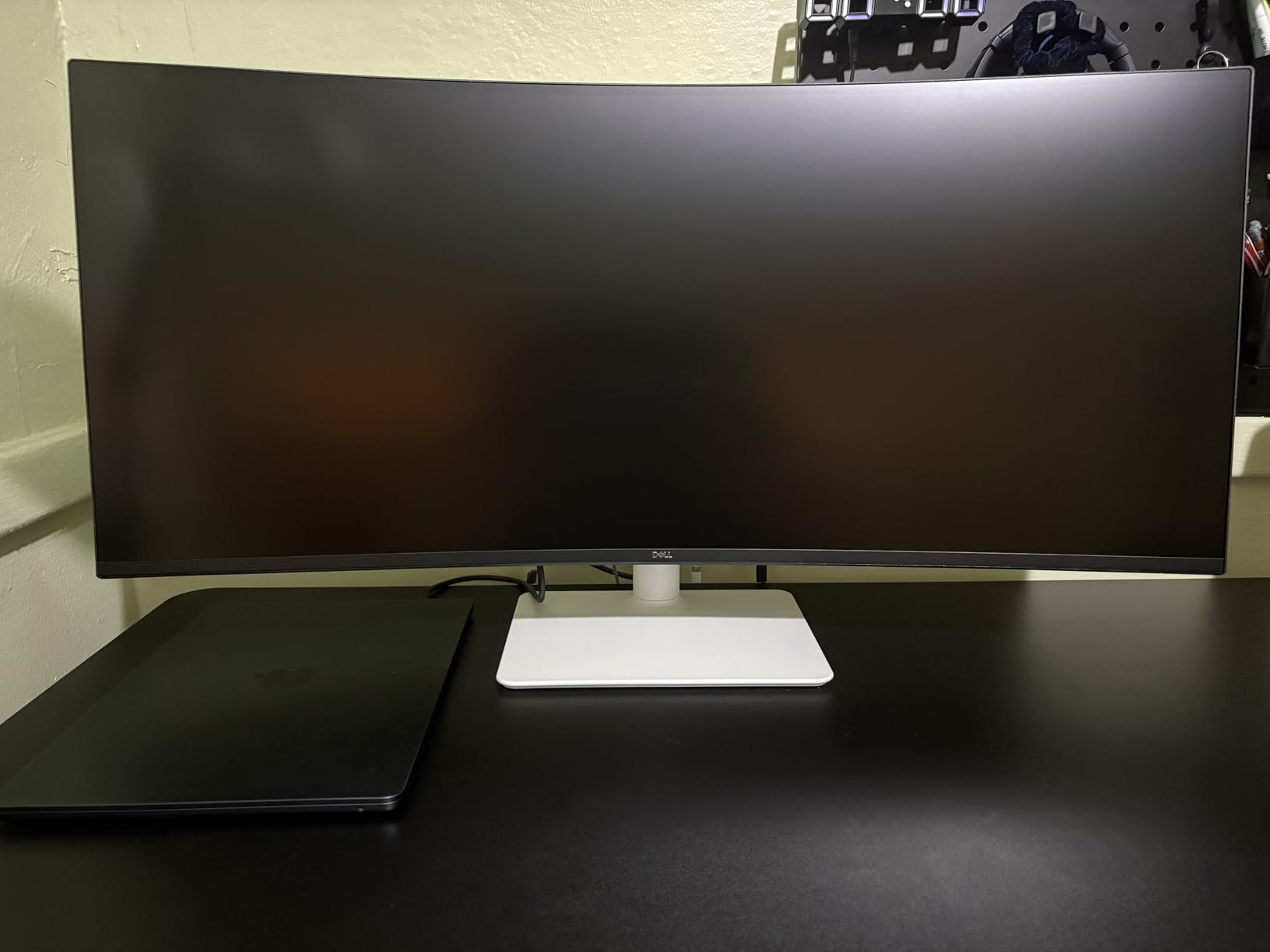
The S3425DW is bought for one reason more than any other, and that is the single-cable setup. A 65W USB-C connection carries video, data and laptop charging at once, so an owner arriving at a desk with a MacBook Pro gets a full workstation from one lead. MacOS users in particular report flawless operation.
Owners also single out text rendering and clarity as decisive. A 3440×1440 VA panel at 99% sRGB and 95% DCI-P3 produces sharp spreadsheet text and accurate colour out of the box, and the 3000:1 contrast ratio is a real step up from a typical budget panel.
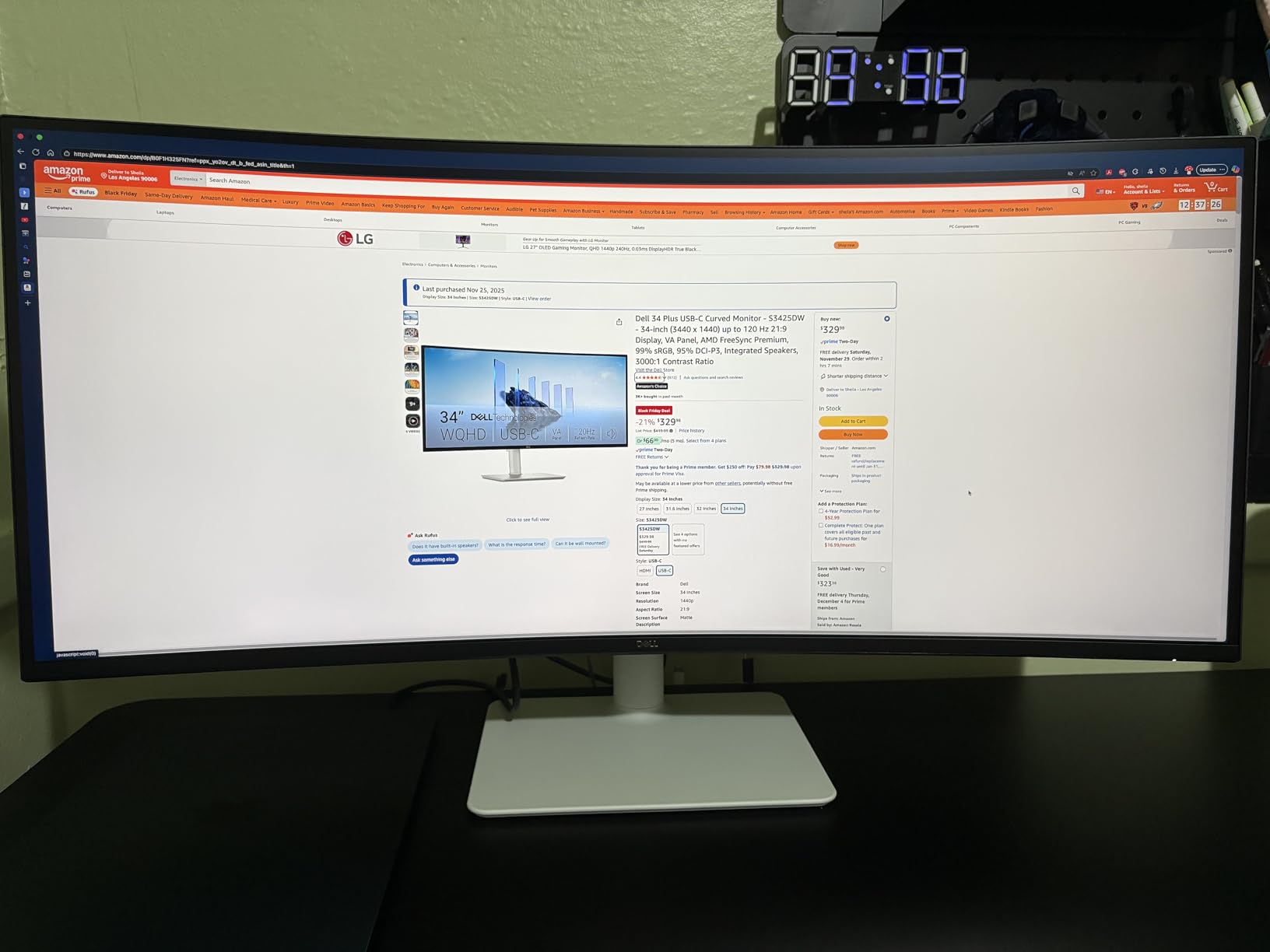
There is a hardware low blue light mode through ComfortView Plus, cutting blue light emissions to 35% or less, and FreeSync Premium with a 0.03ms response time and 120Hz ceiling keeps scrolling and dragging windows smooth.
The port selection is the main compromise, and it is a real one. There is no DisplayPort at all, just HDMI, USB-C and USB-A, which limits you to a single high-refresh video path and makes monitor-to-monitor daisy-chaining impossible. The recessed VESA bracket also makes arm mounting awkward without spacers.
Who this ultrawide monitor suits
It suits laptop-first workers who want to arrive, plug in one cable and start working. The 65W delivery covers most ultraportables and many thin-and-light business machines without a second charger, which is the single most common complaint people report about ultrawides generally.
It also suits analysts and finance workers who live in spreadsheets, since the text clarity and wide canvas are exactly what dense numeric layouts need.
Who should skip this ultrawide monitor
Skip it if you need DisplayPort, plan to daisy-chain a second display, or want to run a high-end GPU at the maximum refresh over multiple inputs. The port list is genuinely sparse for a monitor in this class.
Colour-critical work is also a poor fit, since VA colour is not ideal for graphic design, and plan on external speakers because the built-in set distorts at higher volume. A few panels also arrive with a stand that will not hold the screen level.
7. LG 34WR55QK-B 34-Inch Ultrawide – Best for Multi-Source Desks
LG 34WR55QK-B 34-inch UltraWide WQHD (3440 x 1440) Curved Computer Monitor, 100Hz, 5ms, HDR10, Reader Mode, HDMI, DisplayPort, USB Type-C, Tilt/Height Adjustable Stand, Black
34 inch 3440x1440 VA curved at 100Hz
USB-C 65W charging
PbP plus OnScreen Control
Pros
- 21:9 workspace holds multiple full-size windows
- USB-C with 65W power delivery for one-cable setups
- PbP drives two sources on one screen
- Height and tilt adjustable ergonomic stand
- Reader Mode for long reading sessions
Cons
- 100Hz is low for a gaming-focused ultrawide
- VA dark-transition smearing
- Modest 99 percent sRGB gamut
The LG 34WR55QK-B pairs a 4.6 average with an 81% five-star distribution and only 4% one-star, the joint-highest satisfaction in this set. The productivity case is the entire design brief: a 21:9 UltraWide 3440×1440 canvas, OnScreen Control for splitting the workspace, and picture-by-picture for two separate sources.
Picture-by-picture is the feature that separates it from most rivals. It is genuinely usable for a desktop plus laptop arrangement, and combined with USB-C at 65W you can run a full two-machine desk from the monitor without a separate dock.
The port list is complete rather than minimal: USB Type-C, two HDMI, DisplayPort, two USB downstream ports and a headphone jack. That is three USB ports in total, and the DisplayPort matters more than its absence does elsewhere.
Reader Mode reduces blue light for extended reading, and the three-sided virtually borderless design makes the 31.9-inch-wide panel easy to pair with a second screen. The stand adjusts in both height and tilt, which puts it ahead of several cheaper 34-inch options.
Who this ultrawide monitor suits
It suits people running two machines from one desk, such as a work laptop and a personal desktop, because PbP plus USB-C charging solves that setup without extra hardware. Financial traders and analysts who want a wide dashboard and a smaller side panel at the same time will find the same combination useful.
It also suits anyone who wants a wide office panel with a blue light filter built into the firmware rather than layered on in software, and 99% sRGB coverage is enough for general business and multimedia colour.
Who should skip this ultrawide monitor
Skip it if you game seriously. A 100Hz ceiling with a 5ms response time leaves a lot on the table next to the 165Hz, 180Hz and 200Hz panels in this roundup, and there is no wide-gamut coverage beyond 99% sRGB.
Long-term reliability records are also thinner here. At 241 reviews this has one of the smaller samples in the list, so buyer confidence rests more on the panel spec than on a long ownership history, and VA dark-transition smearing still applies.
8. Samsung Odyssey OLED G9 49-Inch QD-OLED – Best for Video Editing and True Blacks
Samsung 49″ Odyssey OLED G9 (G91SD) Dual QHD QD-OLED Curved Gaming Monitor
49 inch 5120x1440 QD-OLED 32:9
144Hz with 0.03ms response
Thermal modulation burn-in protection
Pros
- QD-OLED delivers true blacks and vivid colour at 5120x1440
- 0.03ms response and 144Hz
- FreeSync Premium Pro and G-Sync compatible
- Anti-burn-in logo and taskbar detection plus screen saver
- Picture-in-Picture sub-screen
Cons
- Very wide and heavy chassis that needs a large desk
- No built-in speakers
- Games without native 32:9 support show unusable UI
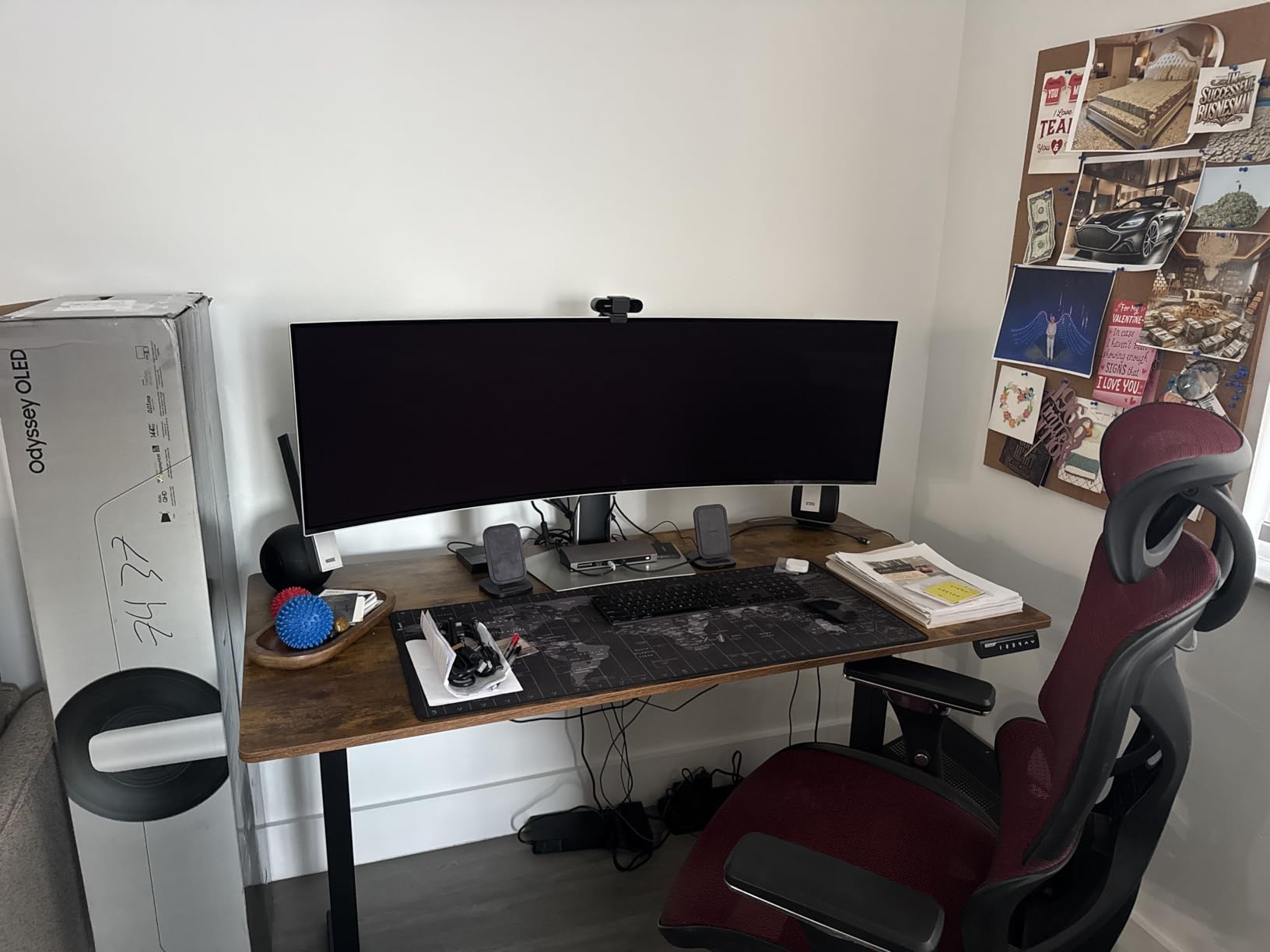
A 49-inch 5120×1440 QD-OLED panel is a different category of screen, not a bigger 34-inch. At 32:9 and 110 pixels per inch, it is the width of two 16:9 monitors with no bezel between them, and for video editing that means a full timeline, a viewer and a bin visible at once without any of them being scaled down.
Picture quality is the reason to pay for OLED. Infinite contrast, pure black levels and no pixel light bleed give you accurate shadow detail in a grading suite, and 0.03ms response with 144Hz makes it a genuinely fast panel as well.
Samsung has thought about the burn-in problem that makes people hesitate on OLED, and the mitigations are hardware-level. Logo and taskbar detection, thermal modulation and a screen saver that dims the display after ten minutes of inactivity all work automatically once configured.
Picture-in-Picture gives you a genuine second screen inside the main one, and the stand adjusts for height and tilt. Buyers praise the multitasking flexibility and near-instant response, and the anti-burn-in suite is among the most complete on any panel here.
Who this ultrawide monitor suits
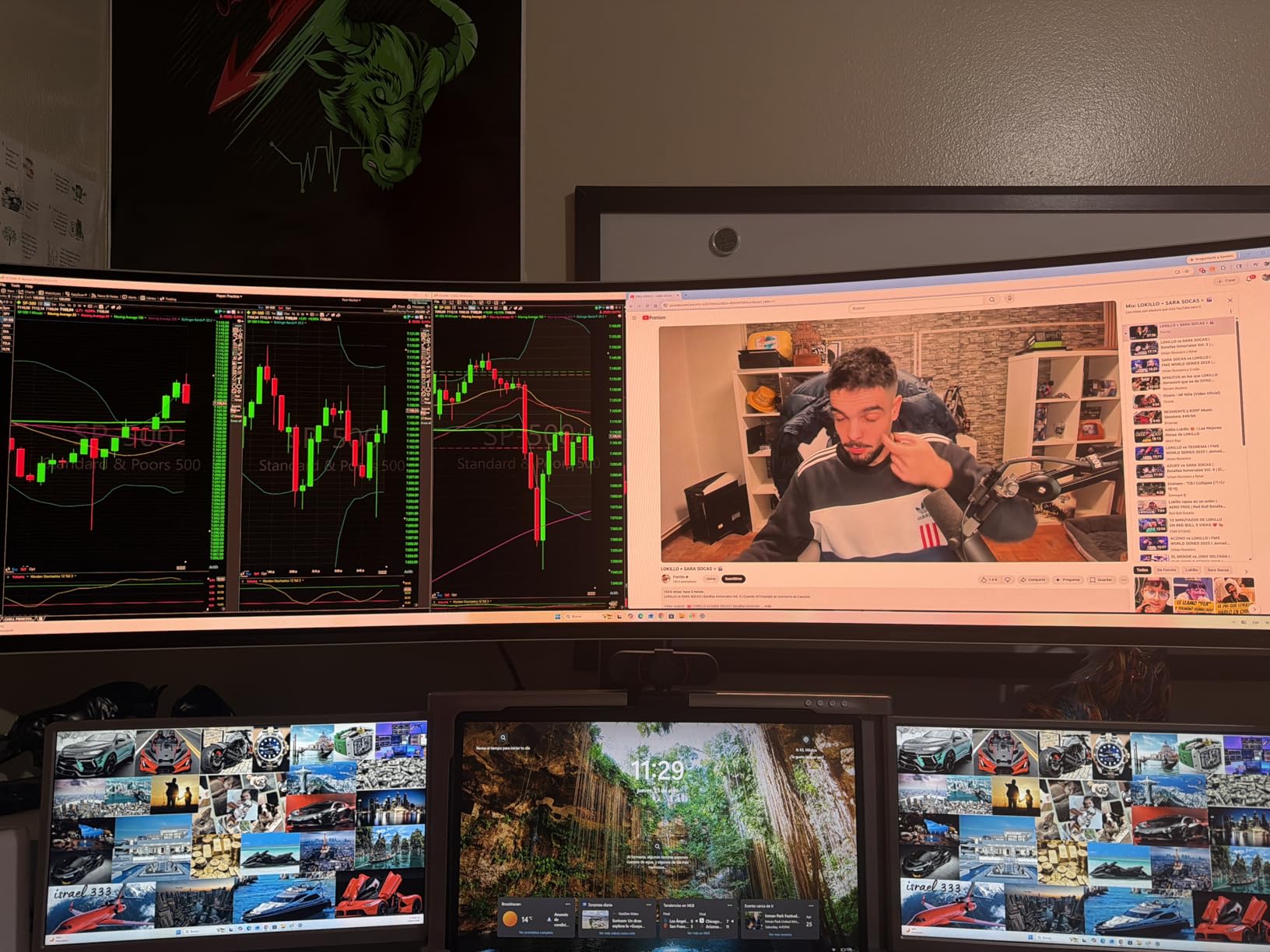
It suits video editors, colourists and motion designers who need true blacks and a timeline wide enough to work at full zoom. Photographers editing culling sessions benefit from the contrast, and streamers running a game plus chat and capture tools get all three without a second screen.
It also suits traders who want a dashboard layout, since 5120×1440 comfortably holds multiple charts plus an order window at readable sizes.
Who should skip this ultrawide monitor
Skip it on a small desk. The panel is 47 inches wide and weighs 28.4 pounds, and it needs a viewing distance most home desks cannot provide comfortably. It also draws a substantial amount of power, which shows up on your electricity bill.
Skip it if any of your games lack native 32:9 support, because you will get sidebars or unusable interface elements, and check the rating distribution before you commit: a meaningful share of buyers here are dissatisfied, and OLED panel variance between units is real.
9. Samsung Odyssey G9 49-Inch DQHD – Best for Maximum Screen Real Estate on a Desk
SAMSUNG 49-inch Odyssey G9 (G91F) DQHD, 144Hz, Curved Gaming Monitor, Ultra-Wide 32:9 Screen, DisplayHDR 600, AMD FreeSync™ Premium Pro, Ergonomic Stand, LS49FG910ENXZA, 2025
49 inch 5120x1440 VA 1000R 32:9
DisplayHDR 600, 144Hz, 1ms
Auto Source Switch plus
Pros
- 1000R 32:9 panel equals two side-by-side 16:9 monitors
- DisplayHDR 600 improves contrast and shadow detail
- 144Hz with 1ms response
- Split-screen and PiP replace a multi-monitor desk
- Auto Source Switch plus changes input automatically
Cons
- VA rather than IPS
- so some buyers report washed-out colour
- Short vertical height crowds workspace-heavy apps
- Very heavy at 34.4 pounds with no speakers
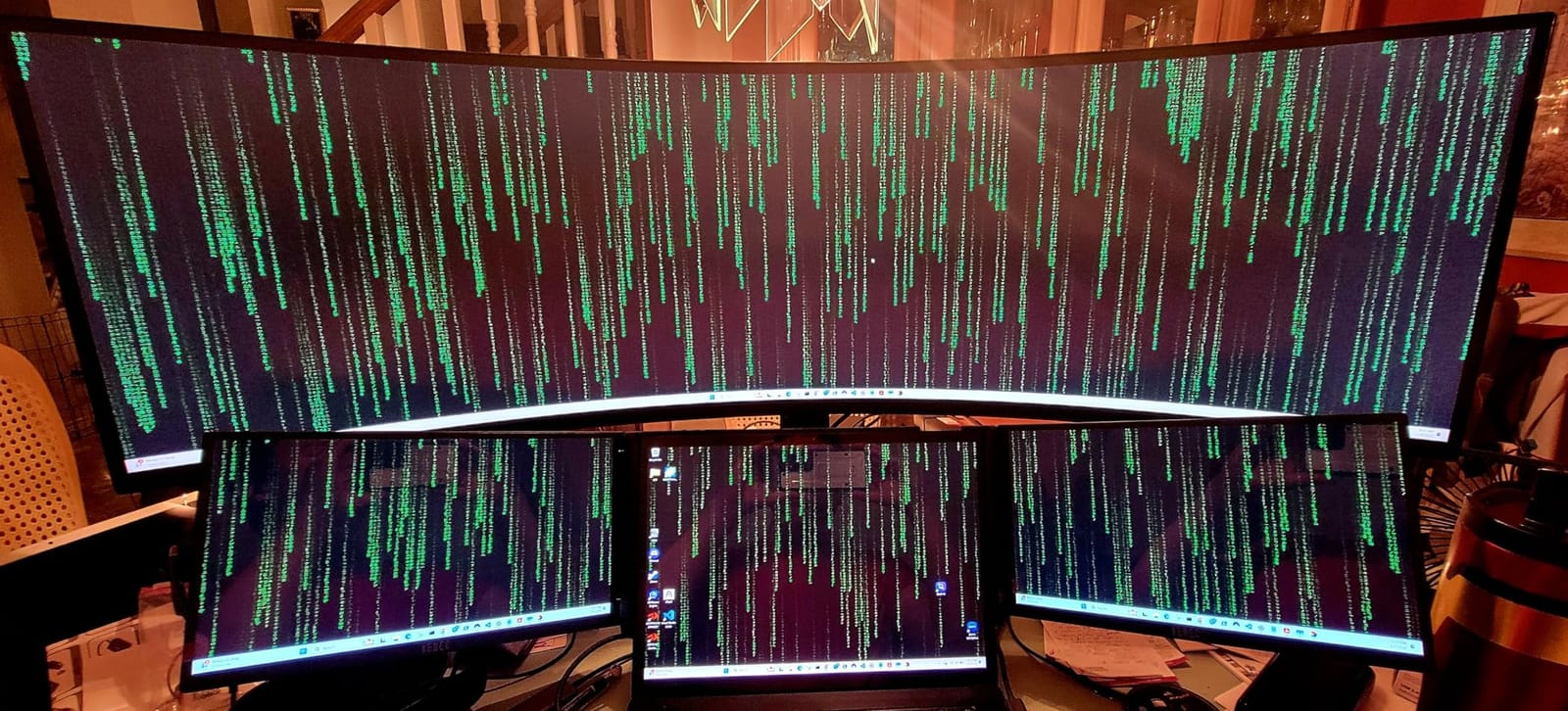
The LCD Odyssey G9 answers the same question as the OLED model above with a different panel, and for most multitasking desks it is the more practical answer. A 1000R curved 32:9 display at 5120×1440 replaces a two-monitor desk without a bezel down the middle, and r/ultrawidemasterrace threads regularly name the Odyssey G9 as the pick when the brief is maximum screen real estate.
DisplayHDR 600 is a real step over a standard VA panel, improving contrast and shadow detail so text in dark IDE themes and dense timeline footage both stay readable. At 144Hz with 1ms response and FreeSync Premium Pro, it doubles as a gaming panel.
Multi-input convenience is unusually good. Auto Source Switch plus changes inputs automatically when a device powers on, and split-screen plus picture-in-picture cover the case where you want a small secondary feed beside a wide main workspace.
The 32:9 gaming caveat applies here too, since most titles do not natively support the format and you will see sidebars or interface elements pushed to the edges. HDR also only engages on a single signal, and split-screen mode disables it entirely.
Who this ultrawide monitor suits
It suits people replacing a dual-monitor desk who want the width without the bezels, the two cables or the second power supply. Split-screen and picture-in-picture make the two-source case straightforward, and auto input switching removes the daily plug-swap ritual.
The tall stand is worth noting, because it keeps the panel at a workable height for good posture despite the 49-inch diagonal, and height plus tilt adjustment are both present.
Who should skip this ultrawide monitor
Skip it if colour accuracy is the priority, since the panel is VA rather than IPS and a minority of buyers report dull or washed-out colour out of the box. For grading work, choose the QD-OLED instead.
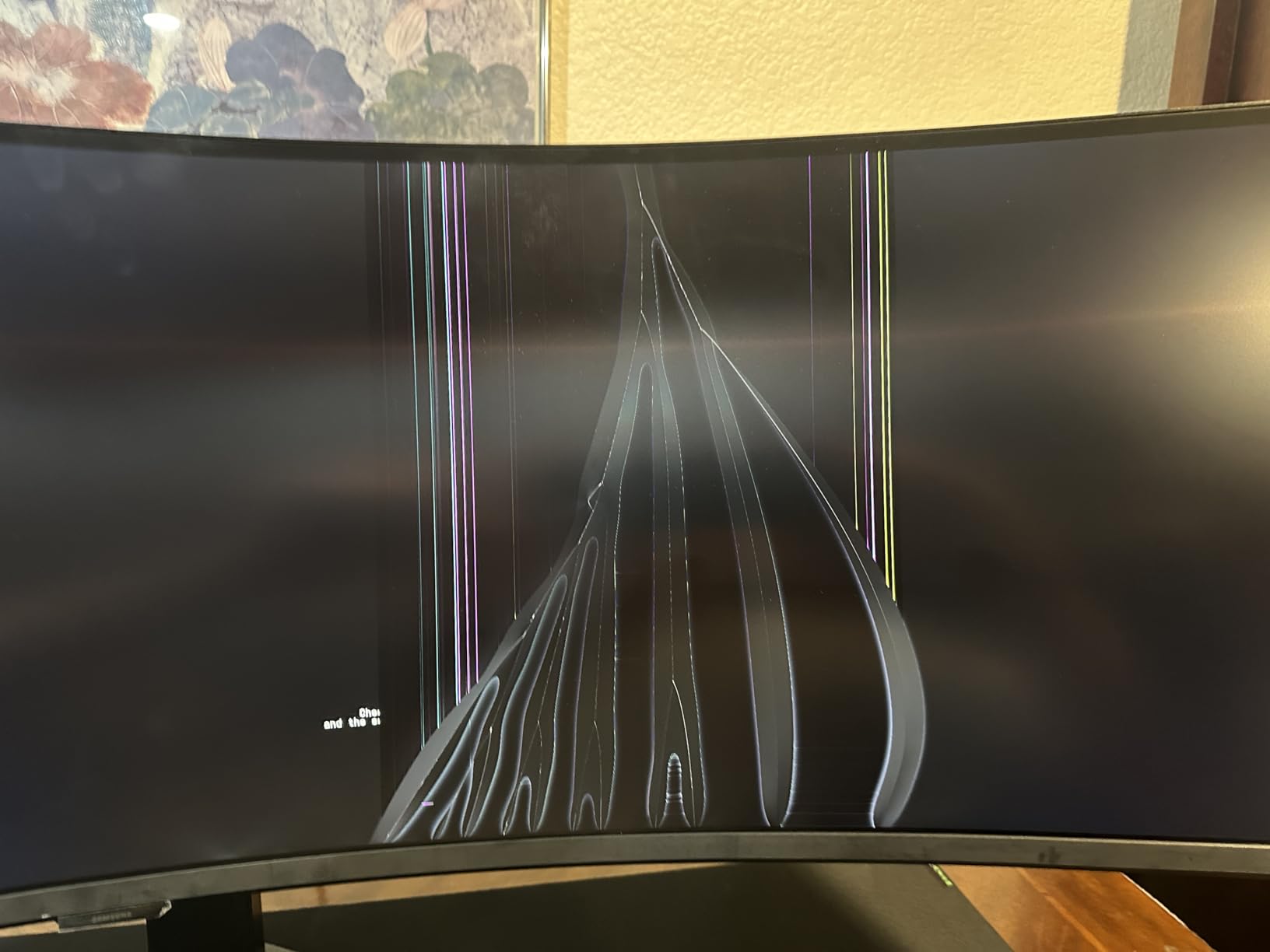
Skip it on a shallow desk. This one is 45 inches wide, 16.5 inches deep and weighs 34.4 pounds, and the vertical height is short relative to the width, which crowds workspace-heavy applications. There are no built-in speakers, and one buyer reported a line of dead pixels within a month, so check the panel on arrival.
10. Sceptre E345W 34-Inch 2026 Series – Best Multi-Input Budget Ultrawide
New! Sceptre 34-inch Prime Monitor 3440 x 1440 up to 115Hz 103% sRGB DisplayPort HDMI Build-in Speakers, Machine Black 2026 (E345W Series)
34 inch 3440x1440 flat VA at 115Hz
Four video inputs plus audio out
Blue-Light Shift eye care
Pros
- Strong 3440x1440 value at this tier
- Four video inputs: two HDMI and two DisplayPort
- Ships with all cables and a screwdriver
- Metal stand is more stable than expected
- Flicker-free at 115Hz
Cons
- Washed-out blacks that need OSD tuning
- Dim panel and HDR did not help brightness
- Poor built-in speakers
- VA rather than the IPS some listings imply
The Sceptre E345W is a straightforward value pick with a feature that rivals at this tier rarely offer: four video inputs. Two HDMI running to 100Hz and two DisplayPort running to 115Hz means a desktop, a laptop and a console can all stay connected permanently, which is exactly what a multitasking desk needs.
Reviewers treat it as a budget ultrawide, and the praise is about what you get rather than how it looks. The 3440×1440 resolution is right, the metal stand is more stable than the product photos suggest, and everything you need to mount it arrives in the box including a screwdriver.
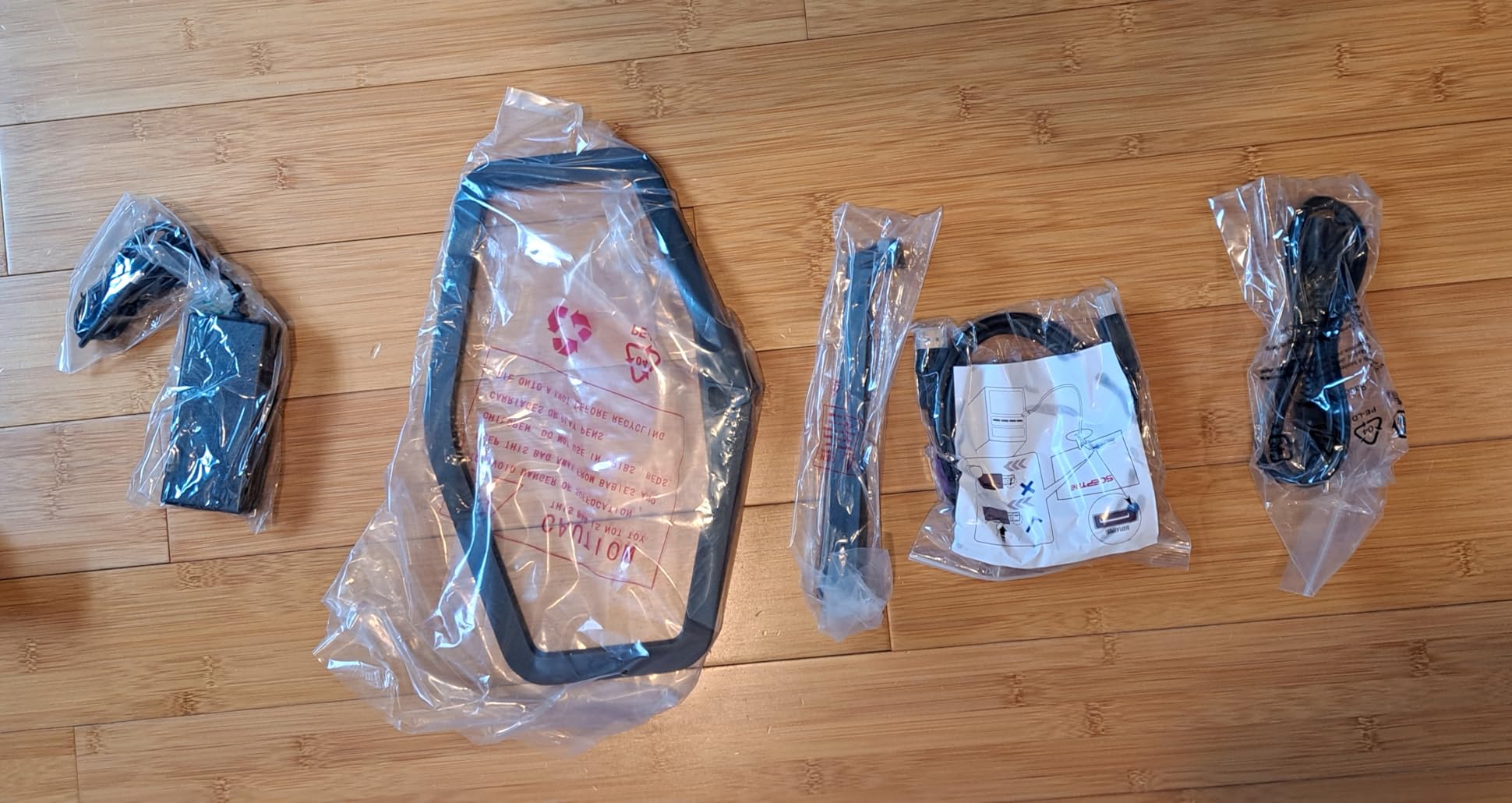
There is also Blue-Light Shift for long sessions and a flat panel rather than a curve, which some people prefer for text-heavy office work. Colour coverage of 103% sRGB is adequate for general multimedia and business use.
The picture is the compromise, and it needs work. Blacks are washed out out of the box and the panel responds well to backlight, brightness and gamma tuning, and it is dim enough that turning on HDR did not improve perceived brightness for some users. Note that it is VA, not the IPS some listings suggest.
Who this ultrawide monitor suits
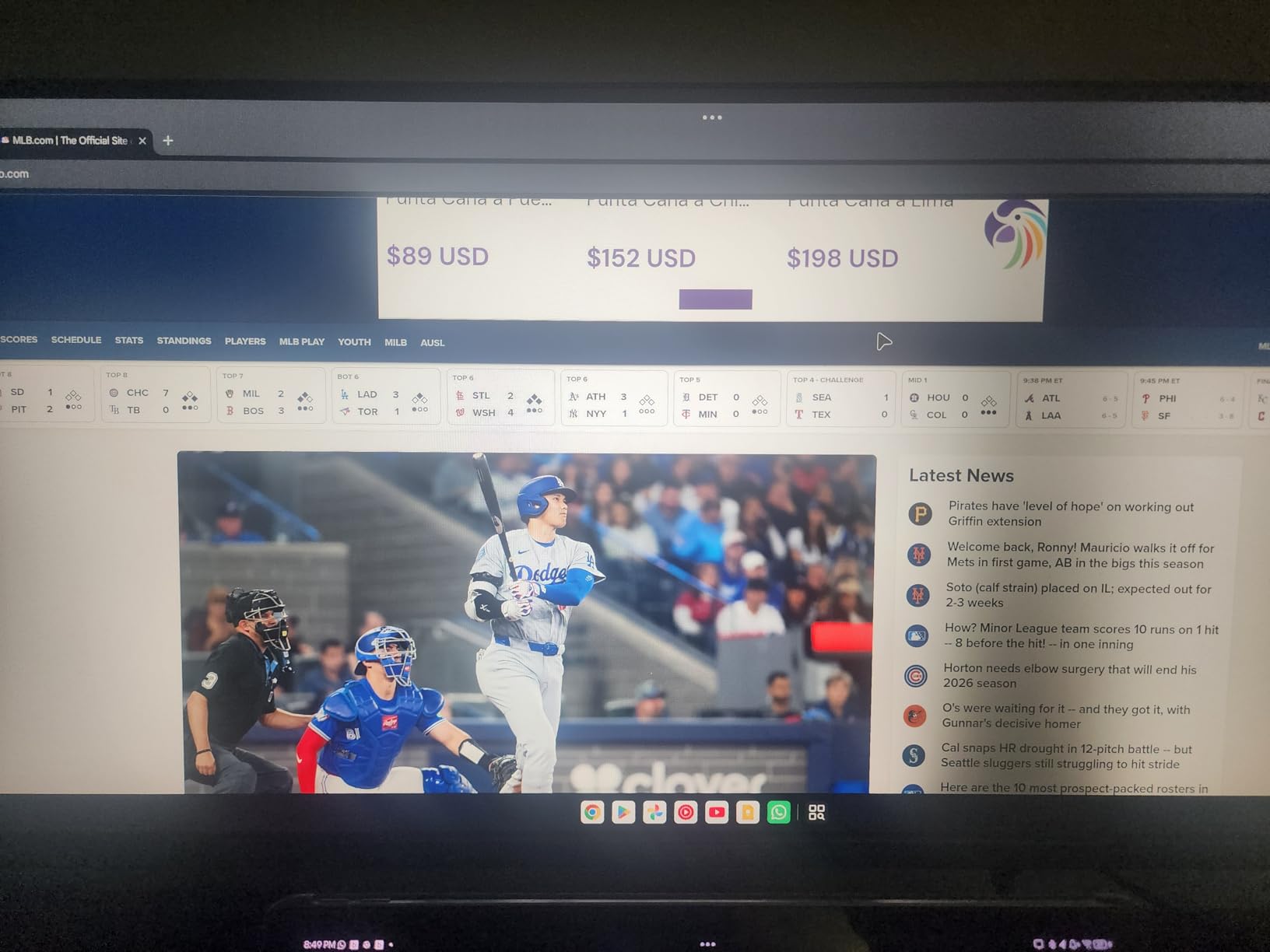
It suits a shared or multi-device desk where port count matters more than image quality. Anyone rotating between a work laptop, a gaming PC and a console will use all four inputs in a week, and the flat panel is a sensible choice for documents and spreadsheets.
Budget buyers who want a 3440×1440 canvas without OLED or high-refresh cost also land here comfortably.
Who should skip this ultrawide monitor
Skip it if image quality is the point. The washed-out blacks and dim output need real tuning before the panel looks acceptable in a dark room, and HDR will not rescue it.
Skip it if you take calls on the monitor, because the built-in speakers are widely criticised, and note that one owner reported sensitivity to static discharge causing temporary signal dropouts, which matters in a shared office.
11. ZZA 34-Inch Curved 3800R Ultrawide – Best as a Companion Display
ZZA 34 Inch Ultrawide Curved Monitor Built in Speakers 4K Gaming Computer Monitor 100Hz, WQHD(3440x1440P) Curved 3800R 21:9 Ultra Wide PC Display, 130% sRGB, HDMI &DP, VESA Mount Compatible-White
34 inch 3440x1440 curved 3800R at 100Hz
100 percent sRGB coverage
Built-in speakers, VESA mount
Pros
- Crisp clear picture that reviewers match to the listing
- Curved 3800R panel suits general productivity
- Sturdy stable build for the money
- Clean frameless white design
- Works well alongside a 32-inch display
Cons
- Weak built-in speaker output
- Average picture beaten by pricier panels
- Stand is not height adjustable
- Only one HDMI port
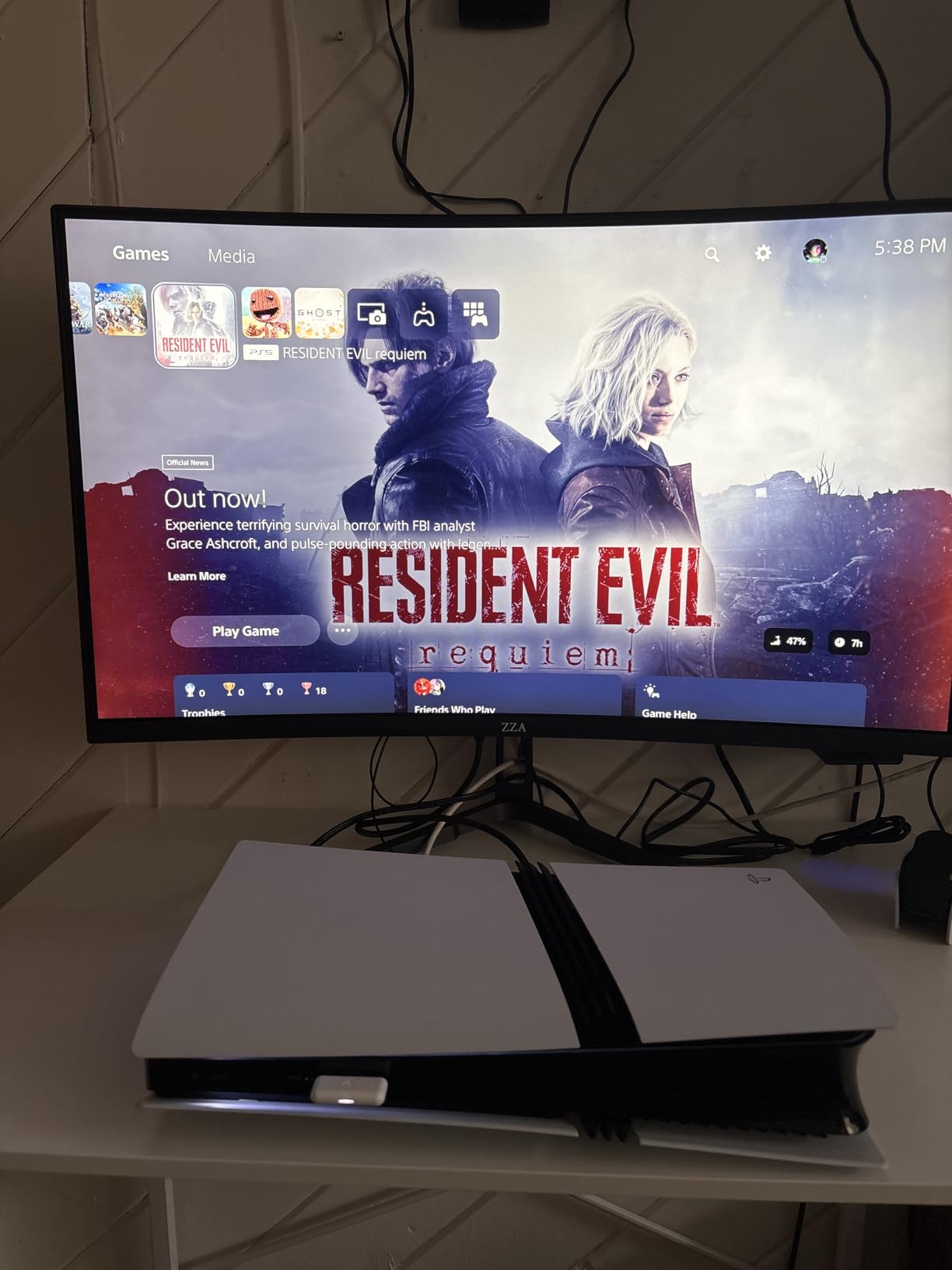
The ZZA 34-inch is the odd one out in this roundup, and in a useful way. Rather than competing as a primary work display, its owners tend to use it as a companion panel next to a 32-inch screen, where the 21:9 width and frameless white design split work and reference material cleanly.
Picture quality is described as consistently crisp, matching what the listing claims, and the 3800R curve is gentle enough that it reads as a normal monitor rather than a gaming panel. Colour coverage is 100% sRGB with 130% stated in the broader listing, which is fine for multimedia and business documents.
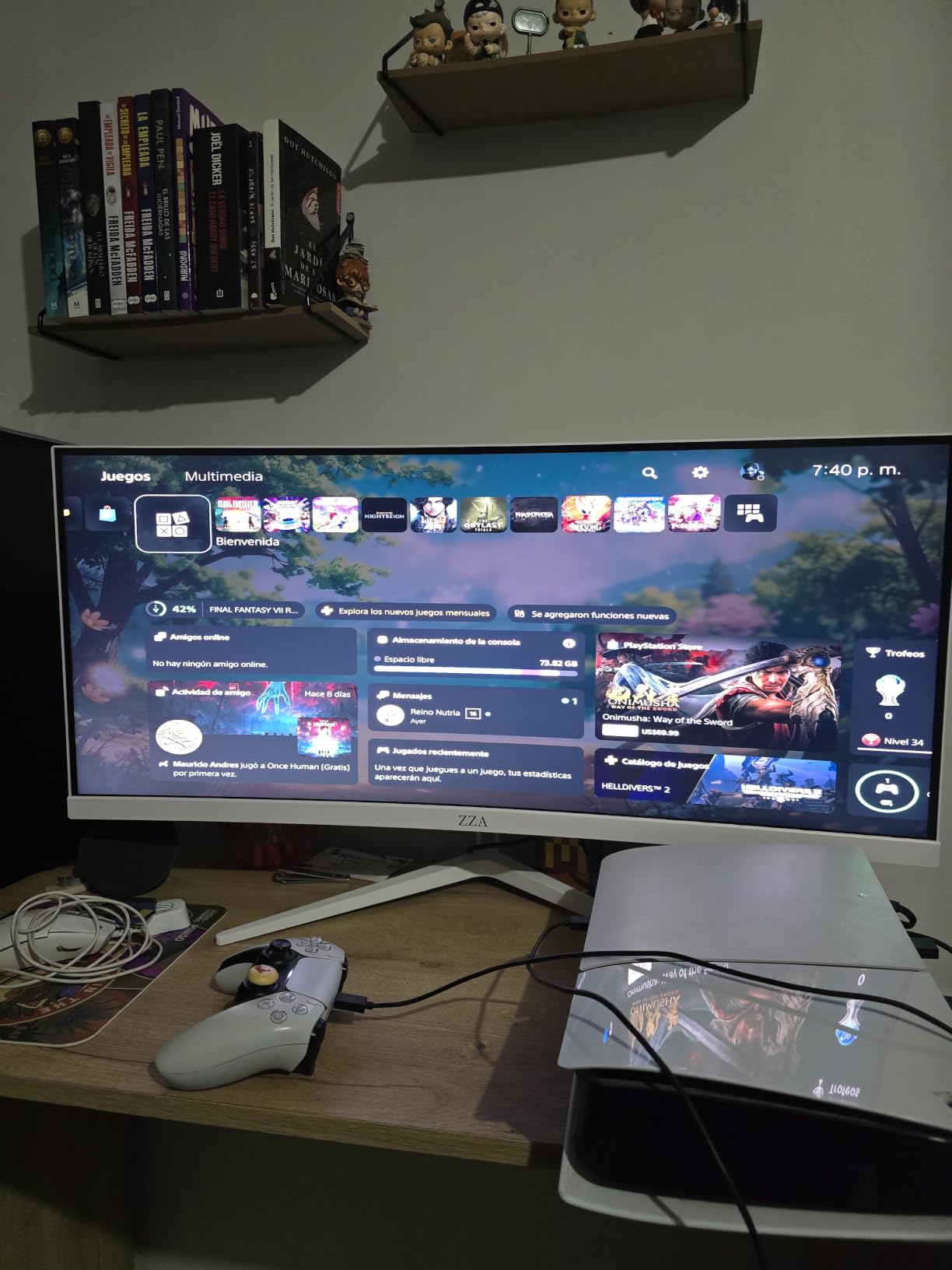
At 100Hz with FreeSync and a 0.1ms response figure, it is not a gaming-first choice, but for documents, browsing and reference windows during a working day, refresh rate barely matters.
Buyers rate the stability of the build highly for the money, and the frameless white design is a deliberate departure from the black gaming aesthetic. Just be aware the stand has one height position and there is only a single HDMI port alongside DisplayPort.
Who this ultrawide monitor suits
It suits people building a two-screen desk on a budget, where the second panel needs to be wide, tidy and stable rather than fast. A white frameless chassis also suits a light-coloured office better than the standard black gaming panel.
Reference-work users will like it, since 3440×1440 gives a long document or web page a home that a 16:9 panel cannot.
Who should skip this ultrawide monitor
Skip it if image quality is what you are paying for. Reviewers say the picture is average and beaten by more expensive panels, and there is no HDR story or wide gamut to lift it.
Skip it for audio and for cabling flexibility. The built-in speakers are weak, and with one HDMI port you will be swapping cables rather than leaving devices connected.
12. CRUA 34-Inch 165Hz IPS Ultrawide – Best Value for Speed and Colour Accuracy
CRUA 34 Inch 165Hz UWQHD IPS Ultrawide Gaming Monitor, Speakers, PIP/PBP
34 inch 3440x1440 flat IPS at 165Hz
120 percent sRGB, 380 cd brightness
PIP and PBP dual-screen modes
Pros
- Real 165Hz IPS ultrawide at a low price
- 120 percent sRGB and 380 cd brightness
- Two HDMI and two DisplayPort inputs
- PIP and PBP cover dual-source multitasking
- Solid metal stand with 75x75mm VESA
Cons
- No height or swivel adjustment and limited tilt
- Bezels are not actually bezel-less
- Awkward OSD button layout
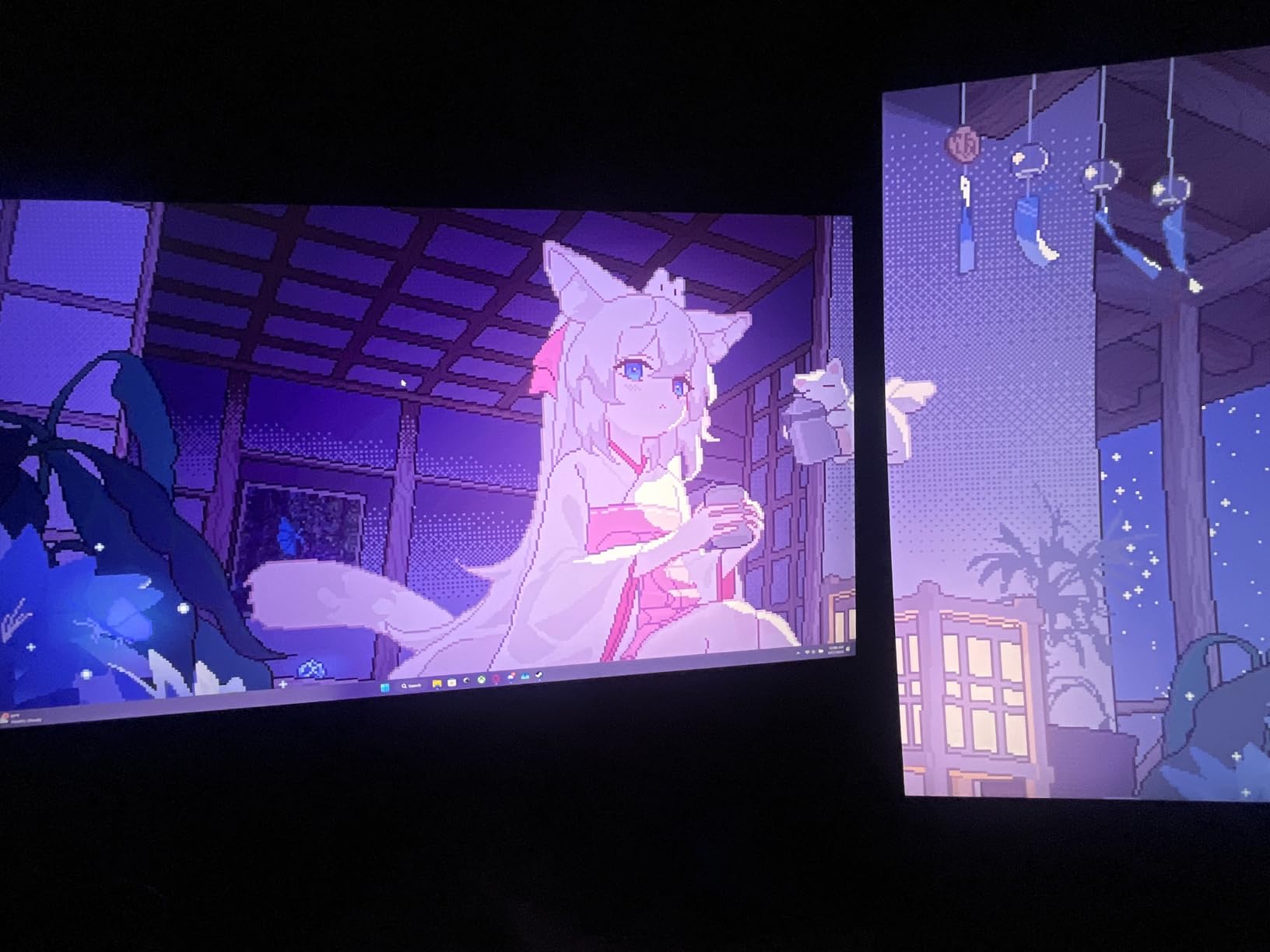
The CRUA CR340G is unusual in this list because it is the only true IPS panel here, and that matters for a desk where the screen stays on all day. IPS gives you stable, accurate colour and consistent viewing angles without the smearing that every VA panel in this roundup shows on dark transitions.
Buyers are enthusiastic about getting a genuine 165Hz IPS ultrawide at this price, with solid colour and no dead pixels reported. At 120% sRGB and 380 cd brightness it handles both creative colour work and bright-room productivity.

For multitasking, PIP and PBP dual-screen modes let you run two sources at once, and two HDMI 2.0 plus two DisplayPort 1.4 inputs mean a desktop and a laptop stay connected permanently. The flat panel is also easier to place beside a second display than a curved one.
The ergonomics are the weak point. The stand has no height or swivel adjustment and a limited tilt range, so most owners end up needing a monitor arm to get the panel to eye level, and the promotional bezel-less claim is inaccurate with bezels closer to a quarter inch than the images suggest.
Who this ultrawide monitor suits
It suits programmers and readers who will stare at text for hours and would rather not deal with OLED burn-in or VA smearing. An IPS panel with stable viewing angles also makes it usable in a shared office where someone sits off to the side.
Light creative work is in range too, given 120% sRGB coverage and 8-bit colour depth, and gamers get a real 165Hz over DisplayPort with FreeSync.
Who should skip this ultrawide monitor
Skip it if you want a clean three-sided bezel-less look, because the frames are visible and the marketing is misleading. It also needs an arm to sit at the right height, which adds a cost most budget buyers were not planning for.
Quality control is mixed. Multiple owners needed power-cycling to restore input connections, one reported audio not working as advertised, and a few arrived missing a stand screw, though support replaced it quickly. HDR support here is minimal and is not advertised as a feature.
One Ultrawide vs Two Monitors: Which Is Better for Multitasking?
One ultrawide beats two monitors when you constantly cross-reference between windows, because a 32:9 panel is the width of two 16:9 screens with no bezel and no second cable. Two monitors win when you need genuinely different shapes, particularly a portrait panel for documents or code, because no ultrawide rotates.
The window-count maths is simple. A 34-inch 3440×1440 panel at 100% scaling splits comfortably into three 16:9-ish windows, and a 49-inch 5120×1440 splits into four. Two 27-inch 16:9 monitors give you two windows, unless you stack them, which gives you one very wide and one very tall – and that vertical shape is the one thing an ultrawide cannot imitate.
Physical constraints decide more cases than specs do. Owners on r/ultrawidemasterrace describe 49-inch panels demanding deep desks, with monitor arms sagging or screens sitting too far away to read comfortably, so measure your desk depth before committing to the big sizes. A 34-inch panel here is roughly 32 inches wide, so it fits most desks comfortably.
Our rule: if your work is horizontal, go ultrawide. If your work is vertical, keep two monitors and rotate one. Copy-and-paste-heavy document comparison, spreadsheet trading layouts and long coding sessions all go horizontal, and the window count is what pays for the switch.
One more consideration is cables and power. One ultrawide means one power socket, one video cable and, with a USB-C panel like the Dell S3425DW, one lead for a laptop. Two monitors mean a KVM switch or a dock to make that tolerable, so the practical running cost of two screens is higher than it looks.
How to Choose an Ultrawide Monitor for Multitasking
Pick the size class that matches your desk, not your ambition
Choose 34-inch 3440×1440 for most desks, 38-inch 3840×1600 when you want extra vertical room, and 49-inch 5120×1440 only when you can sit a comfortable distance back. Everything from 40 to 41 inches sits in a middle band that most buyers treat as a step up from 34 rather than a step down from 49.
Are ultrawides actually good for productivity? In practice yes, for horizontal work, and the gain comes entirely from pixel width. A 49-inch 32:9 panel holds the same total pixels as two 27-inch QHD screens, which means nothing you currently read becomes smaller, only more of it stays visible.
Choose the panel for how long the screen stays static
IPS panels like the CRUA are the safest choice for all-day static office work, because they show no burn-in risk and no dark-transition smearing. VA panels dominate the rest of this list, with deeper contrast and higher brightness but visible smear on high-contrast transitions, which you will see every time a dark code editor sits beside a white document.
OLED wins on picture quality and nothing else for office work. If you choose a QD-OLED for an eight-hour desk day, turn on logo and taskbar detection and the screen saver immediately, and keep static toolbars off the panel.
Check the refresh rate against your GPU
Is 3440×1440 harder to run than 4K? Not meaningfully. A 3440×1440 panel at 165Hz asks for slightly more pixel throughput than a 4K panel at 60Hz, and Display Stream Compression handles the bandwidth on a single modern cable, so a mid-range card drives it comfortably. A 5120×1440 panel at 144Hz is a genuine step up and wants a stronger card.
For productivity alone, 100 to 120Hz is enough. Notice the difference between 100 and 165Hz in window dragging only if you have used high refresh, so do not pay for headroom you will not use.
Check USB-C wattage and true KVM before anything else
A single-cable setup needs at least 65W to charge most business laptops, and 90W or more if yours is a larger workstation machine. Panels in this roundup that deliver it over USB-C are the Dell S3425DW and the LG 34WR55QK-B, both rated at 65W, which covers ultraportables and thin-and-light machines but not every full-size laptop.
Multiple video inputs are not the same as a KVM switch. Having three inputs means you can leave three devices plugged in, but you still swap sources with a button. A true KVM moves your keyboard, mouse and any attached USB peripherals between machines at the same time, and very few ultrawides in this price range include one. If you alternate between a work laptop and a desktop daily, budget for a small KVM or a USB switch.
Set up window management before you judge the screen
What are some ultrawide monitors that can split screen? Every one of these, using the tiling tools your operating system already has. On Windows, use Snap Layouts by hovering over a maximise button, then pick a three-column or quarter split that matches the 21:9 ratio. For finer control, PowerToys FancyZones gives you custom zones, per-monitor layouts and keyboard-driven window shuffling.
On macOS, use Split View through the green window button and drag the divider to create thirds rather than halves, which matches a 21:9 panel far better. Stage Manager works too, though it stacks windows rather than tiling them, and some applications handle ultra-wide layouts poorly. Whichever system you use, set the display scaling before you judge text size.
Budget for depth, arms and scaling
A 49-inch panel sits far closer to you than a 34-inch one, so desk depth decides whether it is readable or not. At 28.4 and 34.4 pounds the two 49-inch models here also need a monitor arm rated well above a typical dual-screen load limit. Check the arm’s load rating before buying a 49-inch, and confirm your desk is deep enough to slide the panel back from the edge.
For scaling, 3440×1440 on a 34-inch panel usually sits at 100% on Windows and looks correct. A 5120×1440 panel on 49 inches is wide enough that 100% makes text small, so 125% is the more comfortable setting for all-day reading, which is a real argument for the 34-inch class if you work on dense spreadsheets.
Frequently Asked Questions
What is the best ultrawide monitor for multitasking?
For most desks the best ultrawide monitor for multitasking is a 34-inch 3440×1440 panel, because it splits cleanly into three readable windows at 100% scaling. Choose a VA panel for contrast if you game, an IPS panel if you read all day, and prioritise USB-C with 65W or more if a laptop docks to it.
Are ultrawide monitors good for productivity?
Yes, for horizontal work. A 49-inch 5120×1440 panel holds the same pixel count as two 27-inch monitors, so a document, spreadsheet, browser and chat client can all stay visible without shrinking. Productivity drops for vertical work, which is why portrait documents and CAD are better served by a rotated second monitor.
Is 3440×1440 harder to run than 4K?
No. A 3440×1440 panel at 165Hz asks for slightly more pixel throughput than a 4K panel at 60Hz, and Display Stream Compression carries it on a single modern cable, so a mid-range graphics card drives it without trouble. A 5120×1440 panel at 144Hz is the demanding case and wants a stronger card.
Which ultrawide monitor is best for an office setting?
For an office, prioritise a flat or gently curved panel with blue light reduction and a height-adjustable stand. The Samsung ViewFinity S50GC has a TUV-certified ambient light sensor and flicker-free backlight, the Dell S3425DW docks a laptop over one 65W USB-C cable, and the CRUA panel is the only true IPS option for all-day text.
What is the best ultrawide for both productivity and gaming?
A 34-inch 3440×1440 panel at 165Hz or above handles both well. The ASUS TUF VG34VQL1B pairs 165Hz with FreeSync Premium and a three-year warranty, the Alienware AW3425DWM reaches 180Hz with DisplayHDR 400 and DCI-P3 coverage, and the SANSUI reaches 200Hz on a VA panel if refresh rate matters more than colour accuracy.
Why don’t pro gamers use ultrawide?
Some titles do not support ultrawide ratios natively, which pushes interface elements to the far edges or adds sidebars, and competitive shooters often standardise on 16:9 or 16:10 play. Broadcast and tournament rules also favour standard ratios, so many professional players keep a 16:9 primary display for practice and competition.
The Bottom Line
After working through 12 ultrawide monitors, the SANSUI 34-Inch 200Hz model is the best ultrawide monitor for multitasking overall, because a 3440×1440 VA panel at 200Hz is a combination nothing else here matches and 4649 ratings say it holds up in daily use. The ASUS TUF VG34VQL1B is the buy if ergonomics and warranty matter, and the Alienware AW3425DWM is the buy if you want the highest refresh in the 34-inch class alongside the widest colour coverage here.
Dock your laptop over USB-C and the Dell S3425DW becomes the pick. Read all day in a bright room and take the Samsung ViewFinity S50GC or the IPS CRUA. Need four windows of genuine screen real estate and own a deep desk, and the two Samsung Odyssey G9 panels wait at 49 inches.
Whichever you choose, set up your window tiling before you judge it, and check the Check Latest Price button for the current figure.